Follow MEDIA KOLFAT from its first launch to a verified organized collection. The examples use generated demonstration images and video, with independent backups. Every application image is a genuine native PNG from the installed Windows application.
Verified with MEDIA KOLFAT 2.0.0, build 2.0.0.0. Screenshots show the English interface. Counts change when the larger demonstration dataset is introduced; use your own counts when following the steps.
1. Start and understand the guidance
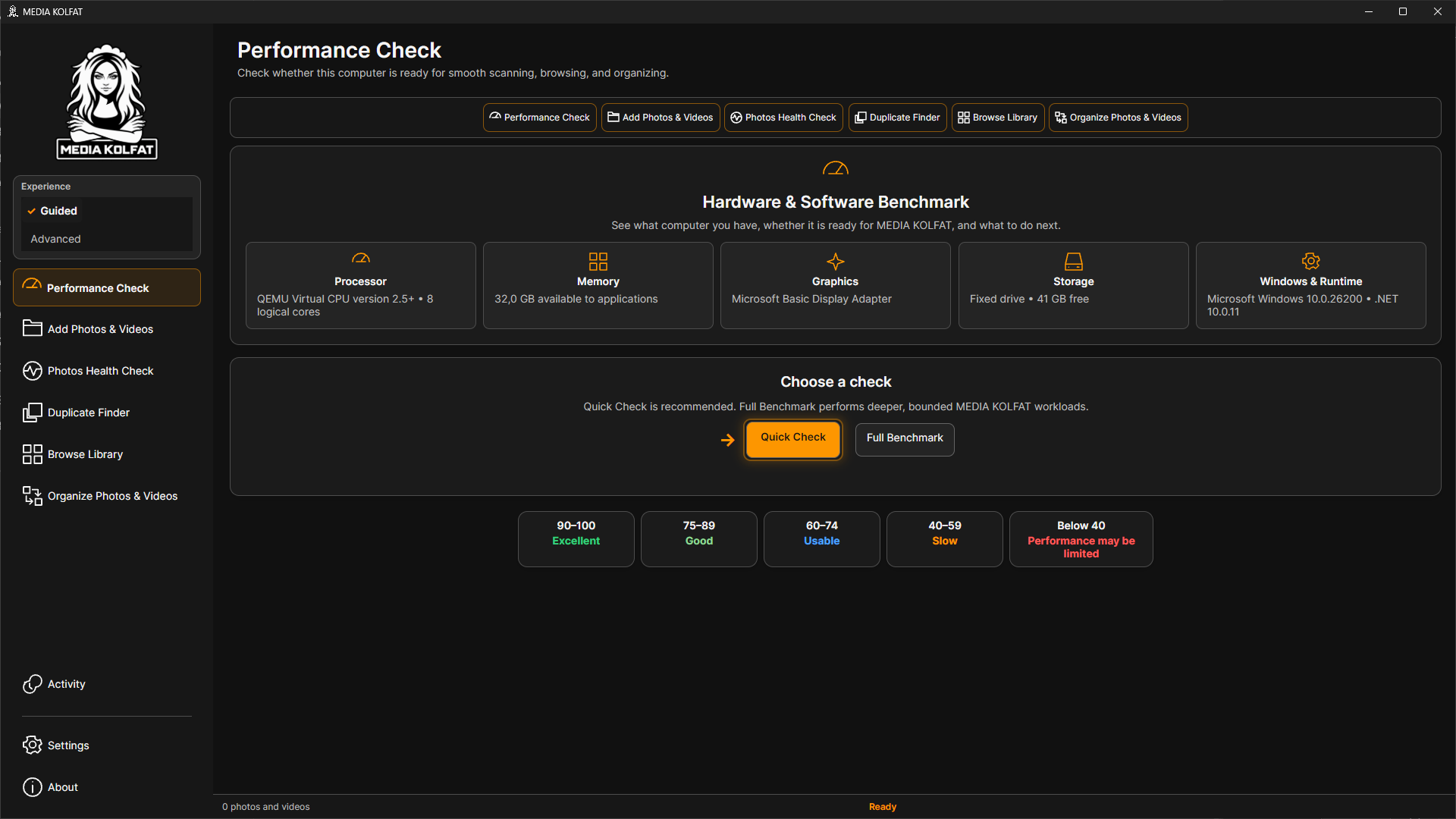
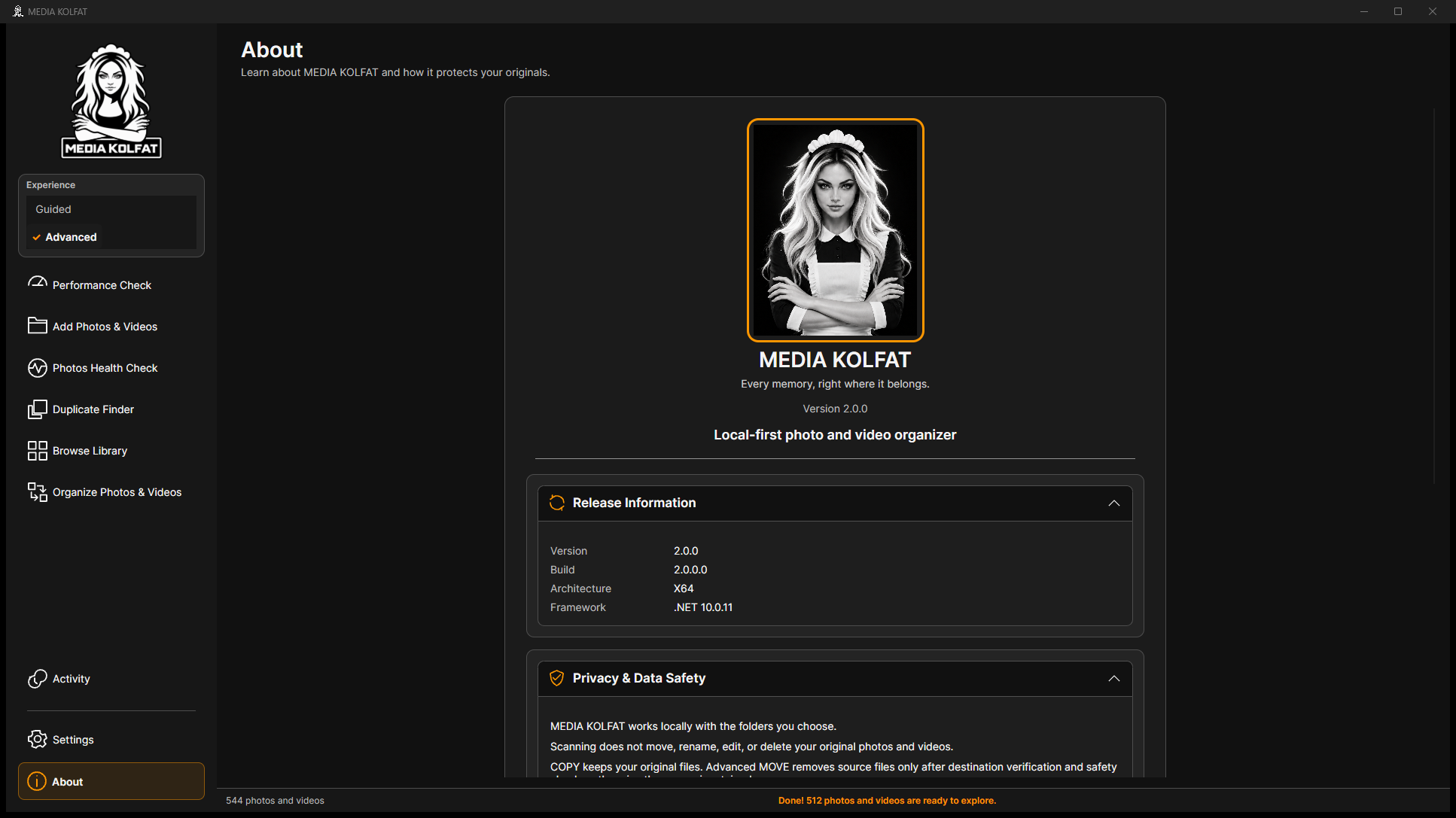
Open the installed MEDIA KOLFAT application. The sidebar gives access to Performance Check, Add Photos & Videos, Photos Health Check, Duplicate Finder, Browse Library, Organize Photos & Videos, Activity, Settings and About. Guided and Advanced are the two experience choices.
Step 1. Start with Guided selected in the Experience area. Follow the highlighted recommended action. The step strip uses neutral gray for upcoming work, amber or yellow emphasis for the current step, and green checks for completed steps.
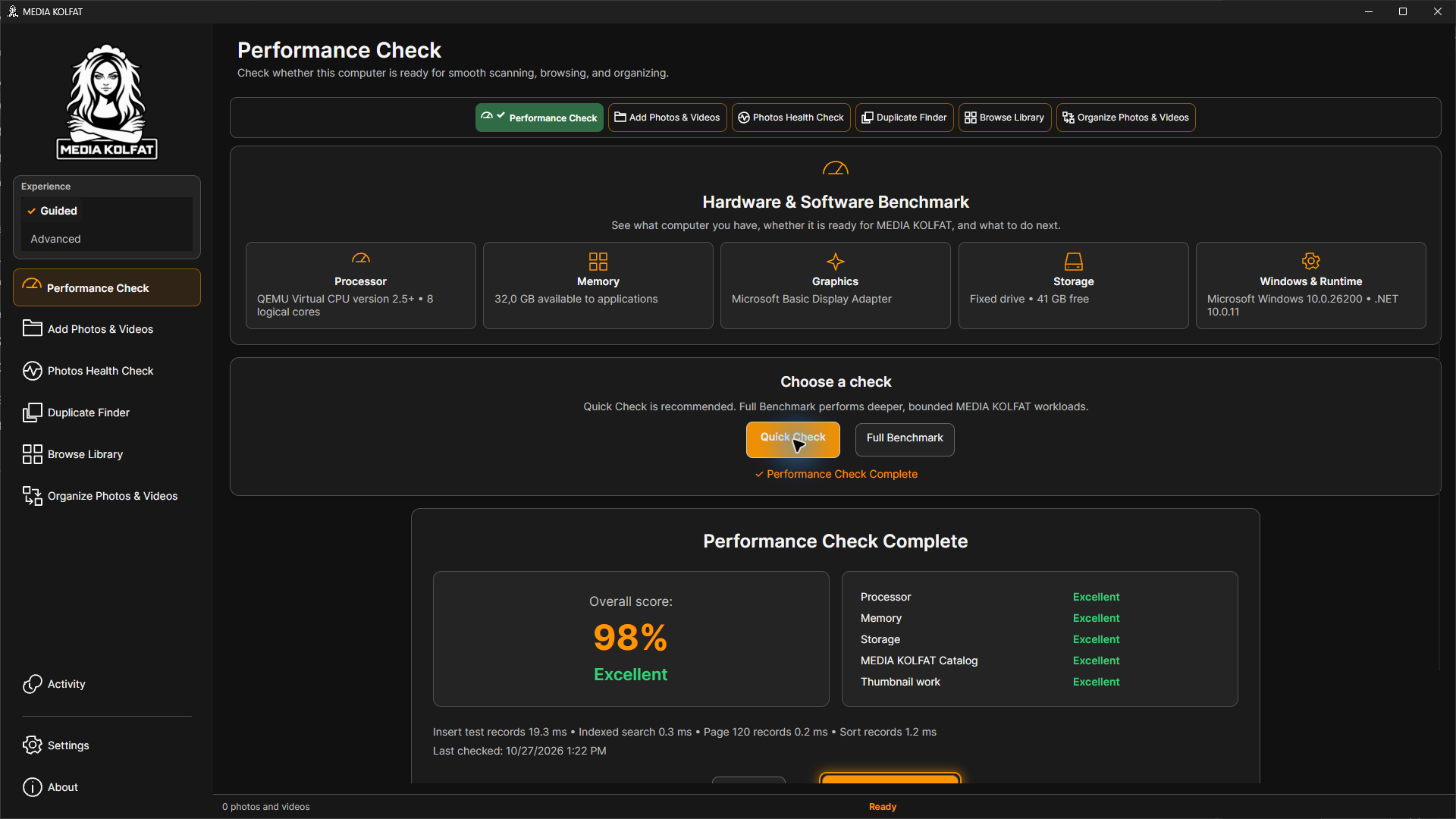
Step 2. Run Quick Check on Performance Check and wait for completion. Read the resulting score before continuing; the demonstrated computer scored 98 percent, and another computer can produce a different result.
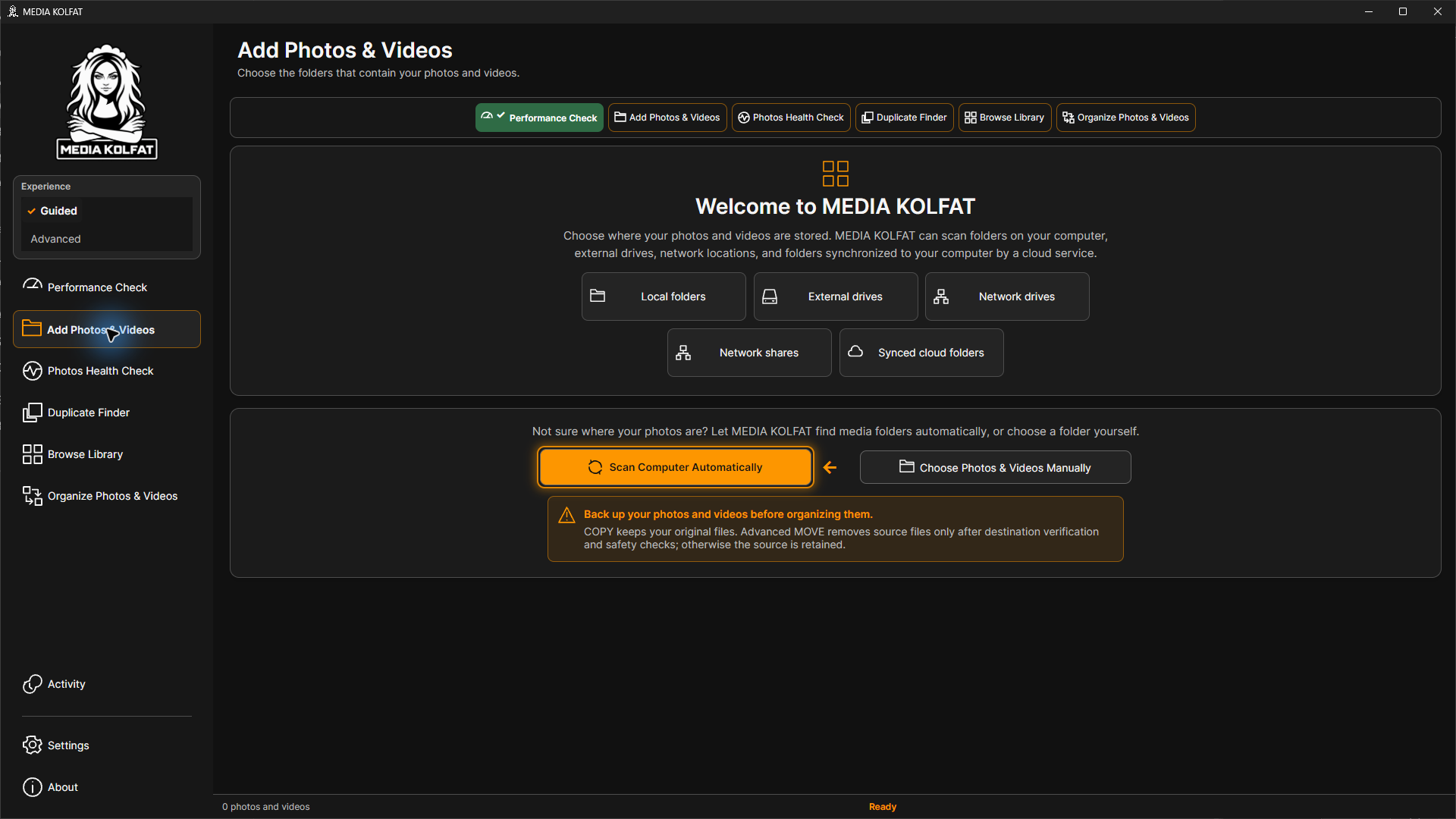
Step 3. Open Add Photos & Videos. The welcome choices are Scan Computer Automatically and Choose Photos & Videos Manually. Use manual selection when you already know the folder containing the media you want to add.
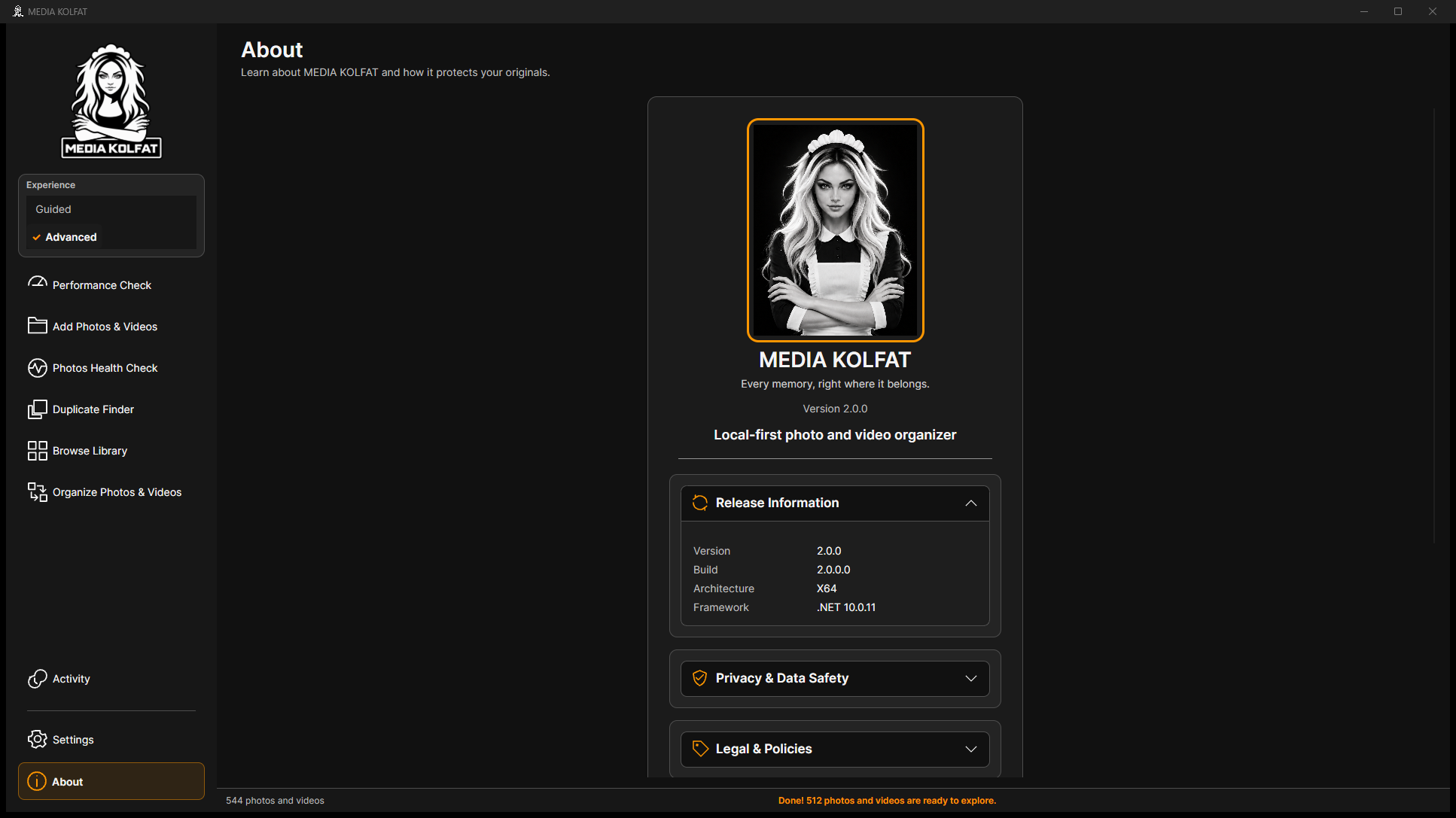
Step 4. Open About to check the installed version. Expand Release Information if necessary and read both Version and Build. Return to the required workflow using the sidebar.
Step 5. Expand Privacy & Data Safety. Read the distinction between scanning, COPY and Advanced MOVE, and keep an independent backup of important media.
The application's own privacy and safety explanation. Open original PNG
The animated arrow and glow point toward the recommended next action. Reduced motion and other guidance preferences are available in Settings.
Guided Mode helps with the order of tasks. Advanced Mode gives a more direct workflow and exposes MOVE when an organization plan is ready.
About also provides Legal & Policies, Support, Technical Information, Open-Source & Third-Party Licenses and Product Information panels. Expand the relevant panel when you need that information.
You can identify the installed release, navigate between pages, and recognize the current guided step.
A source is a folder registered in the local catalog. Adding or scanning a source indexes supported photos and videos. The worked example contains 14 generated JPEG files, two generated AVI files and one optional text file in nested folders.
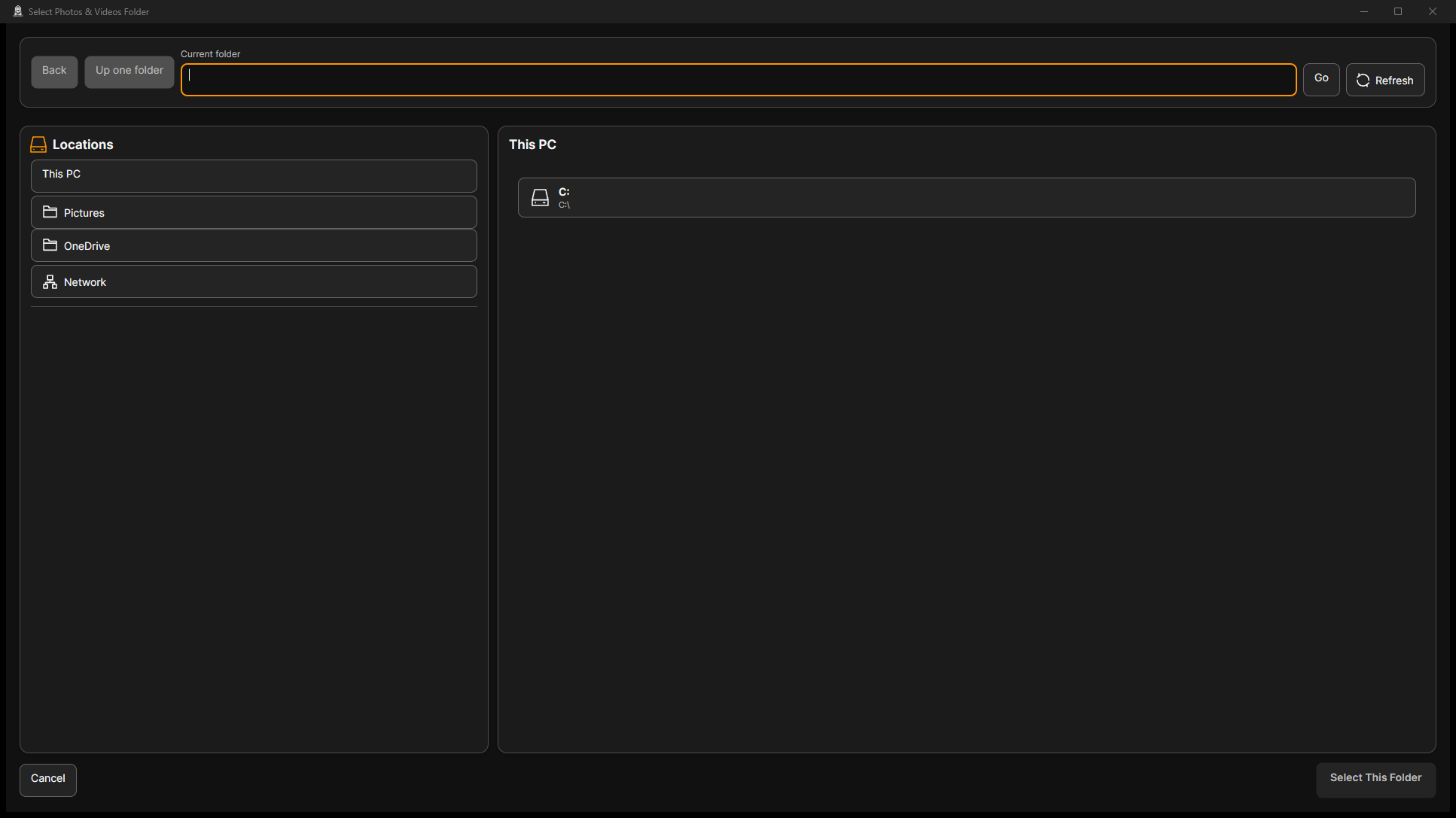
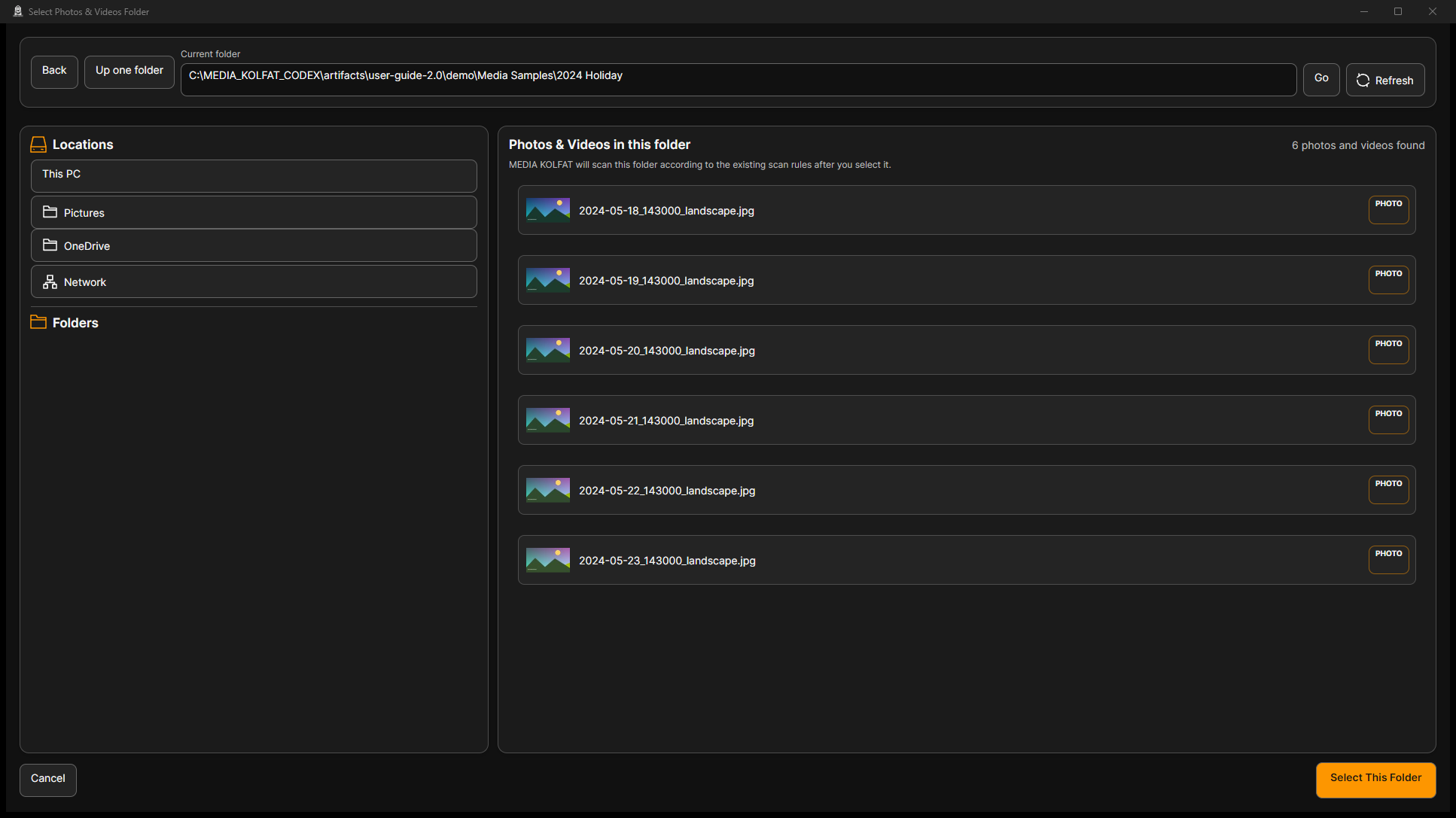
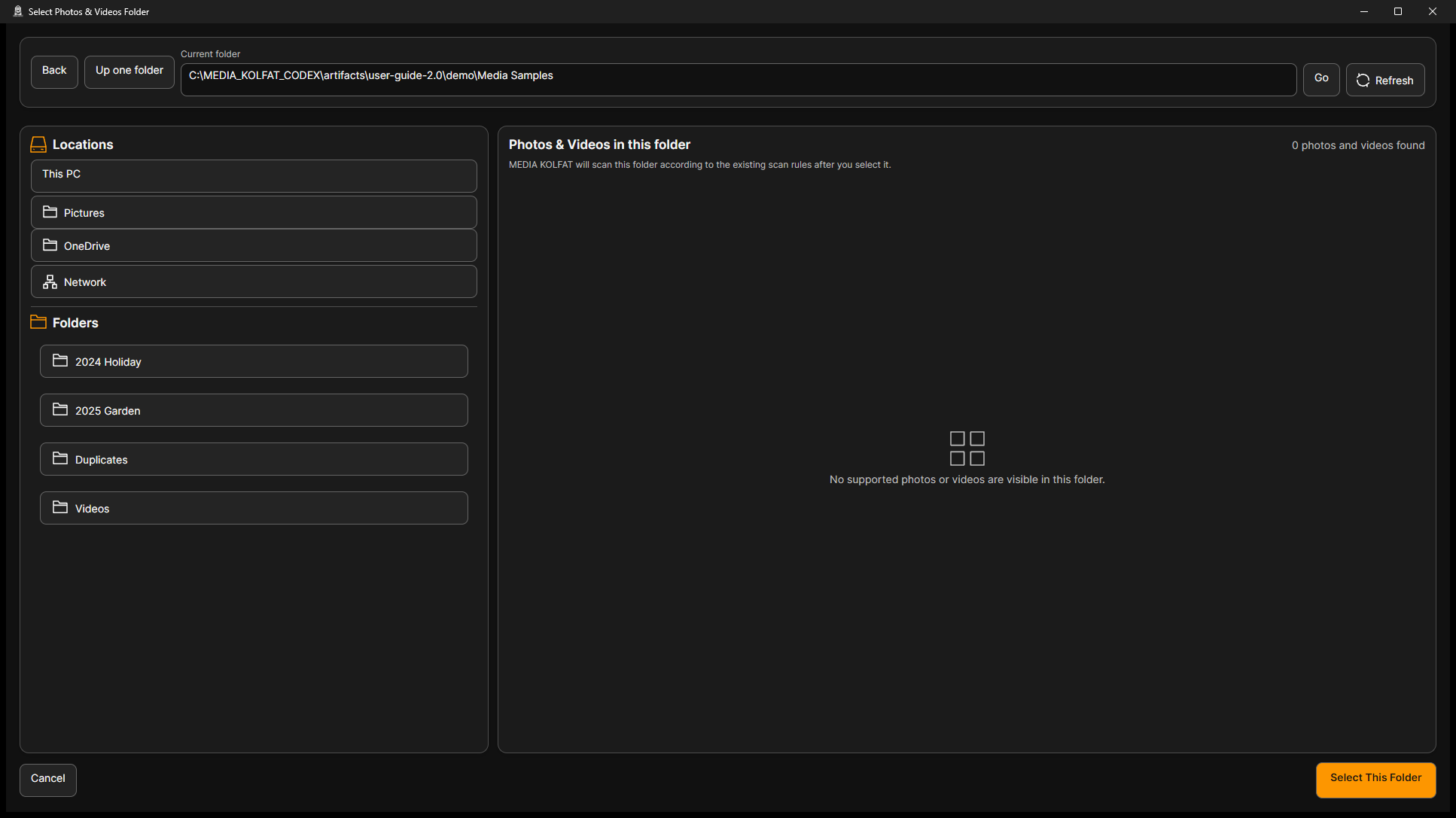
Step 1. Choose Choose Photos & Videos Manually. In the folder picker, review Current folder, Locations, Folders and Photos & Videos in this folder before selecting anything.
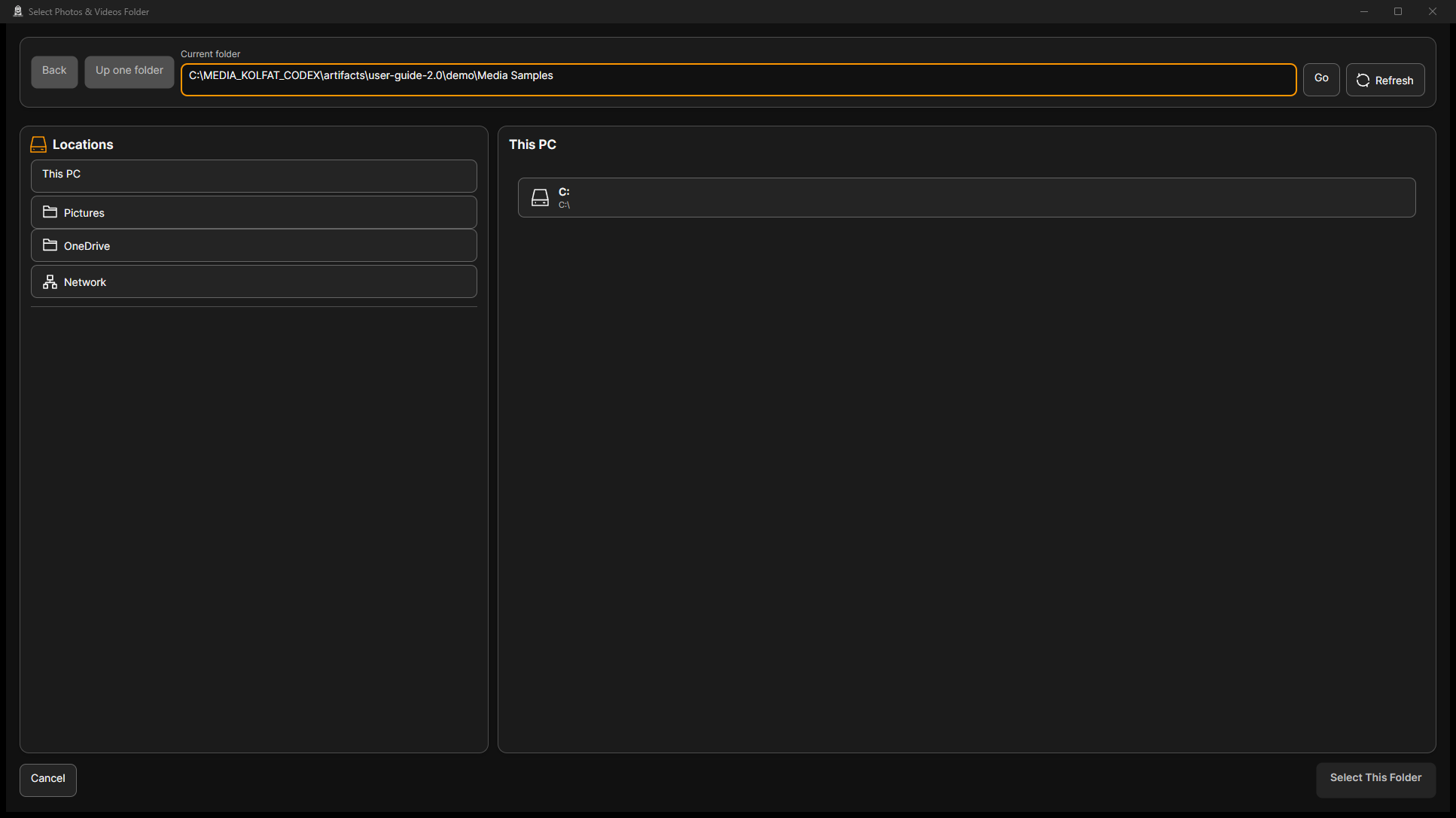
Step 2. Enter the full path of the folder you want to catalog into Current folder. In this demonstration the selected folder is Media Samples inside the disposable demo directory.
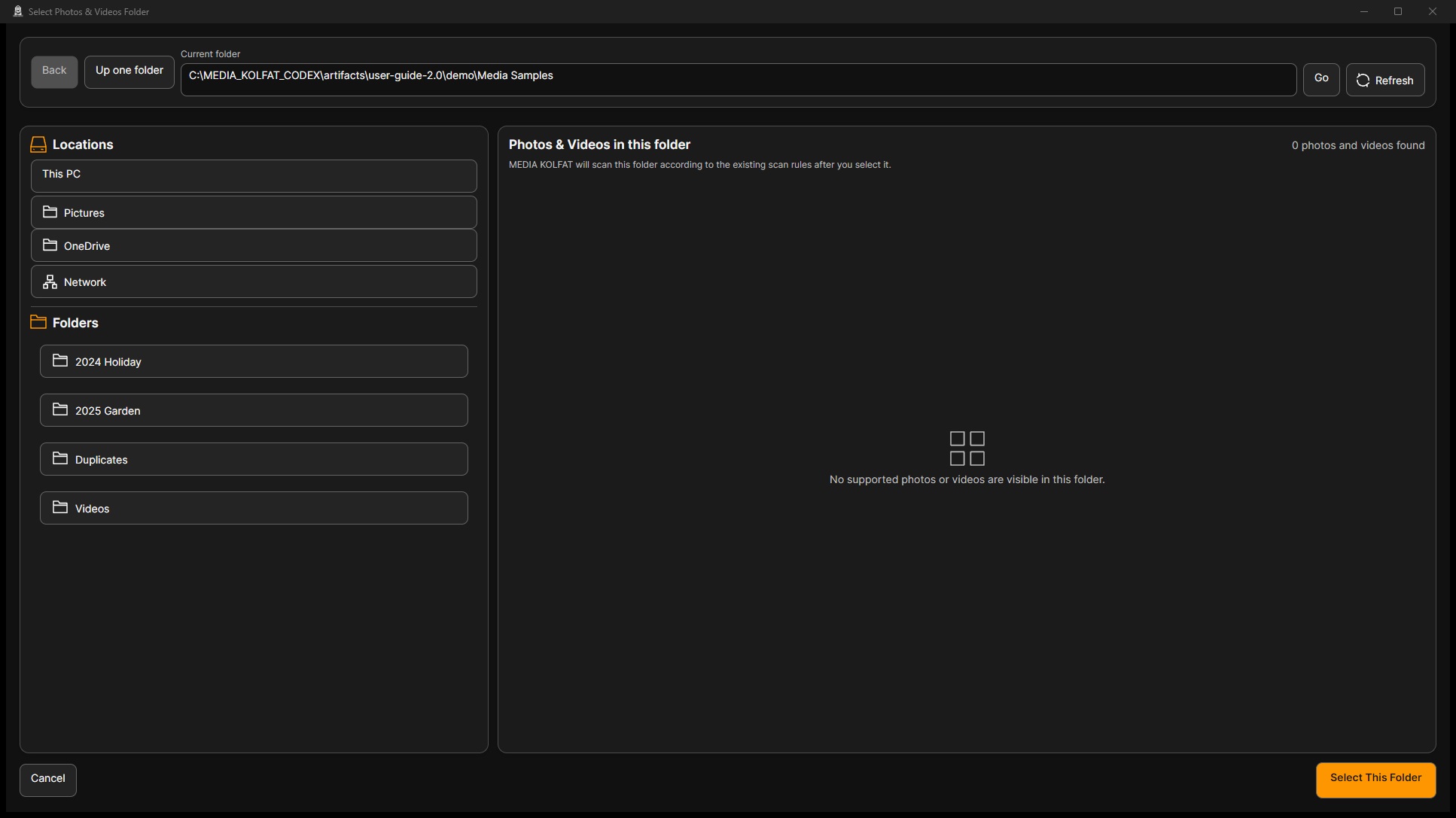
Step 3. Choose Go. Check the displayed folder path and the nested folder names. A parent folder can show no media directly even though its subfolders contain supported files.
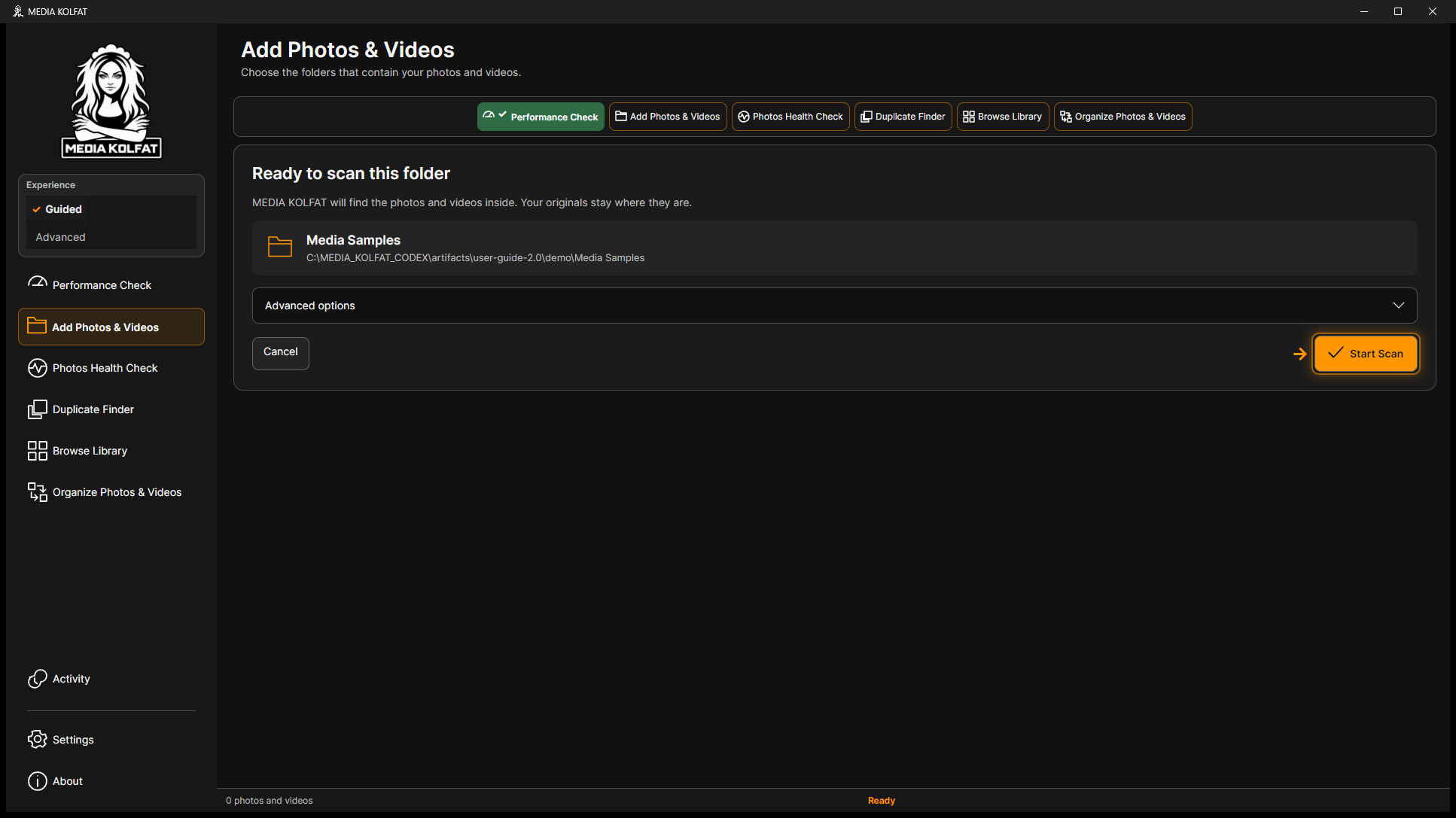
Step 6. Choose Select This Folder. Read the proposed folder name and full path on Ready to add this folder. Do not continue if the displayed source is different from the folder you intended.
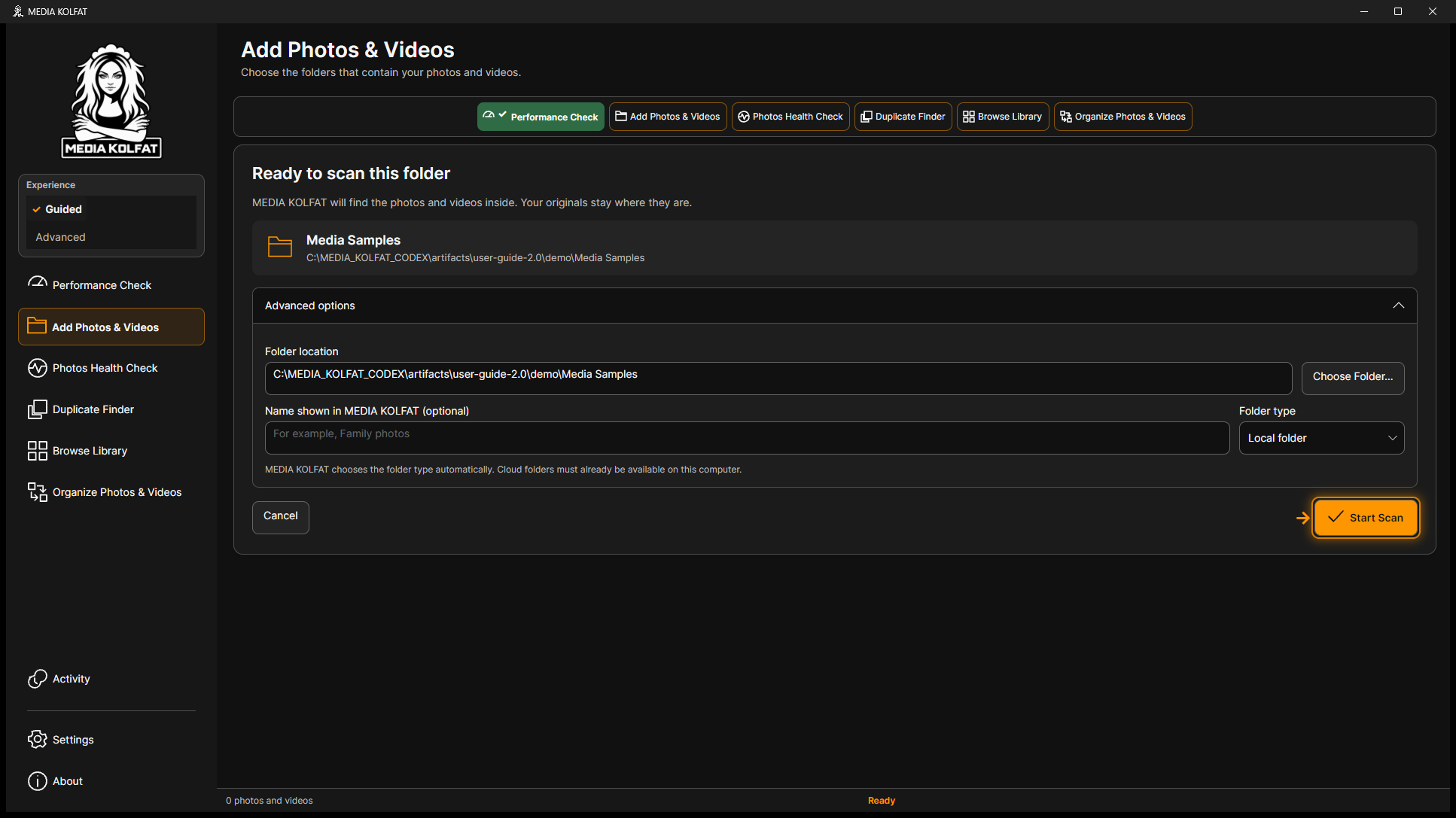
Step 7. Expand Advanced options when you need to review Folder location, the optional display name or Folder type. Cloud folders must already be available on this computer; choose a readable local path.
Optional source name and automatically chosen folder type. Open original PNG
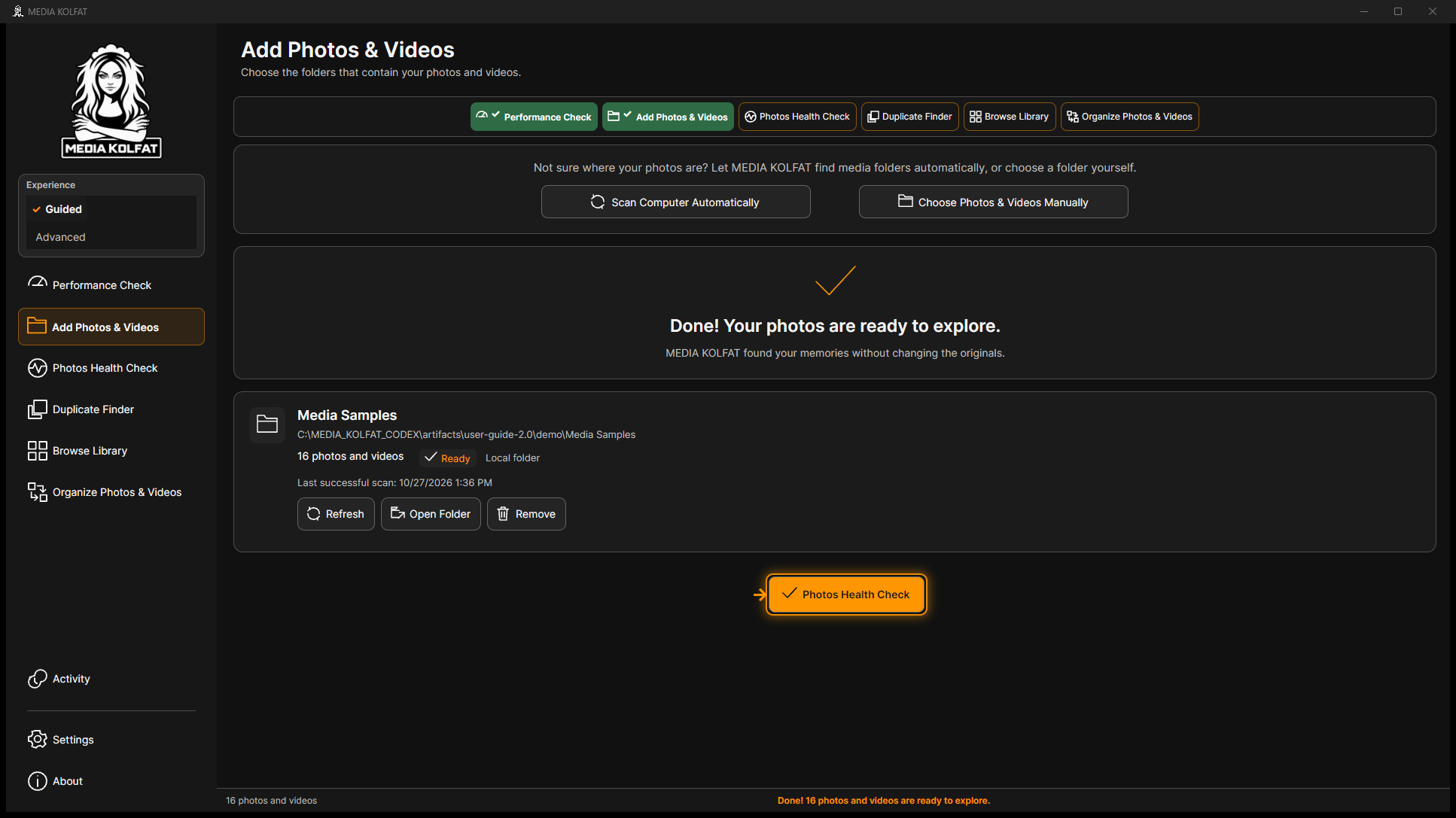
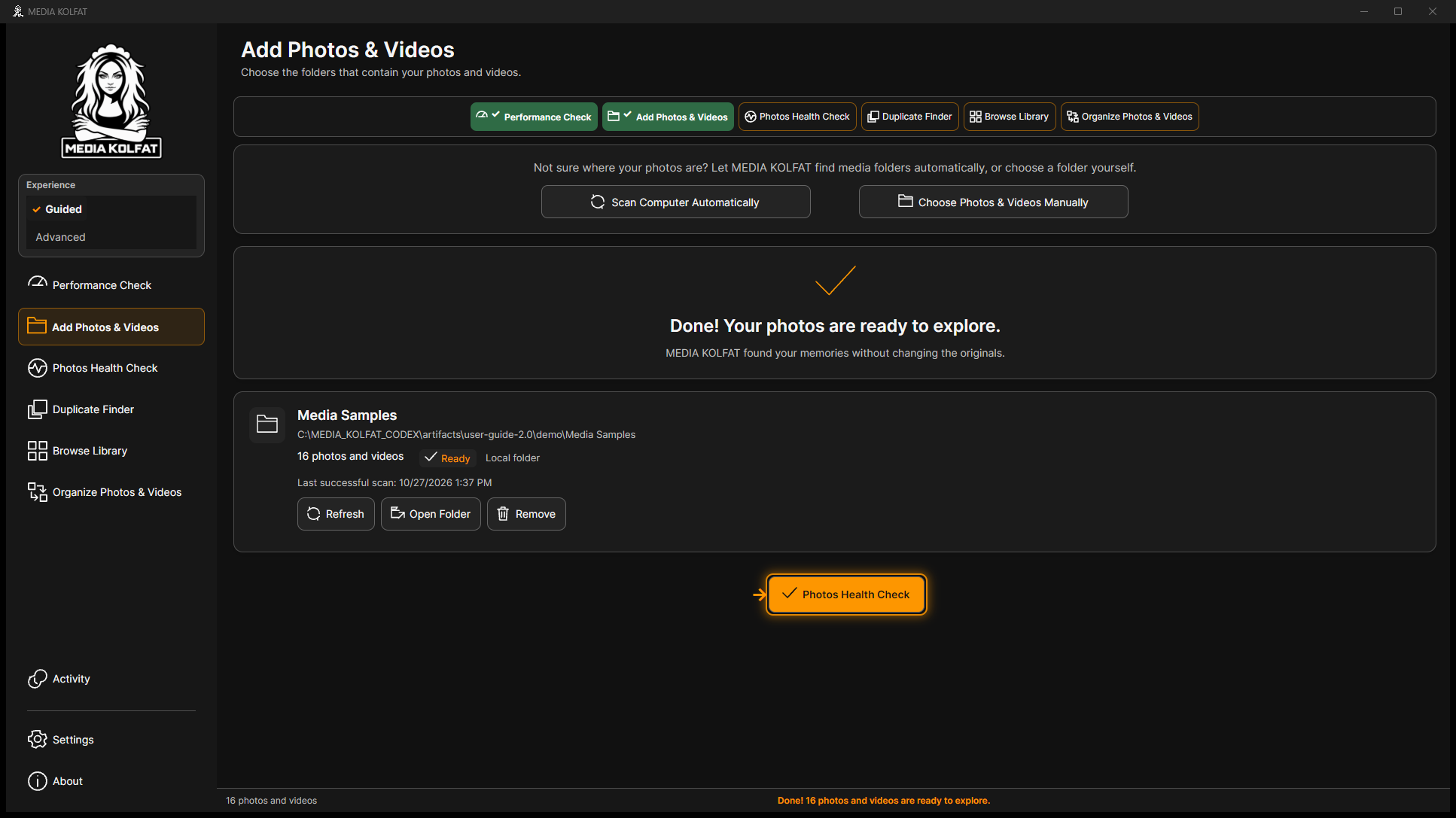
Step 8. Start the offered scan and wait for the source card to show Ready and a successful scan time. The first demonstrated source contains 16 supported media files; its text file is not indexed as media.
The demonstration scan completed with 16 photos and videos. Open original PNG
Step 9. Use Refresh on that source card when you want to scan it again. Check the refreshed status and successful scan time. Refreshing a source does not itself select it for organization.
For an additional folder, Advanced Mode can add it first and show Start Scan on its source card. Adding the first folder starts its initial scan in the demonstrated Guided workflow.
Always read Selected Folder again on the organizer. The tested interface keeps the organizer selection independently of a source-card Refresh action.
The intended folder is registered and its supported media appears in the catalog.
The source picker provides This PC, local folders and drives, Pictures, OneDrive and Network locations. Choose only locations you intend MEDIA KOLFAT to read. An external or USB drive must be connected and readable; a network location must already be accessible from Windows.
Step 1. Review Scan Computer Automatically before choosing it. It starts computer-wide discovery rather than offering a demonstration-folder limit. On a computer containing private media, use the manual choice when you need to restrict the scan to one known folder.
Automatic discovery and manual selection are separate choices. Open original PNG
Step 2. Use This PC for a readable drive or enter an exact local or network folder path in Current folder. The OneDrive shortcut refers to locally available files. If a provider or network connection is unavailable, make the files available through Windows before selecting the folder.
The actual location shortcuts and folder-path field. Open original PNG
Computer-wide automatic discovery was not executed during this demonstration because it would examine drives outside the disposable dataset. No automatic-discovery result is presented as tested.
No account sign-in or connected cloud state is implied by a location shortcut. The demonstration did not access personal Pictures, OneDrive, network shares or external media.
You can choose a source method that matches the location and the scope you intend to scan.
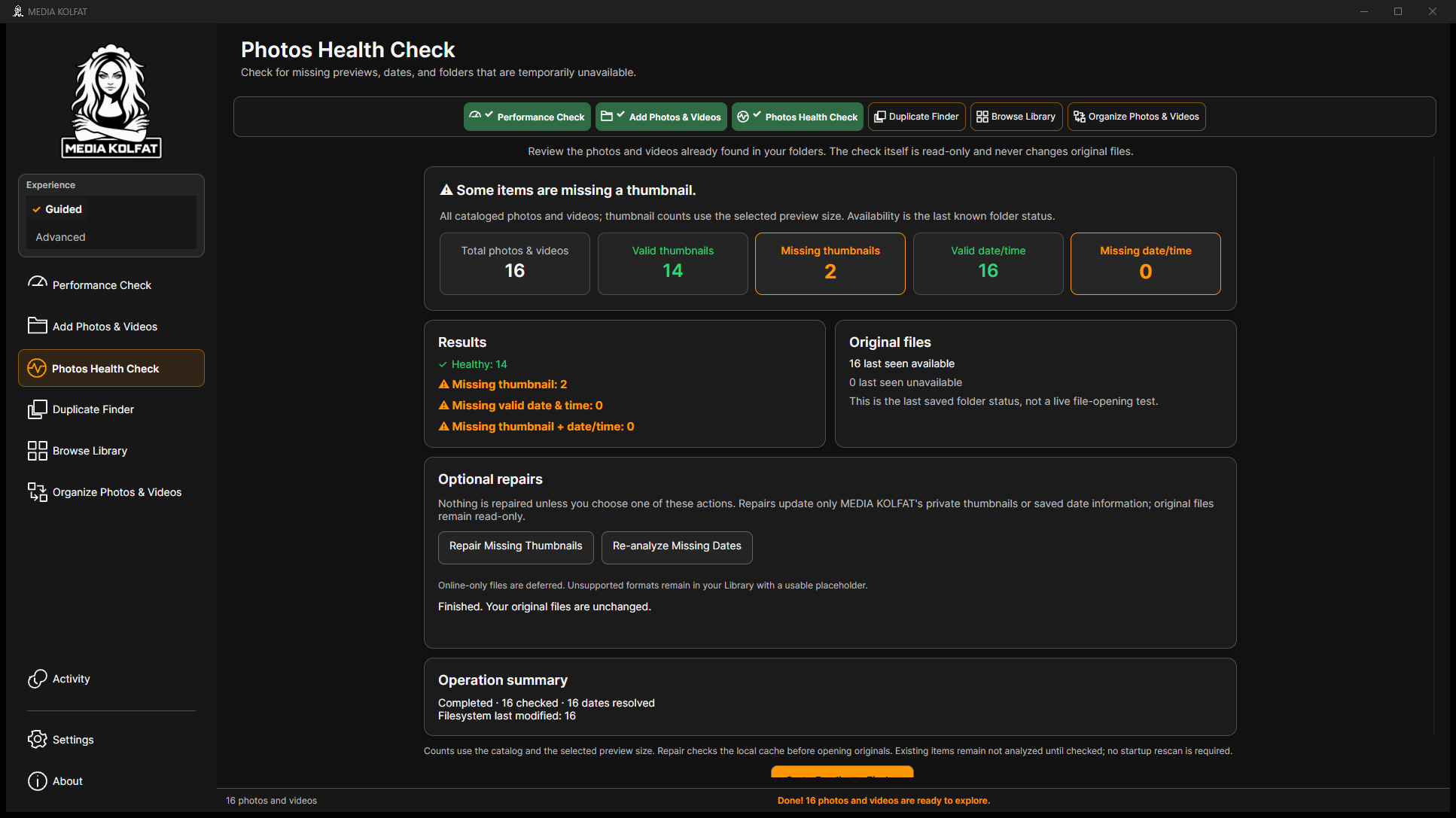
Open Photos Health Check after a source scan. Thumbnail health, media-date health and original-file availability answer different questions. A missing preview does not by itself mean the source file is missing.
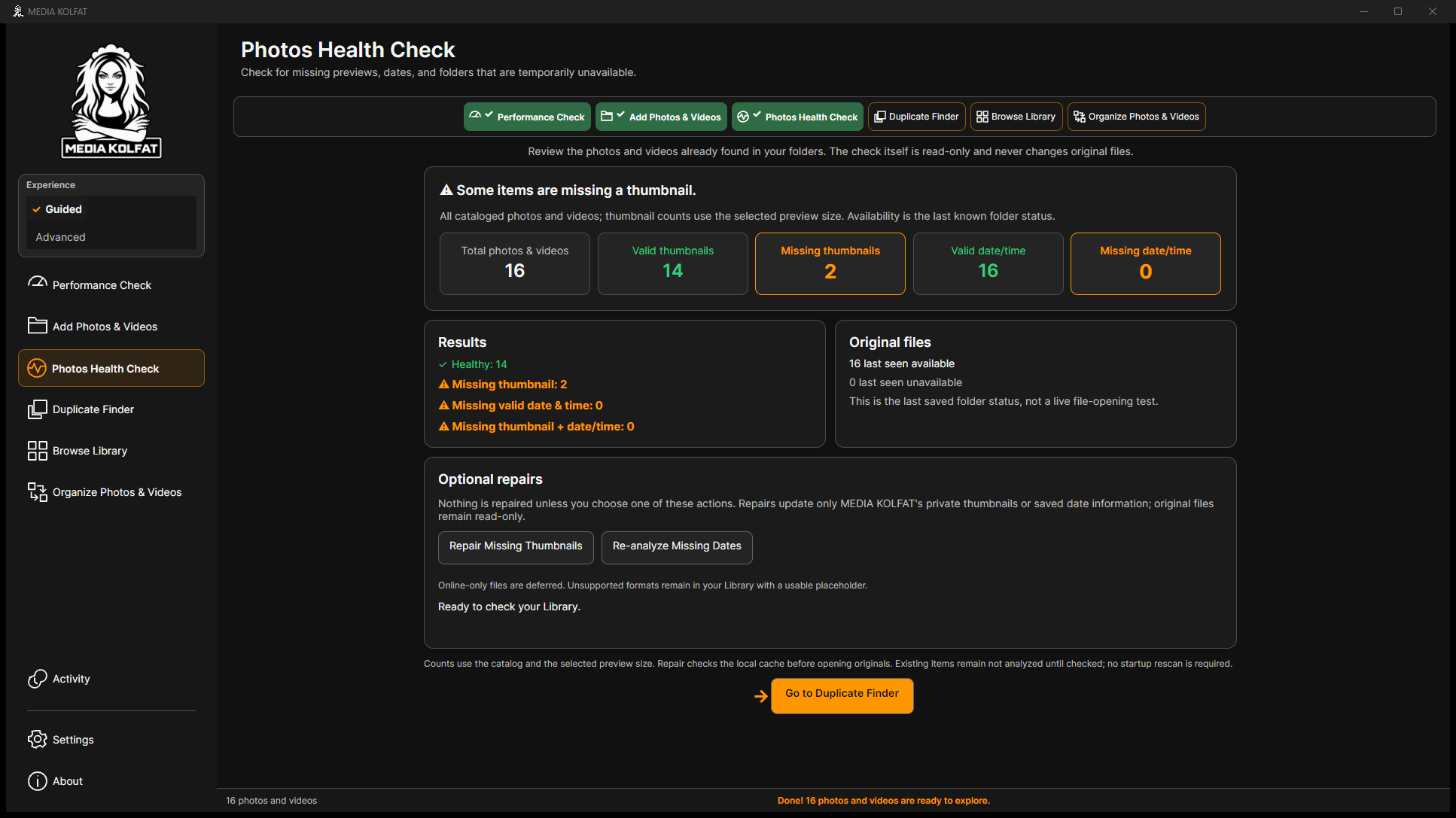
Step 1. Review the health totals. The small demonstration has 16 media files: 14 valid previews and two video preview issues, with all 16 originals last seen as available.
The actual health summary for the small demonstration library. Open original PNG
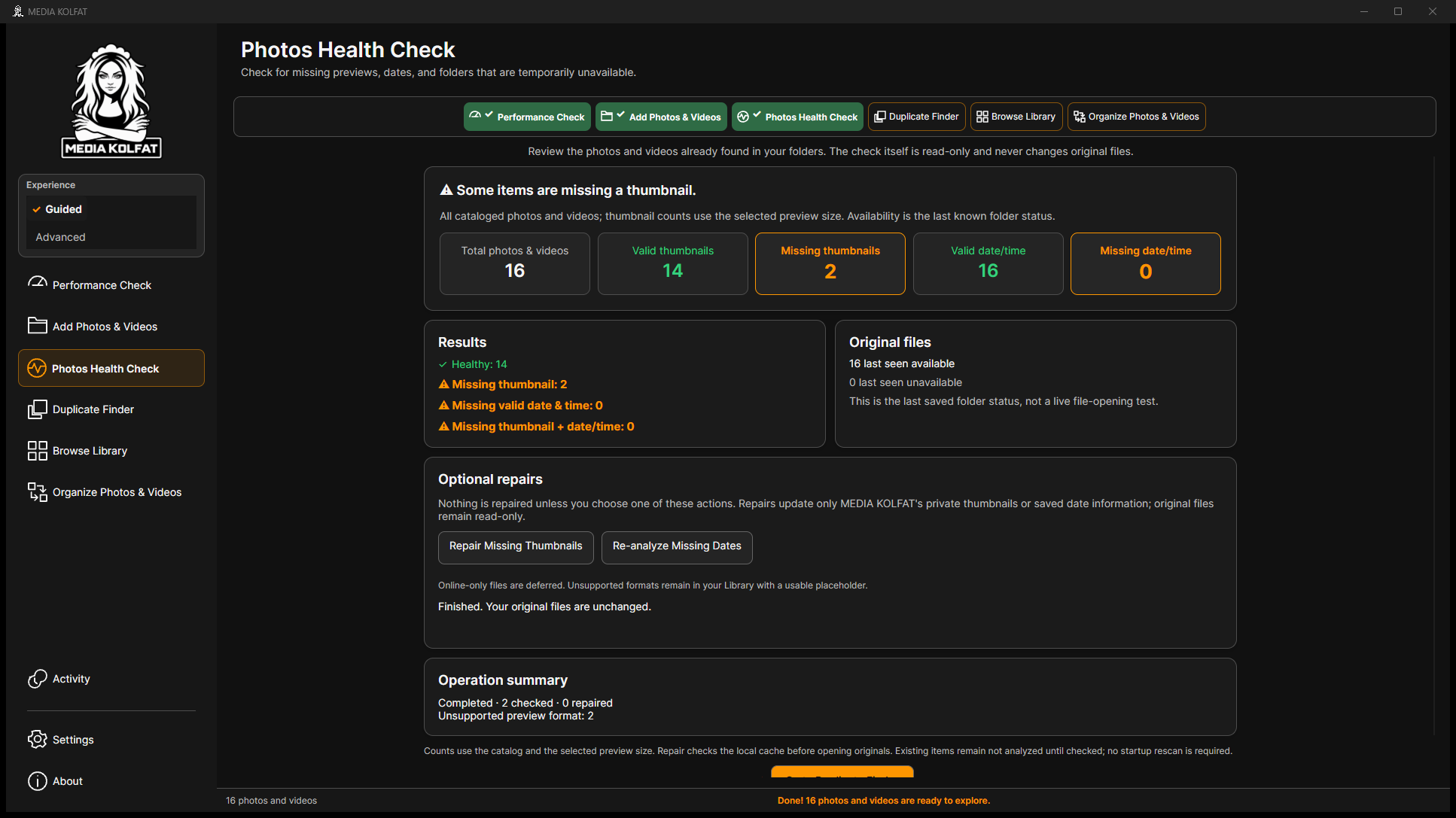
Step 2. Choose the explicit missing-thumbnail repair action and read its result. In this example two video items were checked, no previews were repaired, and both were reported as unsupported for preview generation.
Step 3. Run the offered missing-date reanalysis and inspect the evidence summary. Here all 16 dates resolved using Filesystem last modified. That is fallback evidence and can reflect copying or editing rather than capture time.
The real date-reanalysis result and its evidence source. Open original PNG
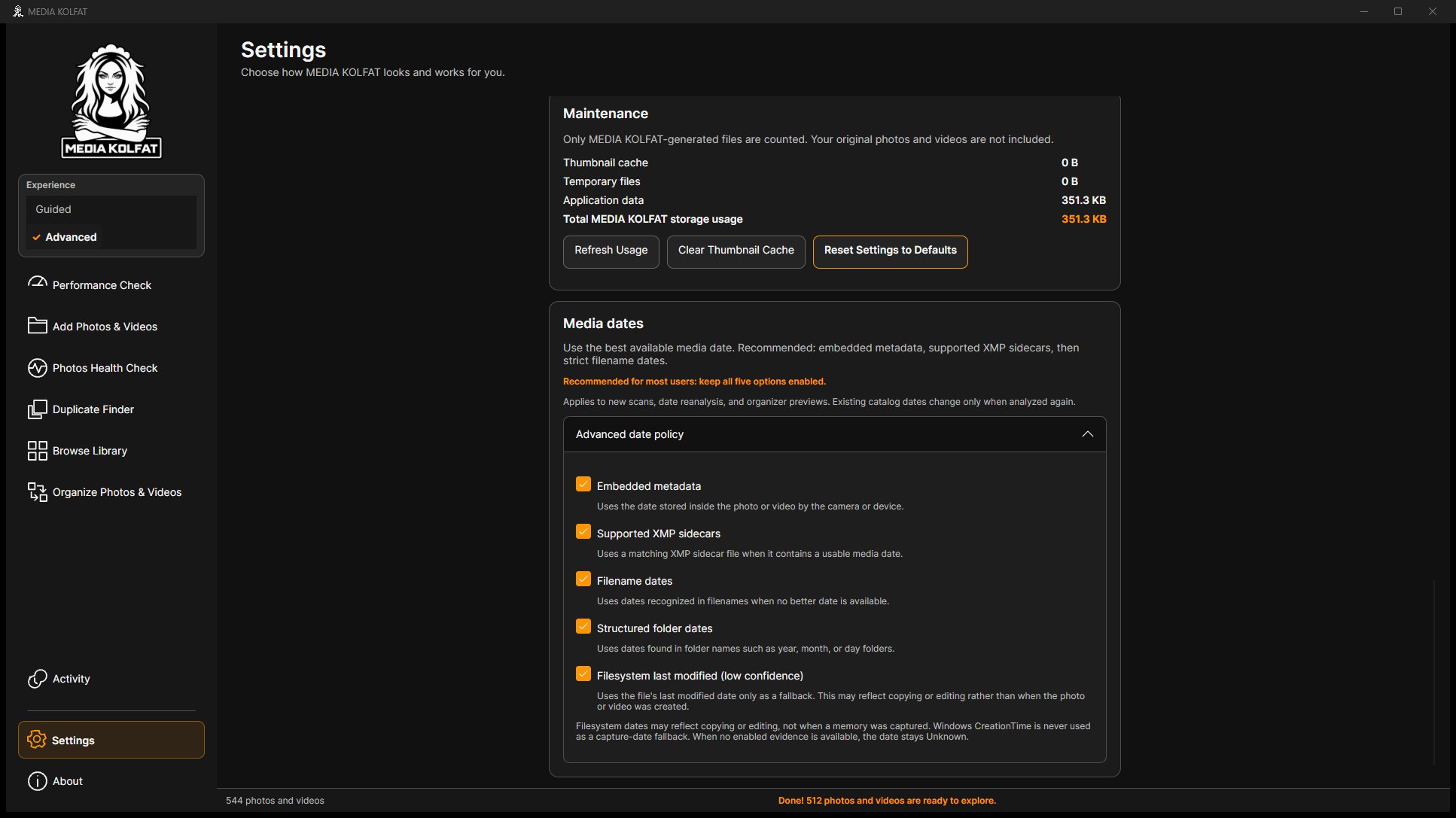
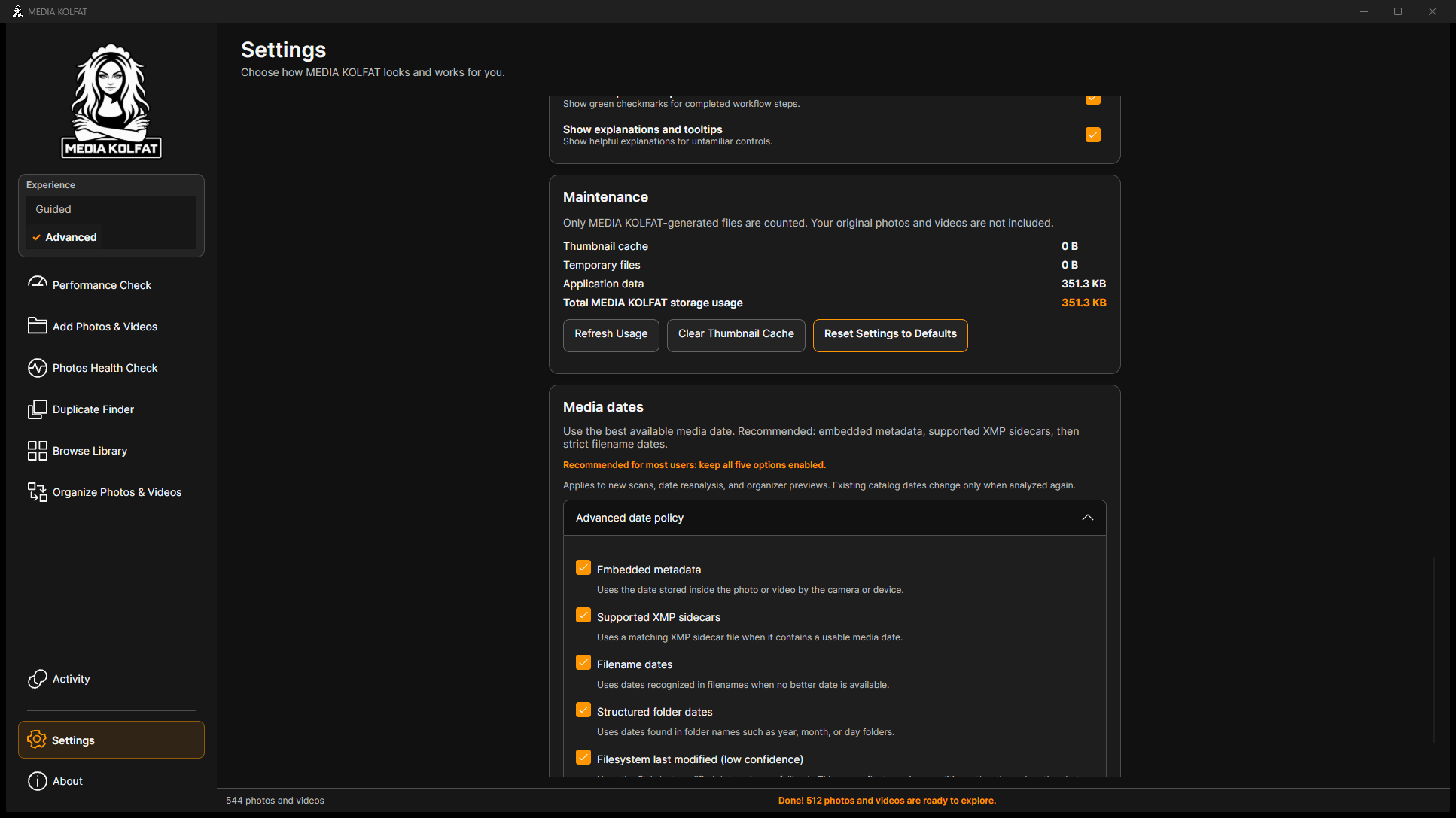
Step 4. Open Settings and expand Advanced date policy to understand enabled evidence. Embedded metadata, supported XMP, filenames, structured folders and filesystem last modified are listed. Windows CreationTime is not used as capture-date evidence.
Actual date-policy controls and the low-confidence warning. Open original PNG
The generated files have no camera capture metadata. Their 2024 or 2025-looking names did not determine the observed result; the demonstrated catalog used filesystem last-modified dates.
A preview repair can legitimately finish without repairing unsupported formats. Keep the originals and use a supported viewer when necessary.
You understand which issues concern previews, dates or availability and can read the actual repair outcome.
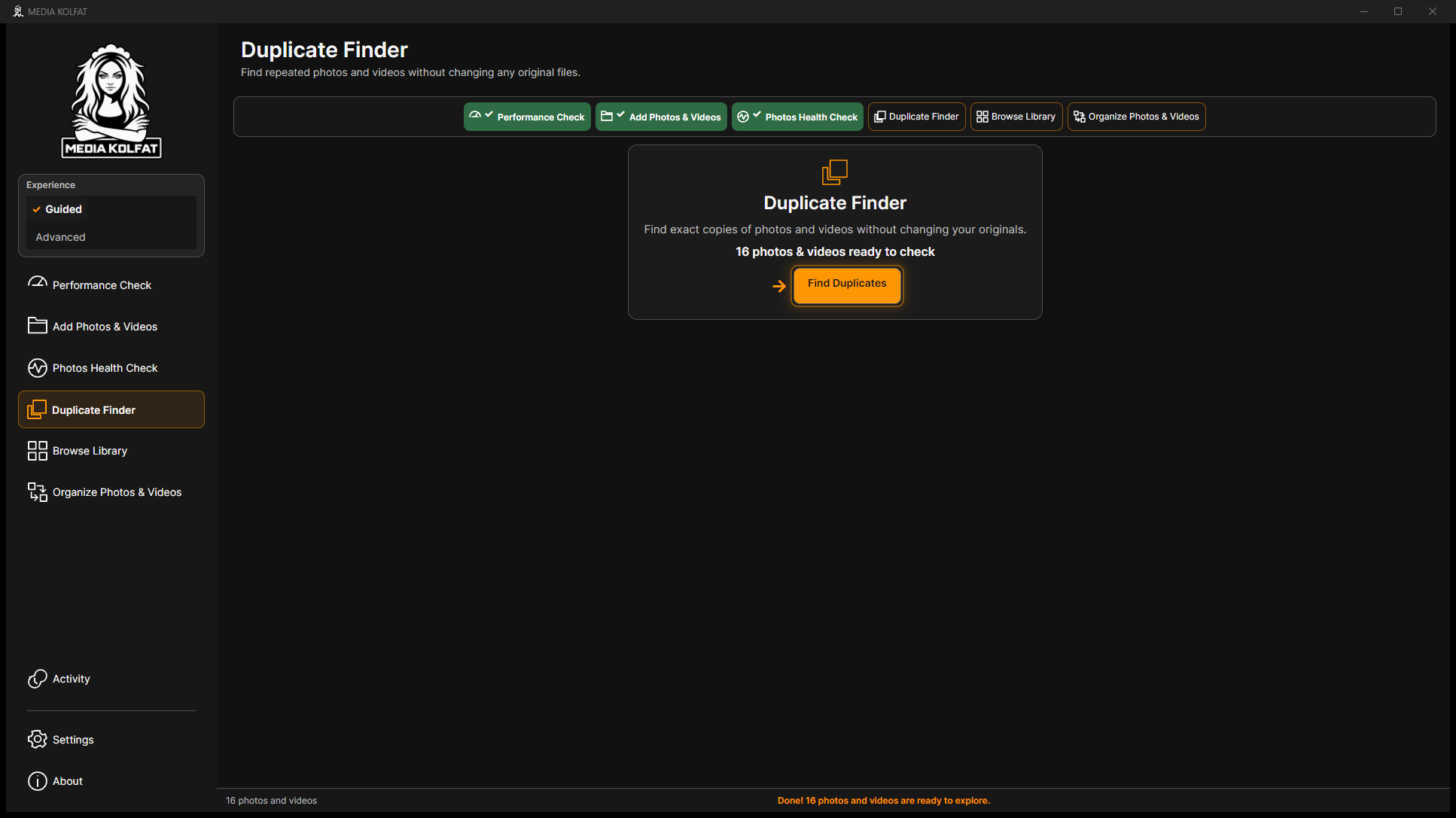
Duplicate Finder compares supported, available catalog items to find exact copies. A matching name alone does not establish an exact duplicate. The small dataset deliberately includes three groups of identical files.
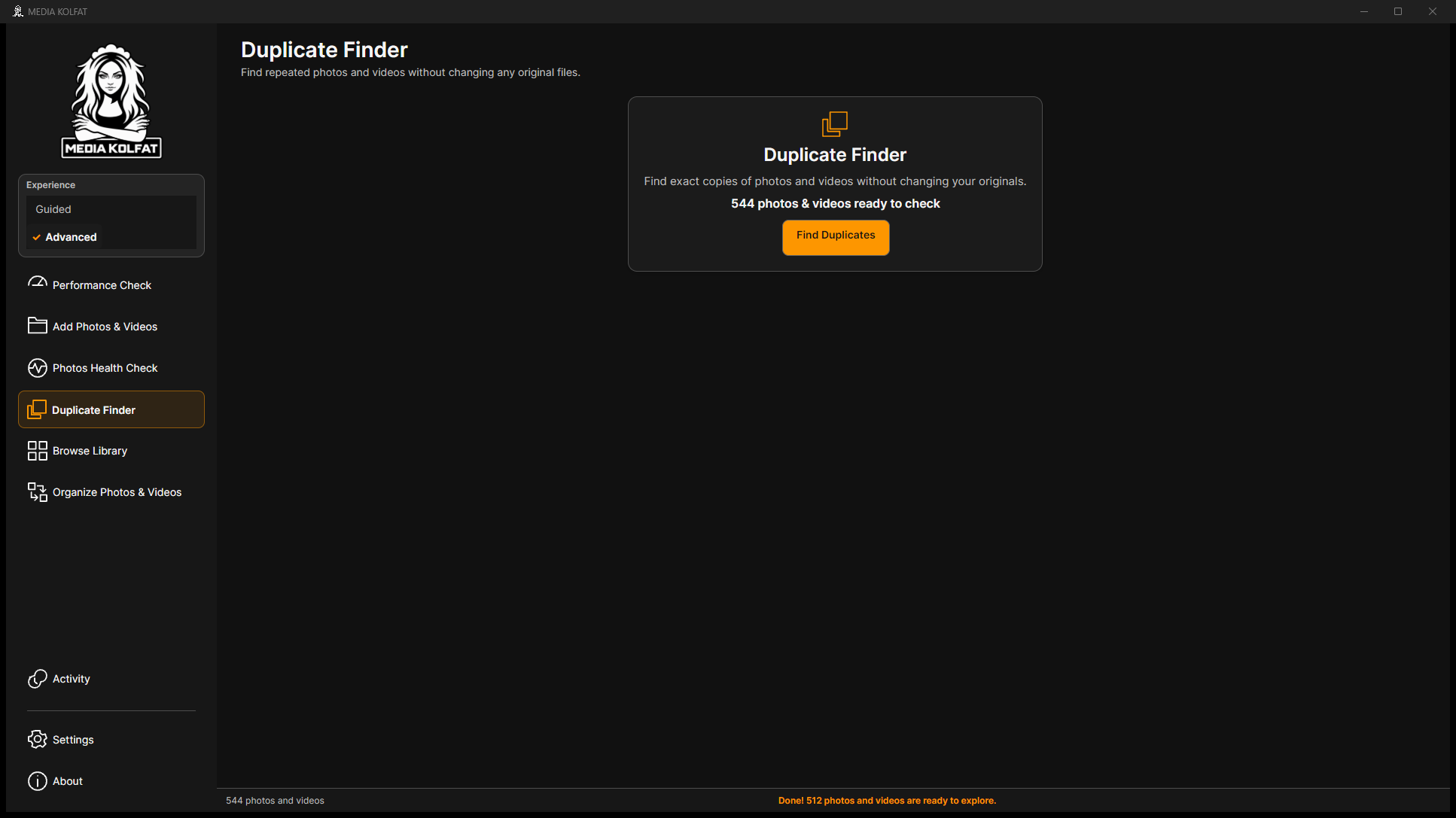
Step 1. Open Duplicate Finder after scanning the source. Review how many photos and videos are ready to check, then choose Find Duplicates.
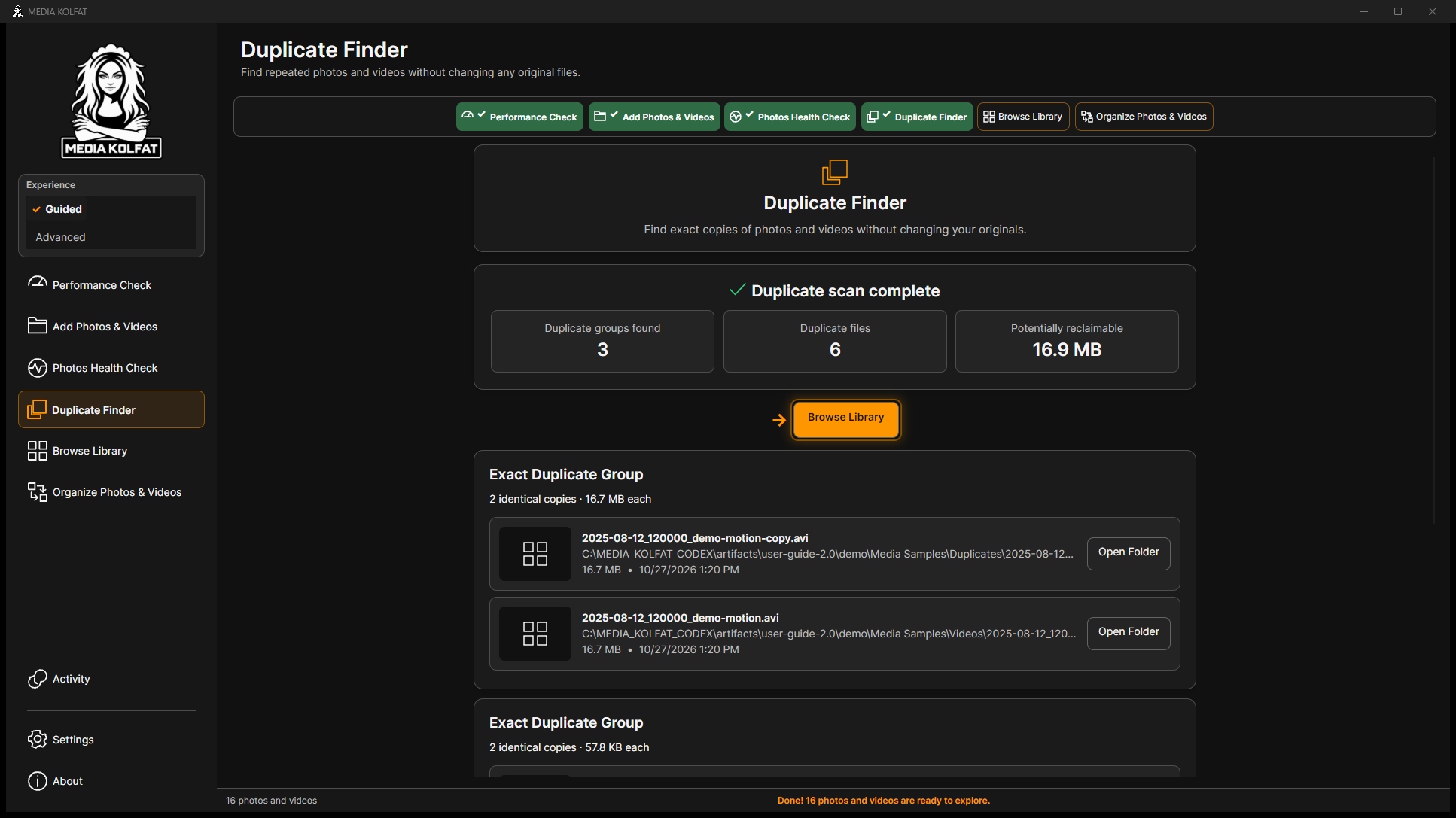
Step 2. Wait for Duplicate scan complete. Review the totals before making any decisions: the initial demonstration found three groups, six duplicate files and about 16.9 MB potentially reclaimable.
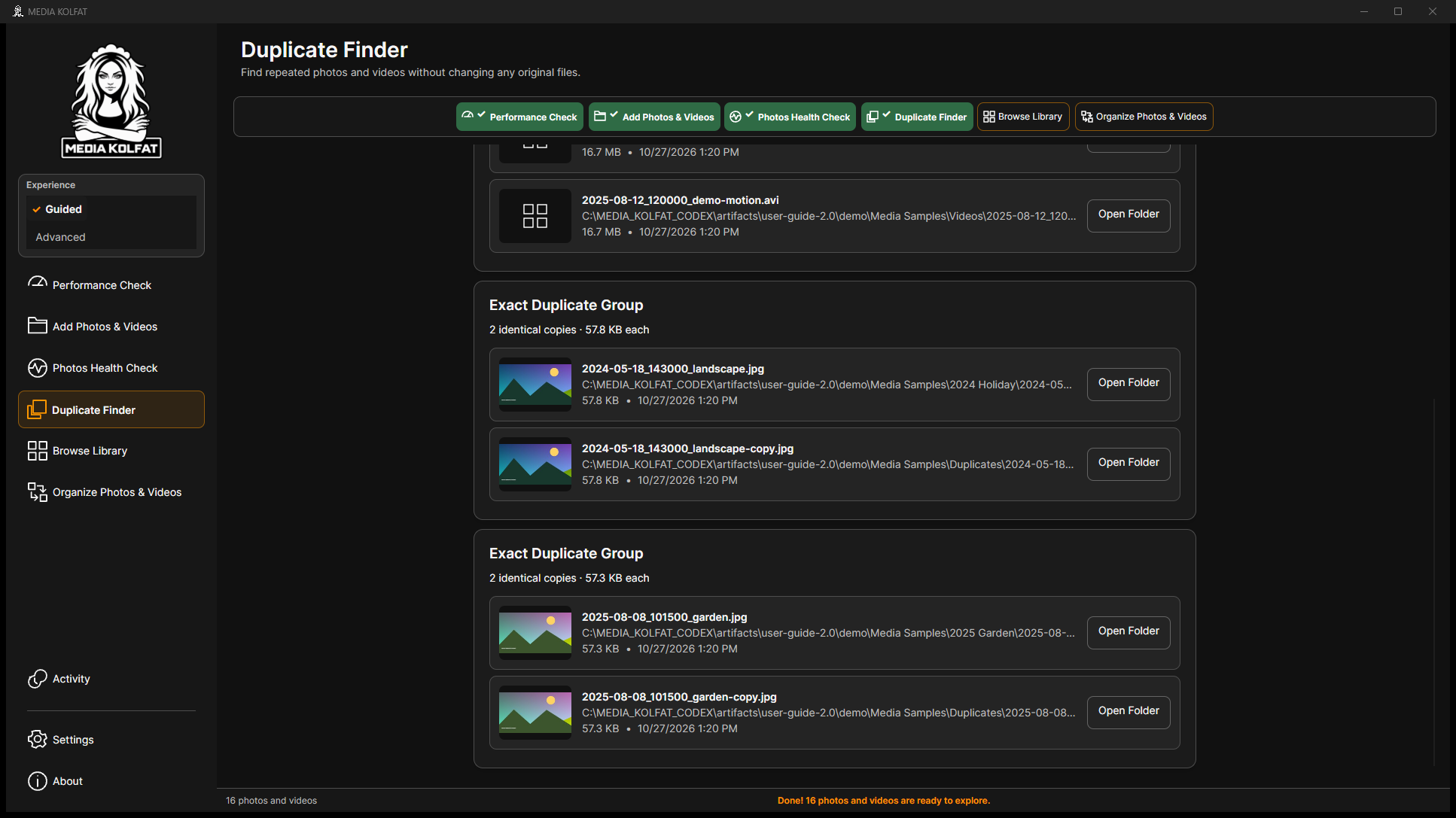
Three exact duplicate groups found in the original demonstration. Open original PNG
Step 3. Scroll through Exact Duplicate Group entries. Compare the file names, locations and sizes. Open Folder can help locate a listed file; browsing a group does not remove it.
The actual duplicate entries can be inspected individually. Open original PNG
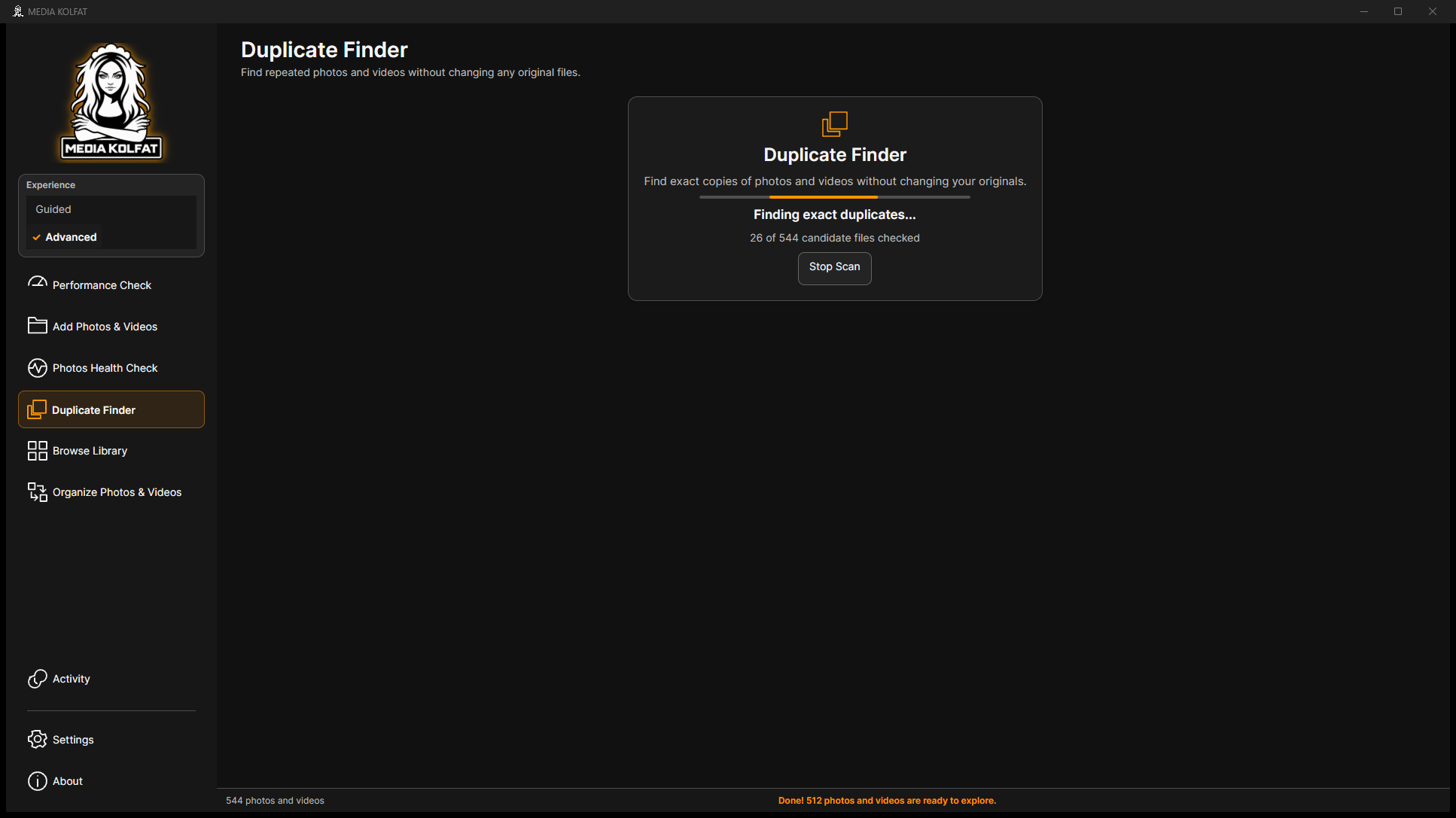
Step 4. For a larger collection, watch Finding exact duplicates and the number of candidate files checked. The larger generated test contains 544 catalog items. The tested build shows Stop Scan during this operation.
Step 5. Choose Stop Scan to end a running duplicate search. The demonstrated operation returned to the ready-to-check screen. A stopped search is incomplete; it is not proof that no duplicates exist.
The real result after stopping the duplicate scan. Open original PNG
Pause and Resume were not exposed by Duplicate Finder in this installed build. COPY has separate Pause and Resume controls, demonstrated later.
Duplicate Finder does not expose a delete action in the tested interface. Potentially reclaimable space is an estimate, not space already freed. Keep at least one independently verified copy and its backup.
Running a new scan or changing sources can invalidate a previous duplicate result. Check whether the Library overview says Not checked before relying on duplicate statistics.
You can run an exact-duplicate search, inspect its groups and stop it without deleting original files.
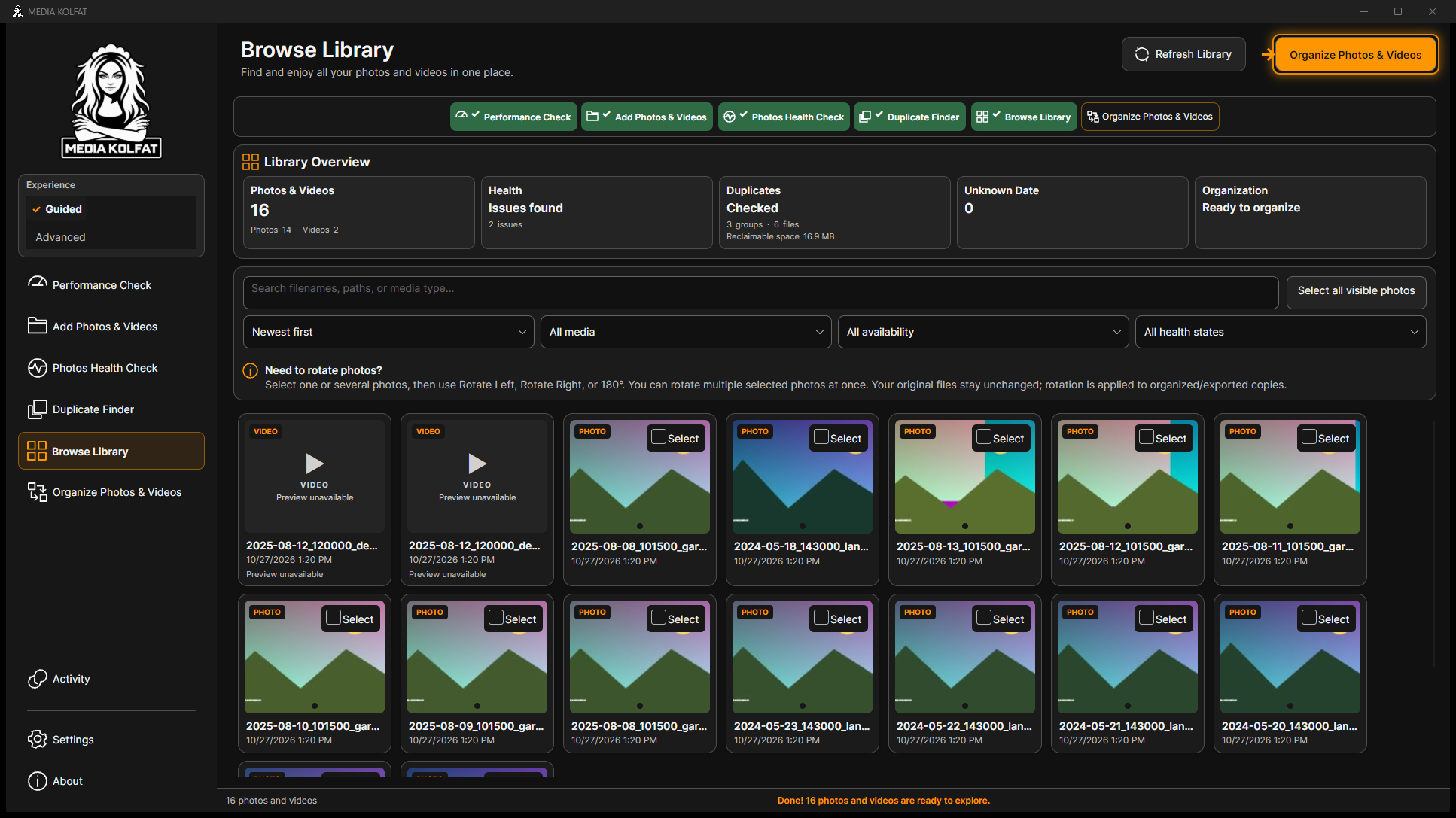
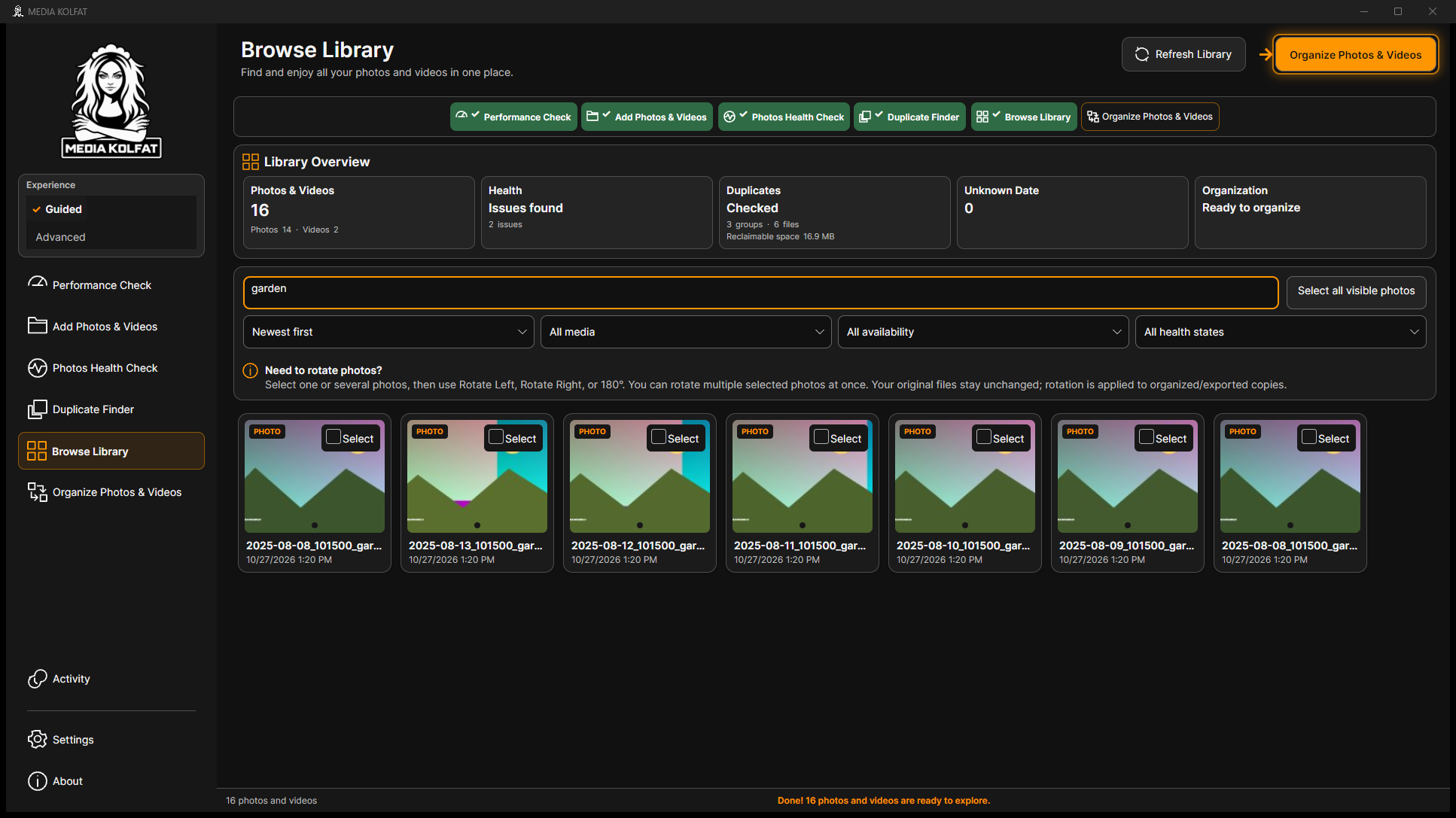
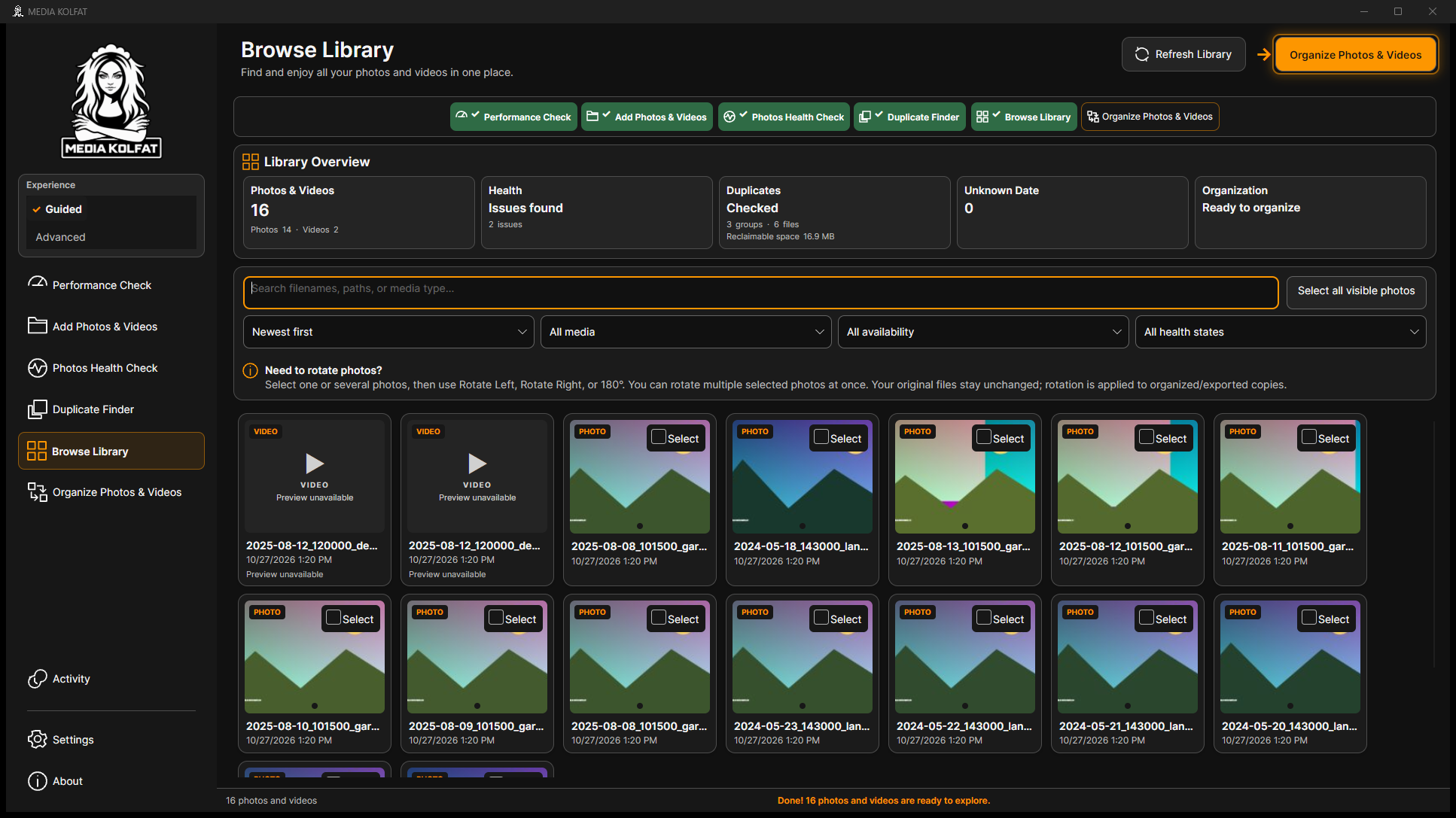
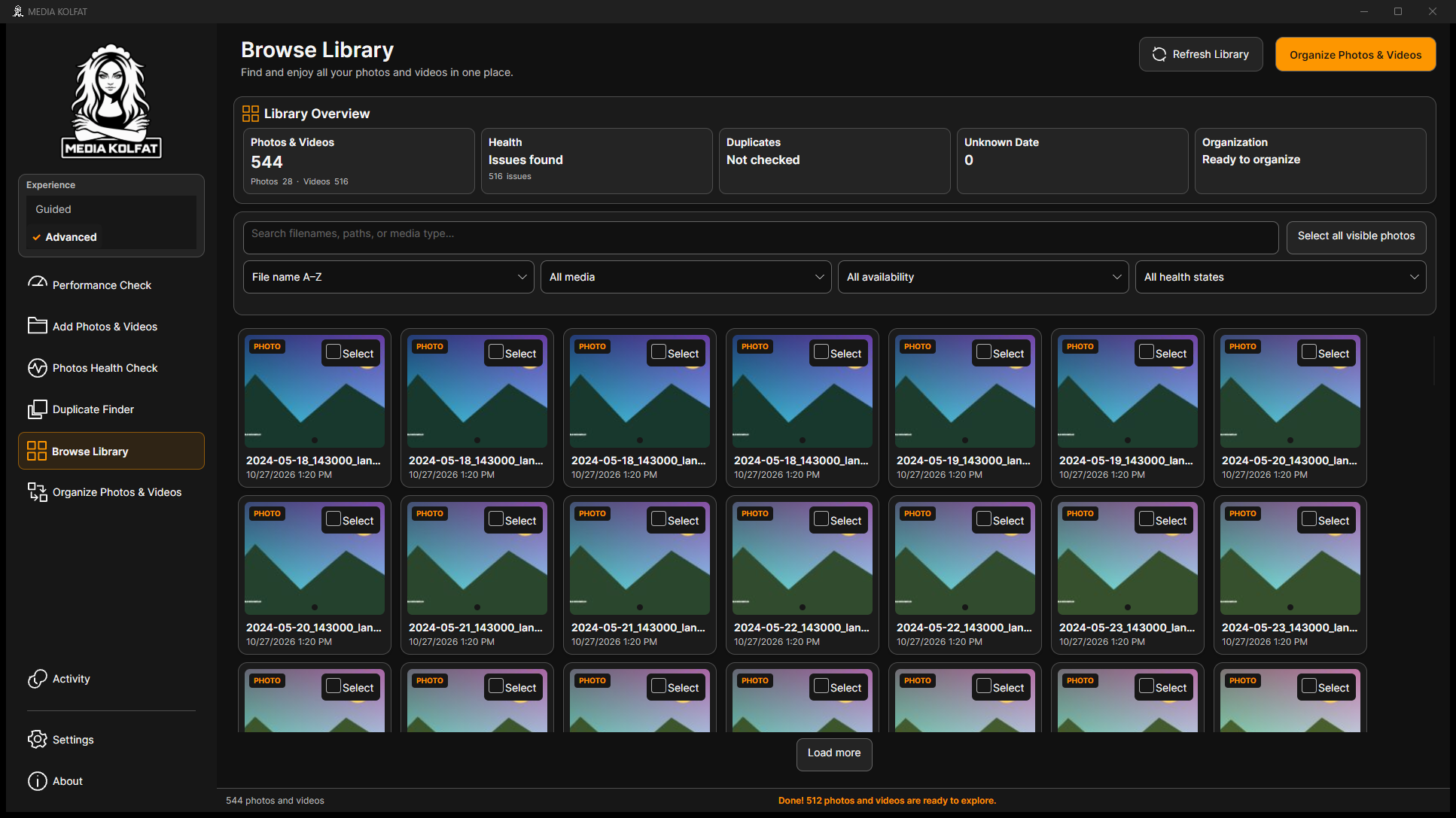
Browse Library combines an overview with a searchable gallery. Read Photos & Videos, Health, Duplicates, Unknown Date and Organization before working with individual items. The following rotation example uses the small demonstration library and restores every changed orientation with Undo.
Step 1. Open Browse Library. Review the overview and visible cards. The first example contains 14 photos and two videos; unavailable video previews appear as placeholders.
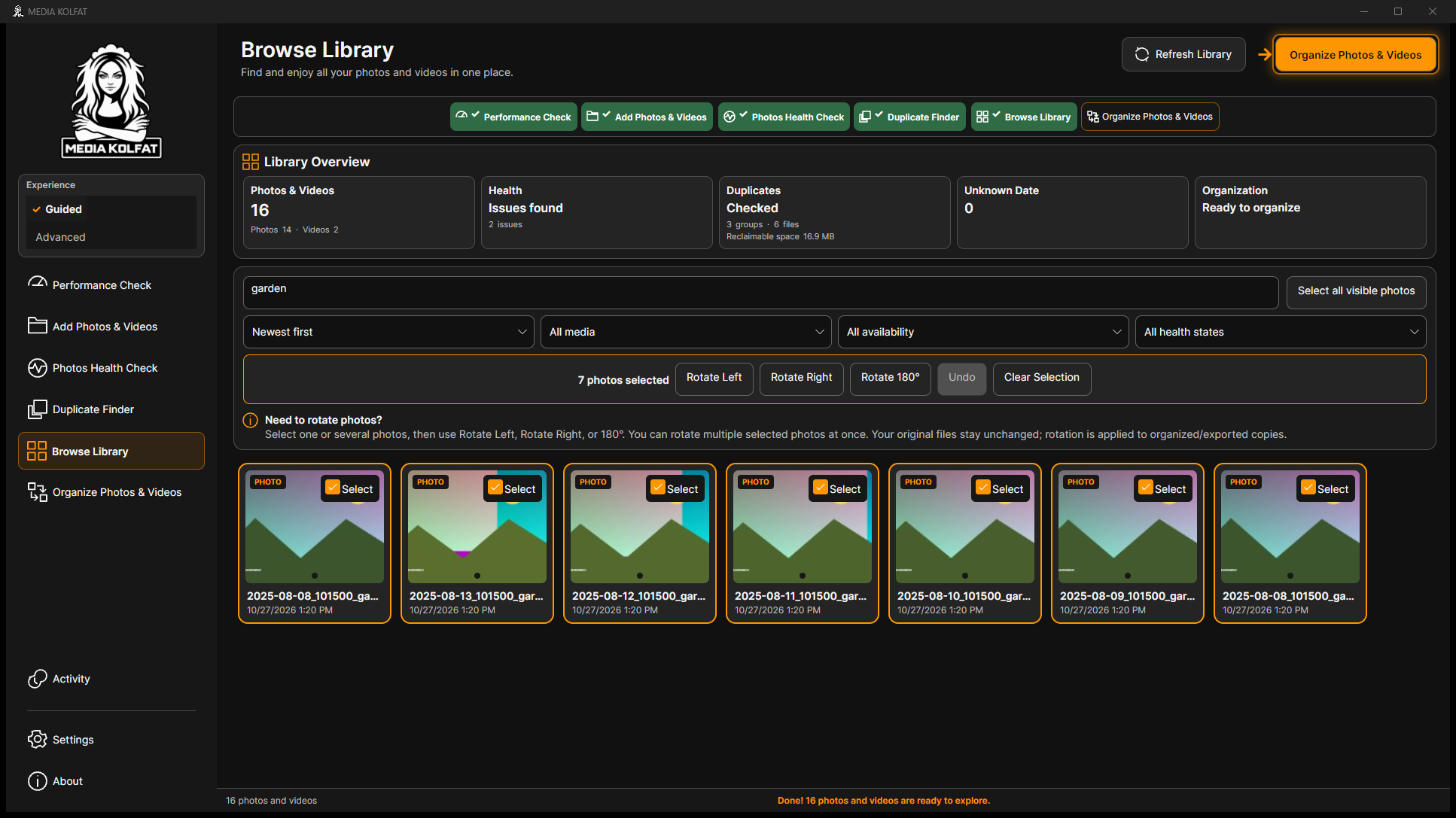
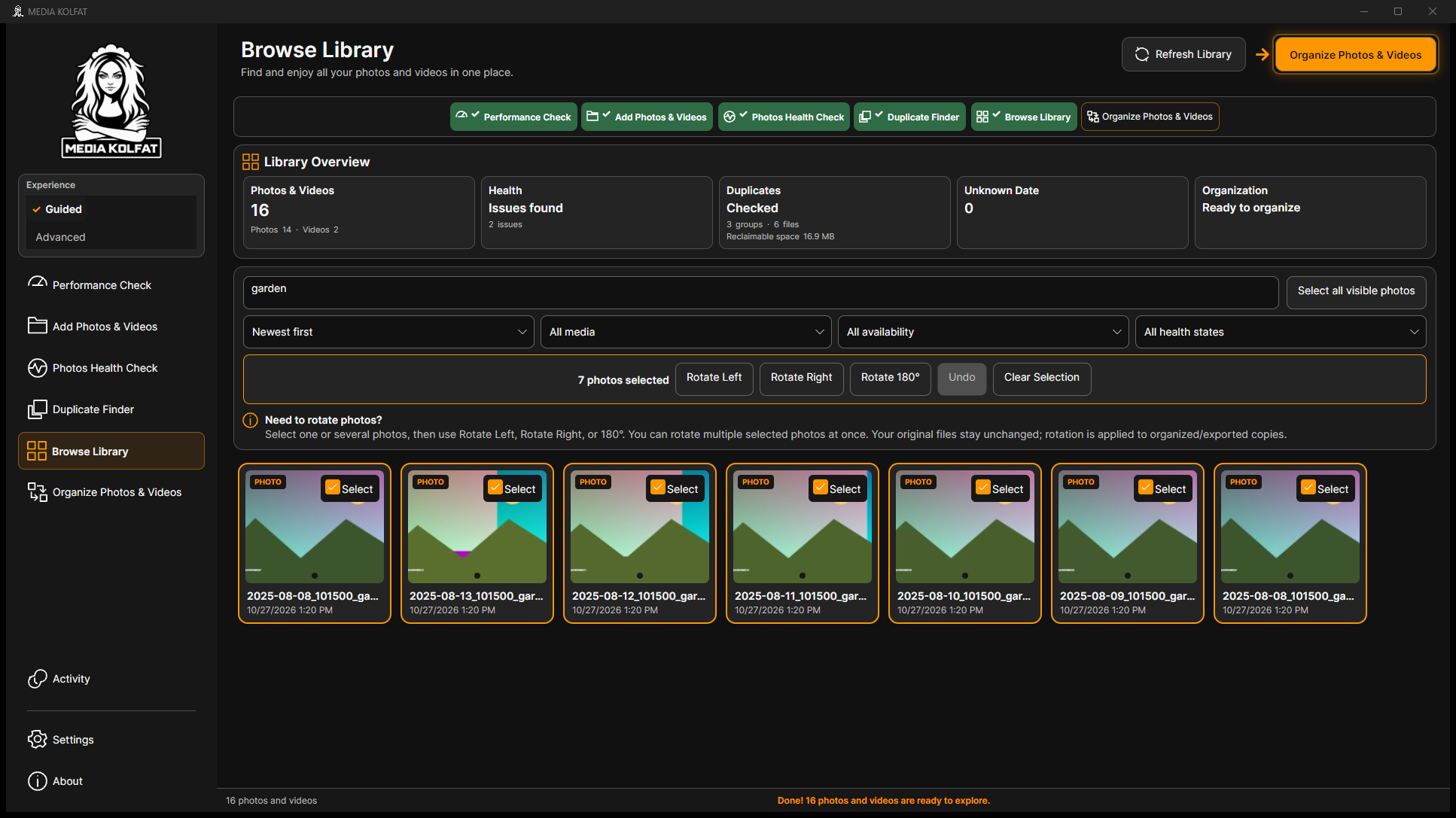
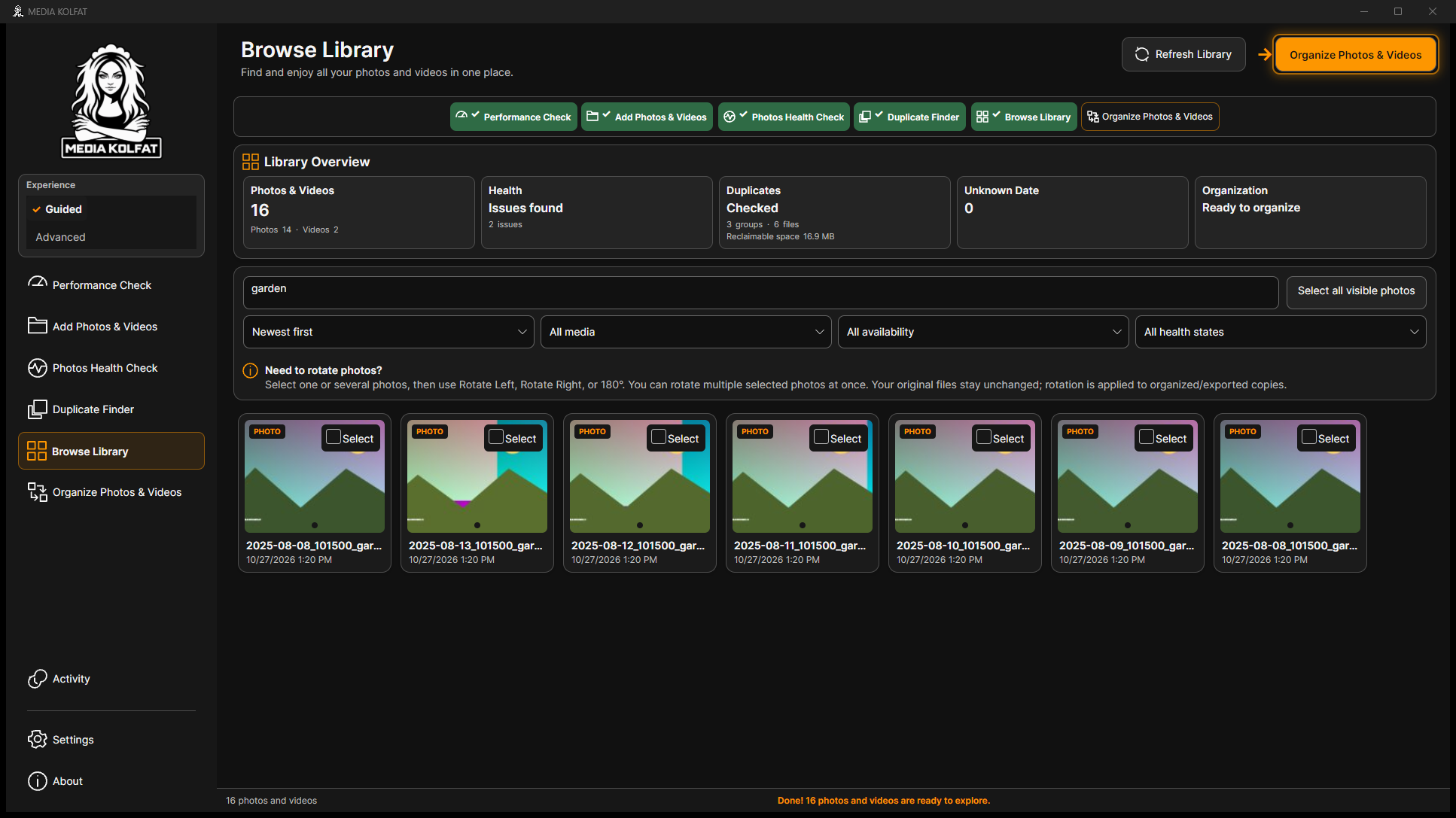
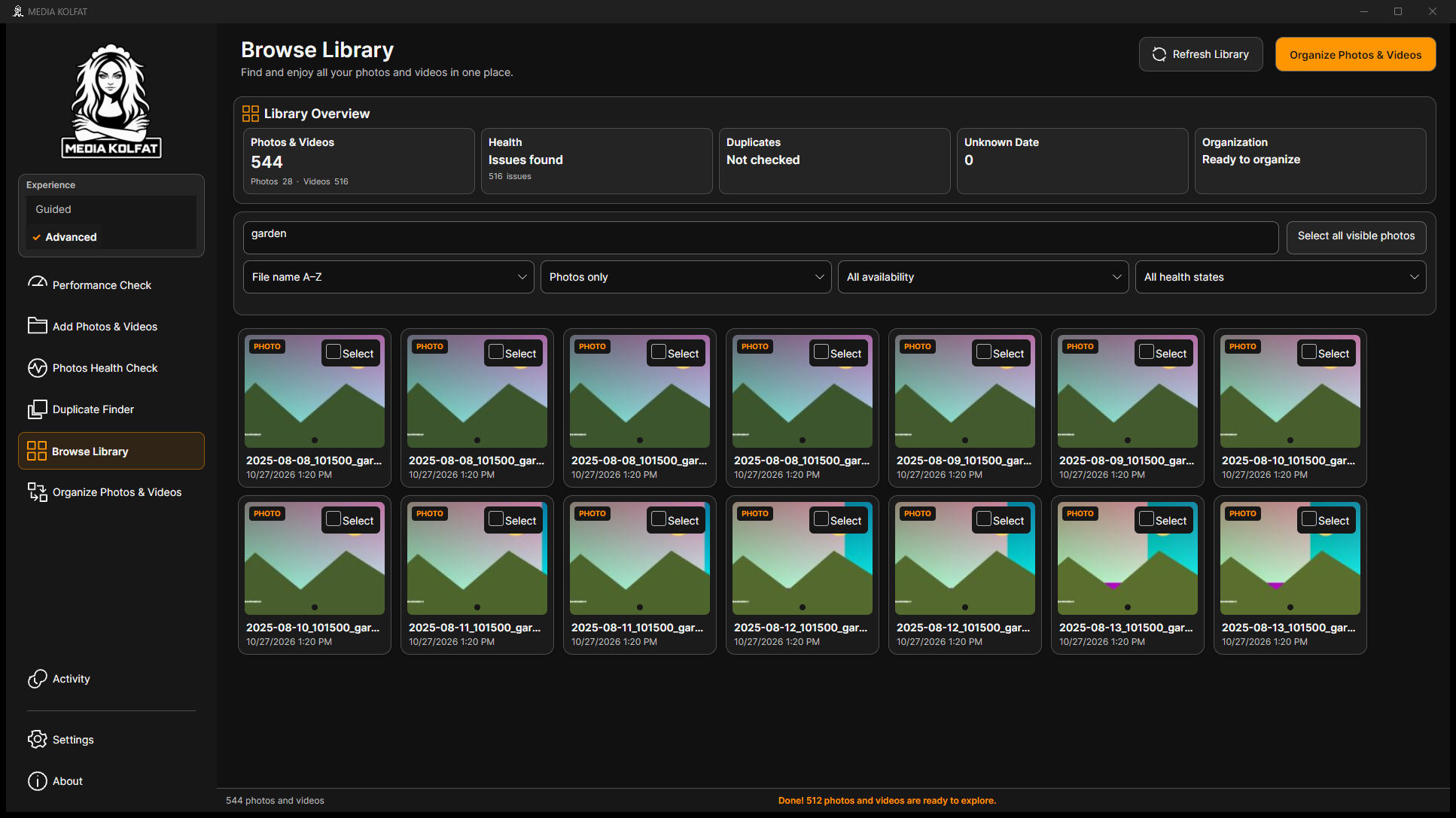
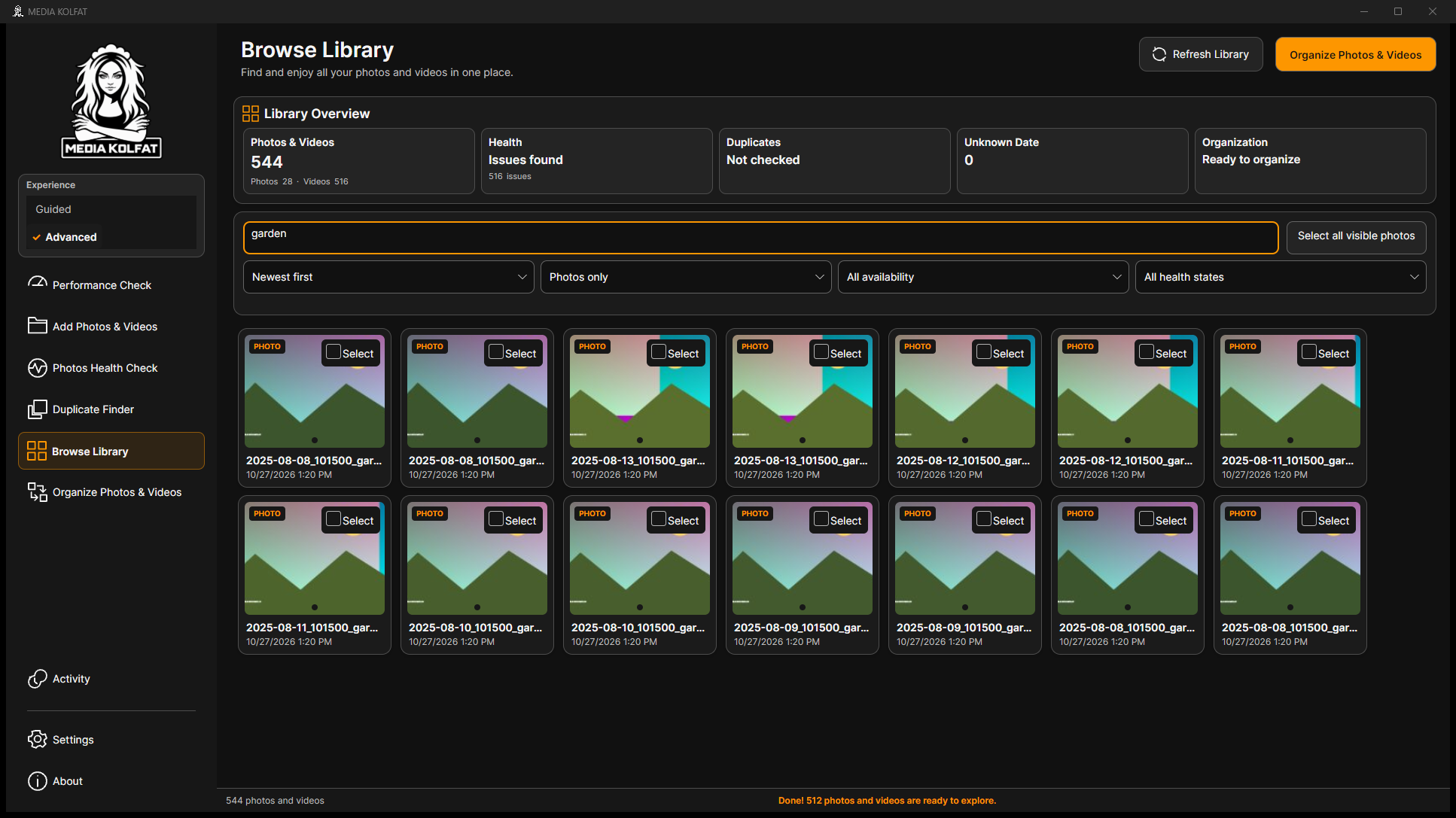
Step 2. Enter garden into Search media. The small dataset returns seven matching photo files. Use a recognizable filename fragment when searching your own collection.
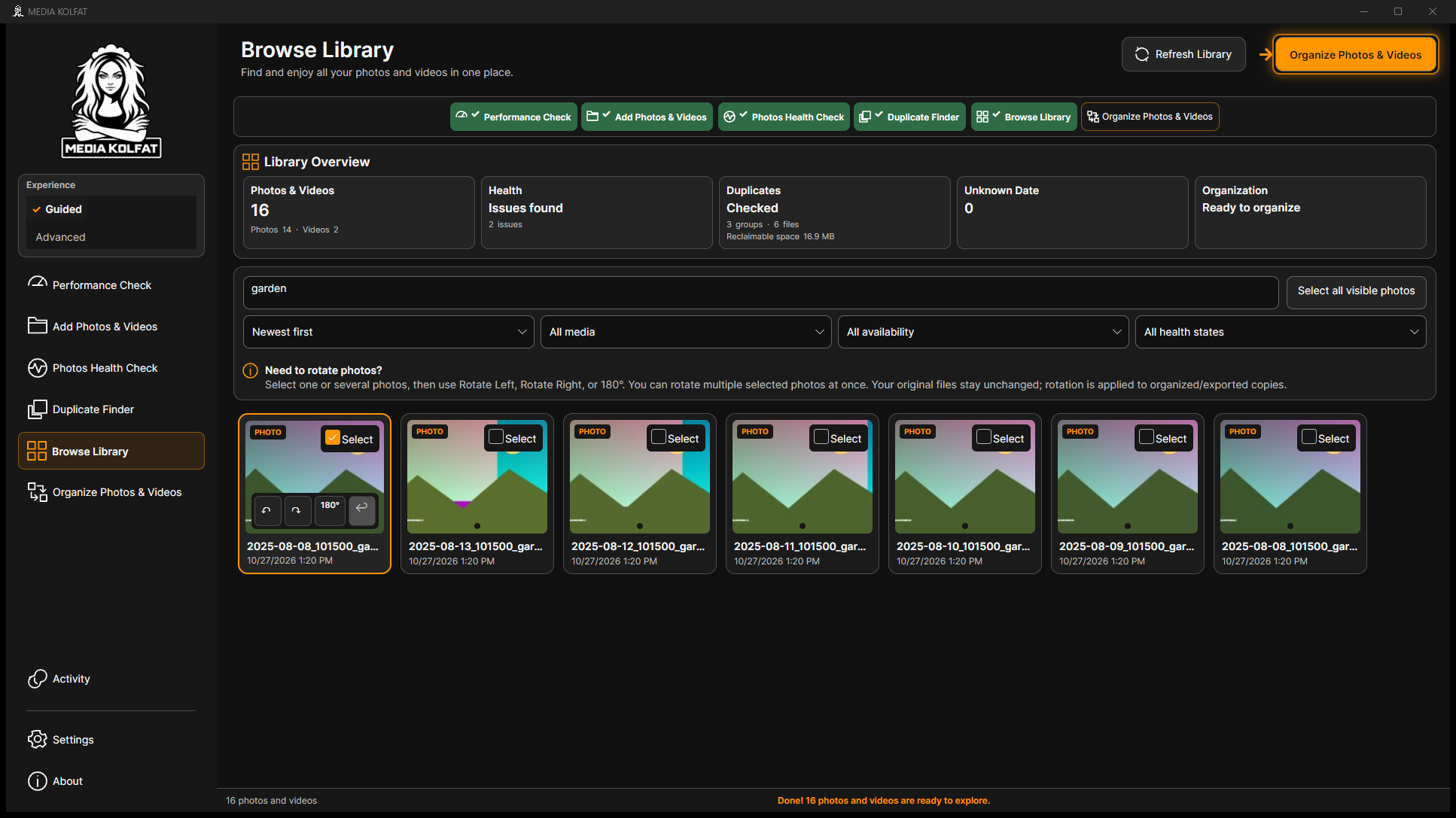
Step 3. Select the checkbox on one photo card. Review the selection state before applying an action. Photo rotation controls are associated with the selected photograph.
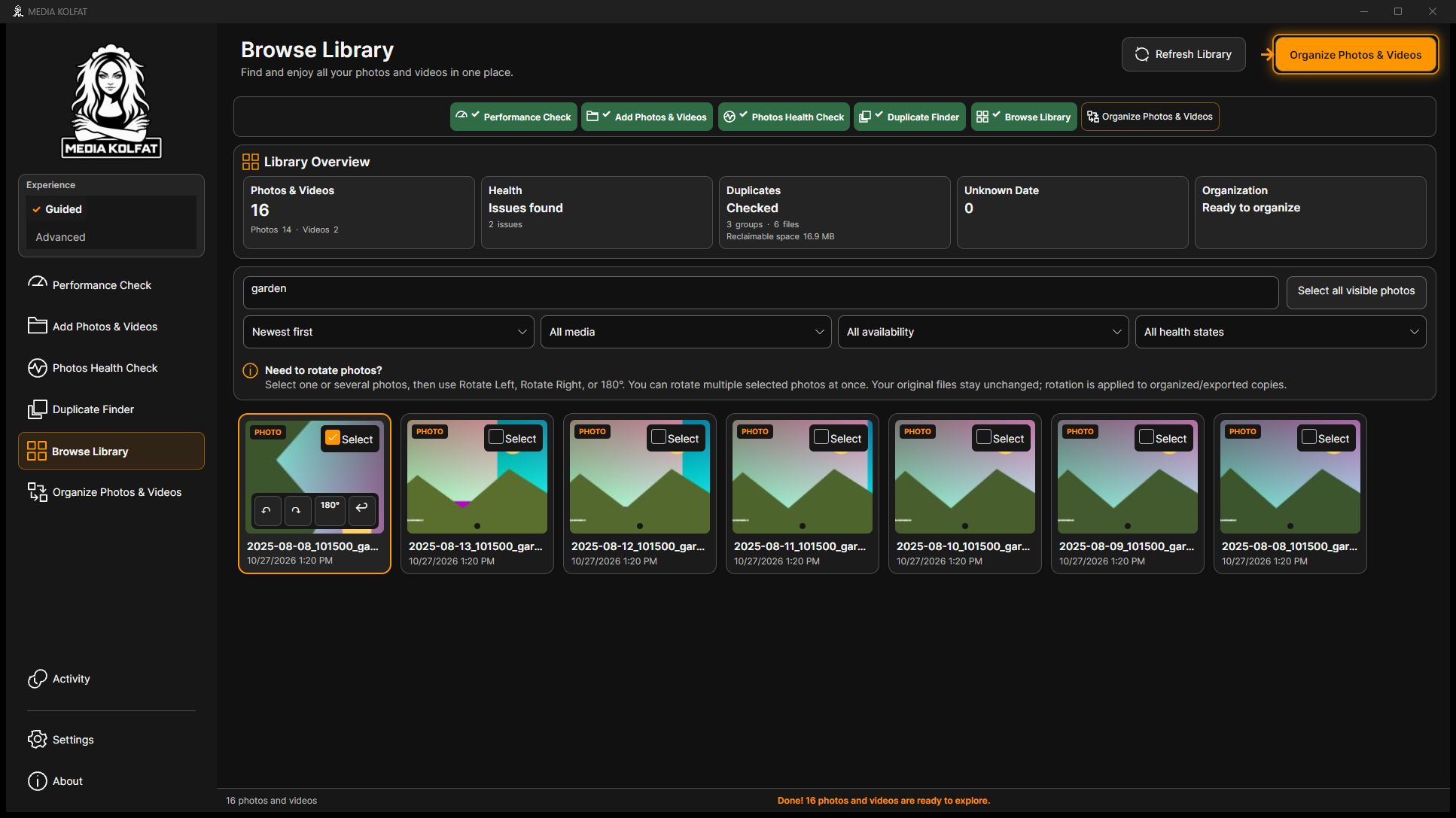
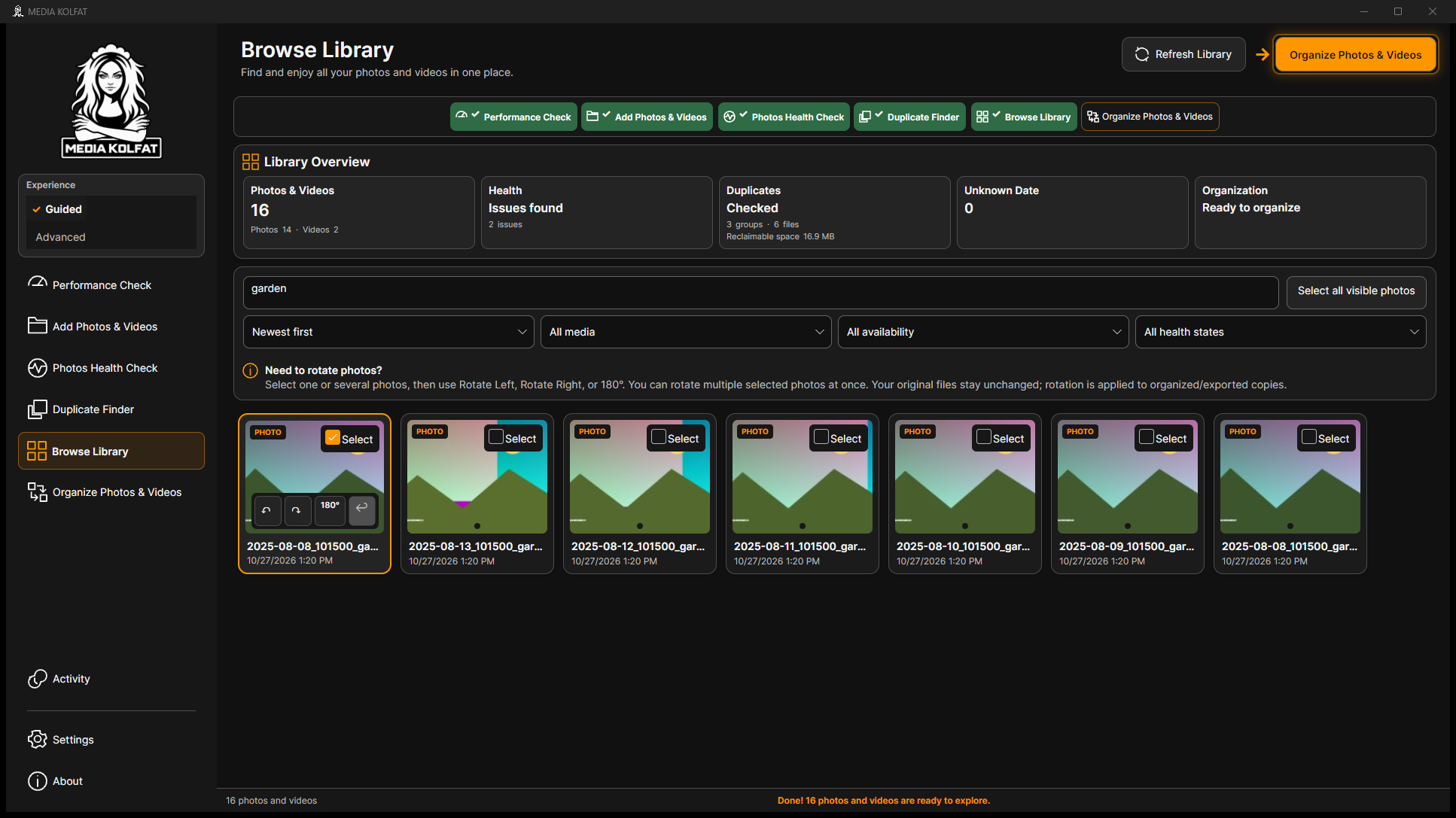
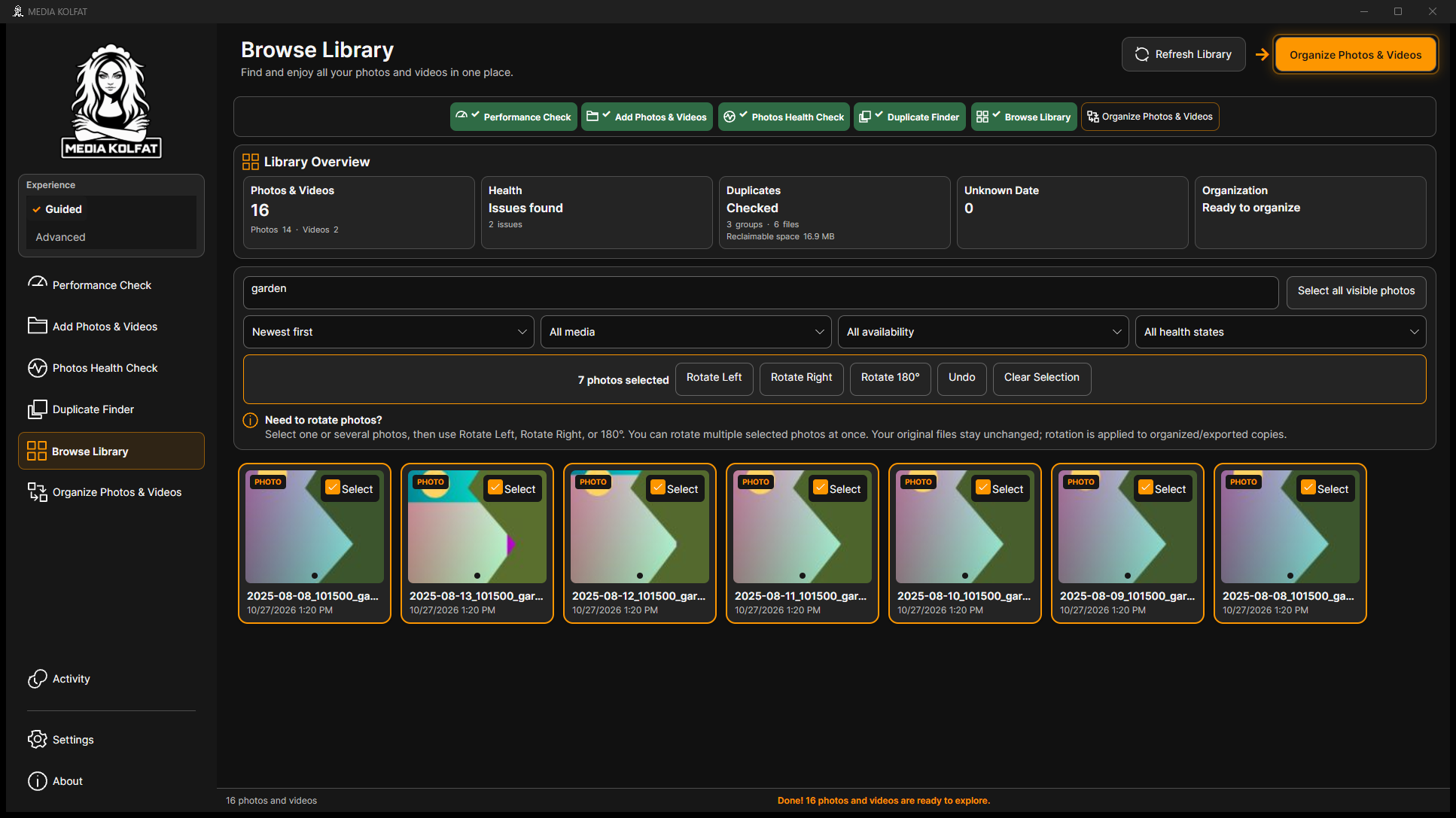
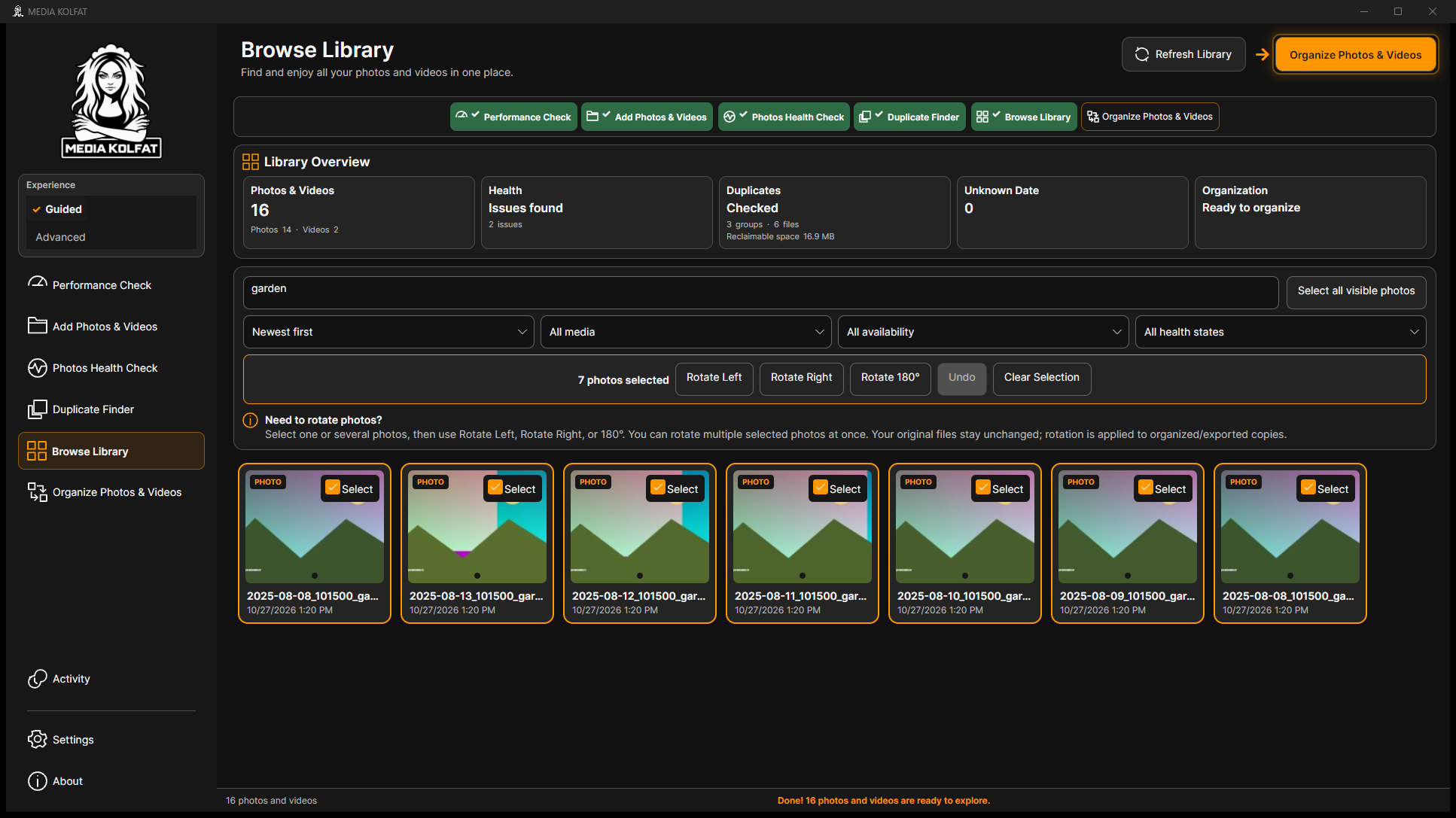
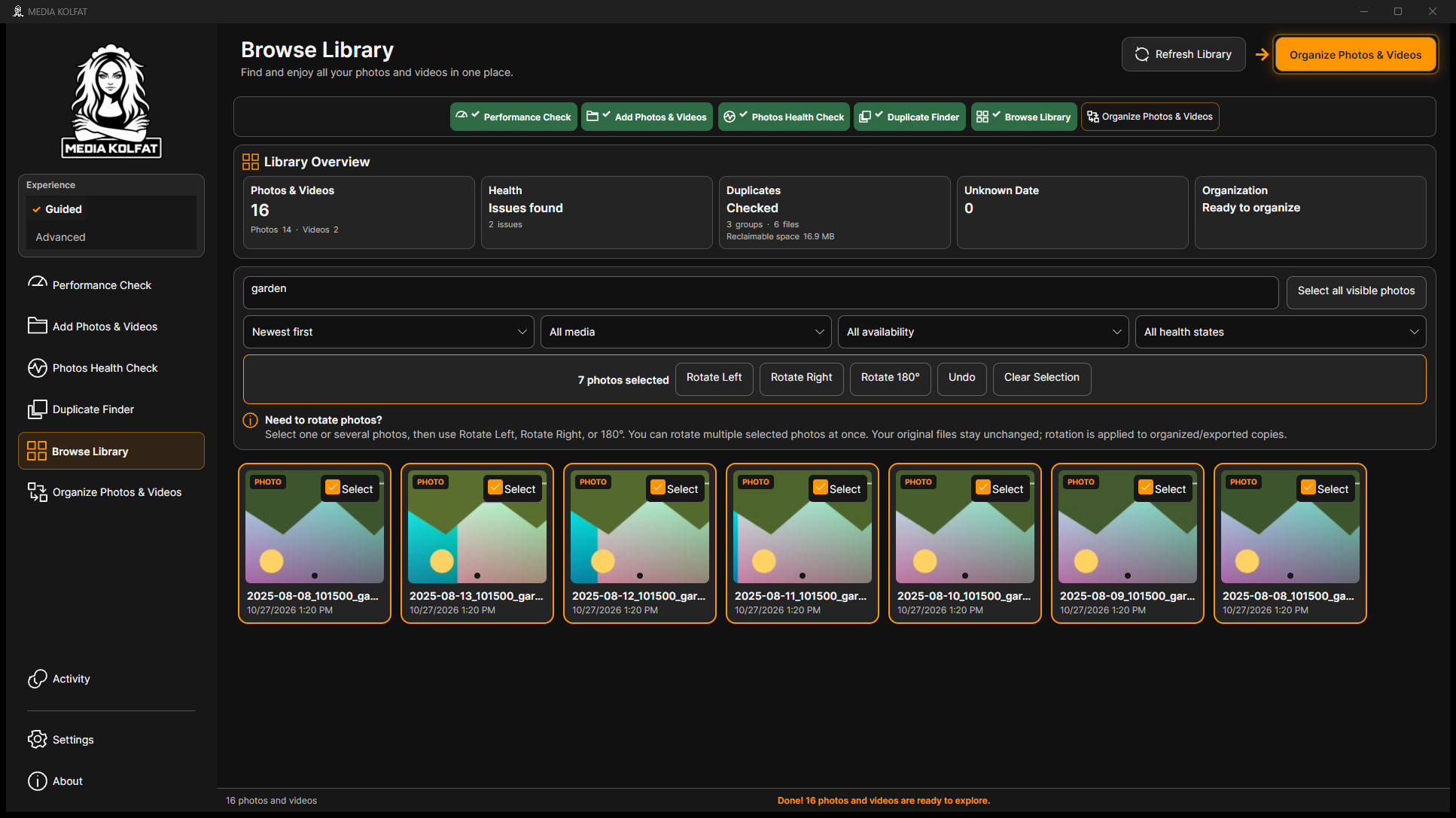
Step 4. Choose the selected photo's Rotate Right control. Check the preview orientation. The rotation is recorded for the catalog preview and for organized or exported copies; it does not rewrite the original source image.
Step 6. Choose Select all visible photos to select the seven search results together. Check the toolbar's selected count; this action concerns the visible photo results.
Step 10. Use Undo again to restore the group. In the demonstration every rotation was undone before organization, and original-file hashes remained unchanged.
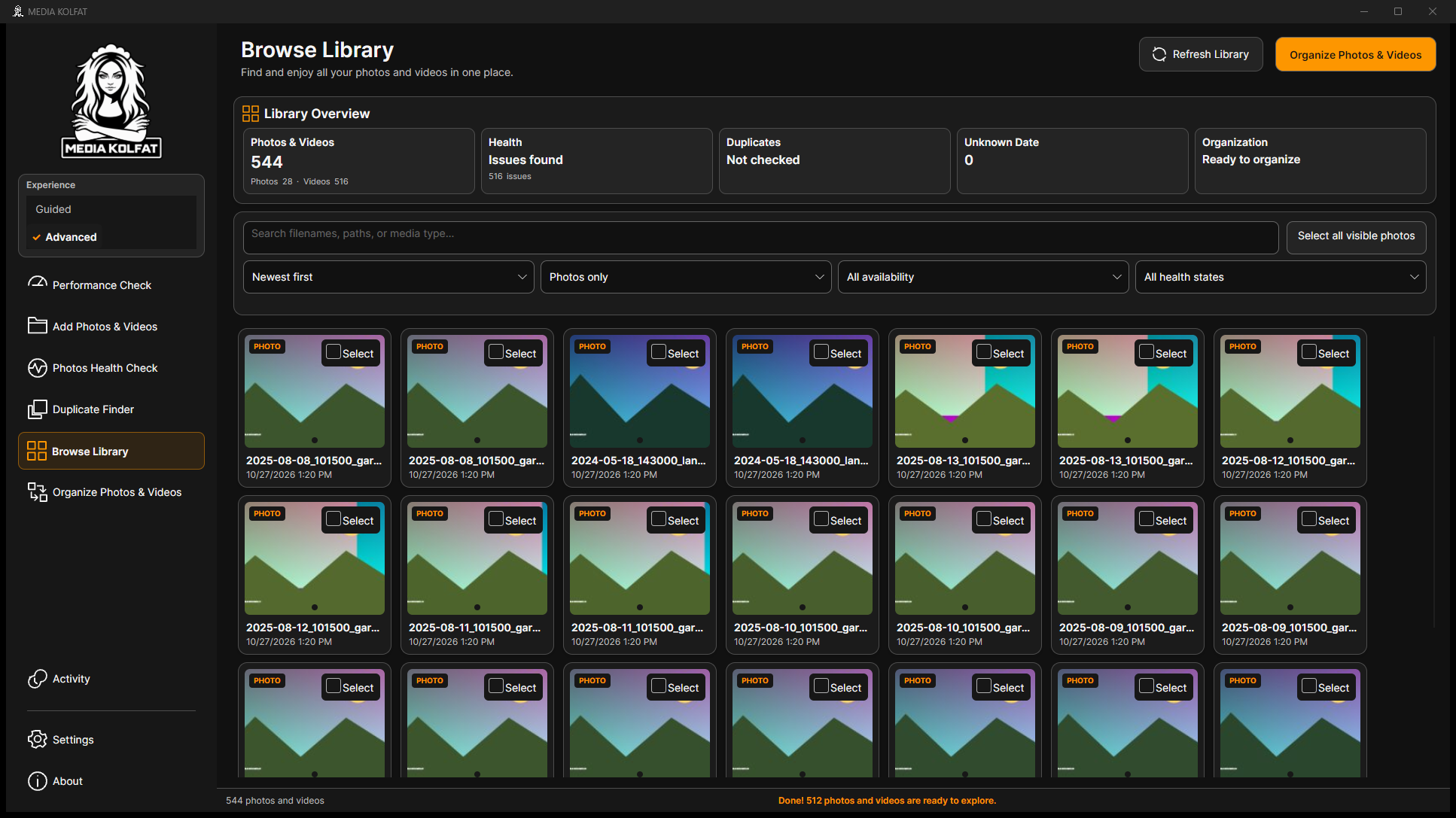
Step 13. Choose Photos only from the media-type filter. In the later, expanded demonstration there are 28 photo records because a second disposable sample source was added.
Step 14. Choose File name A–Z from the sorting list and close the list. Other observed choices include newest, oldest, reverse filename, largest, smallest, photos first and videos first.
The Library count describes catalog records and can include copies in separately registered sources. A larger count does not mean that a COPY destination was automatically registered.
Original and independent-backup hashes were checked after the rotation demonstrations. Orientation changes did not modify any of those files.
You can find photos, control selections, sort results and adjust or undo preview orientations safely.
Use COPY for a first organization pass. Keep a verified independent backup, choose a separate destination with enough free space, and check the source and destination before confirming. This completed example copies the original 16 supported demonstration media files.
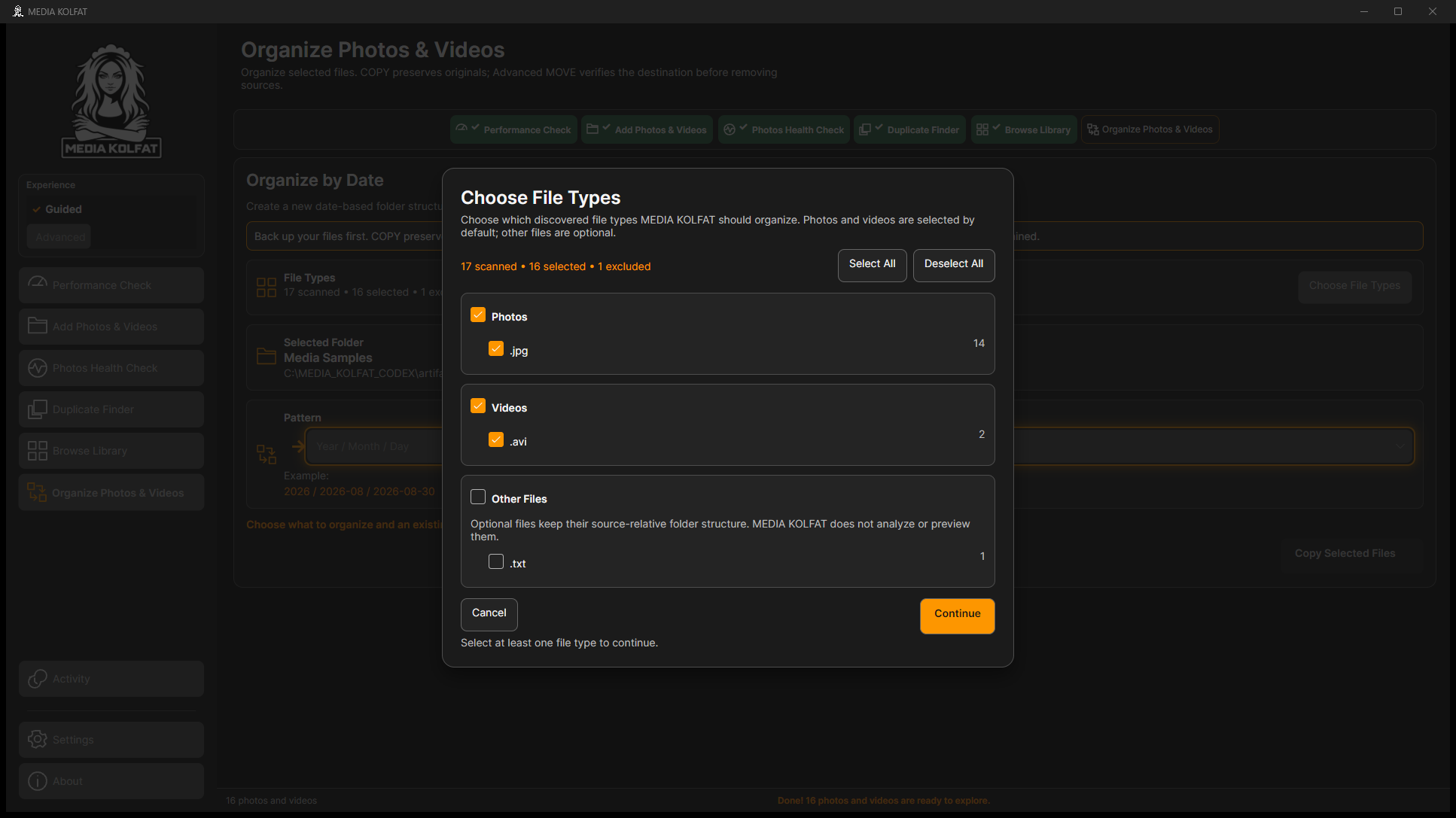
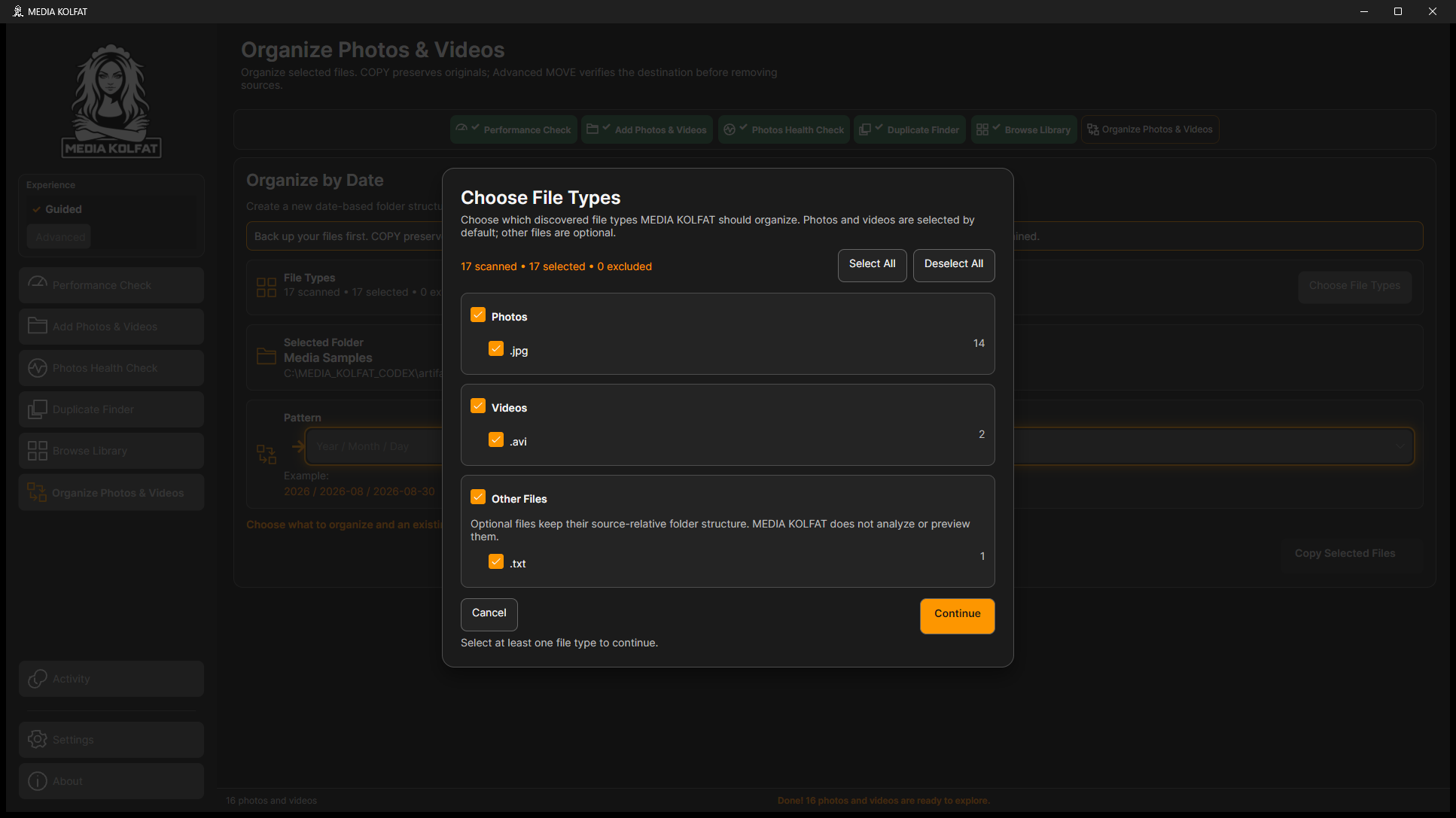
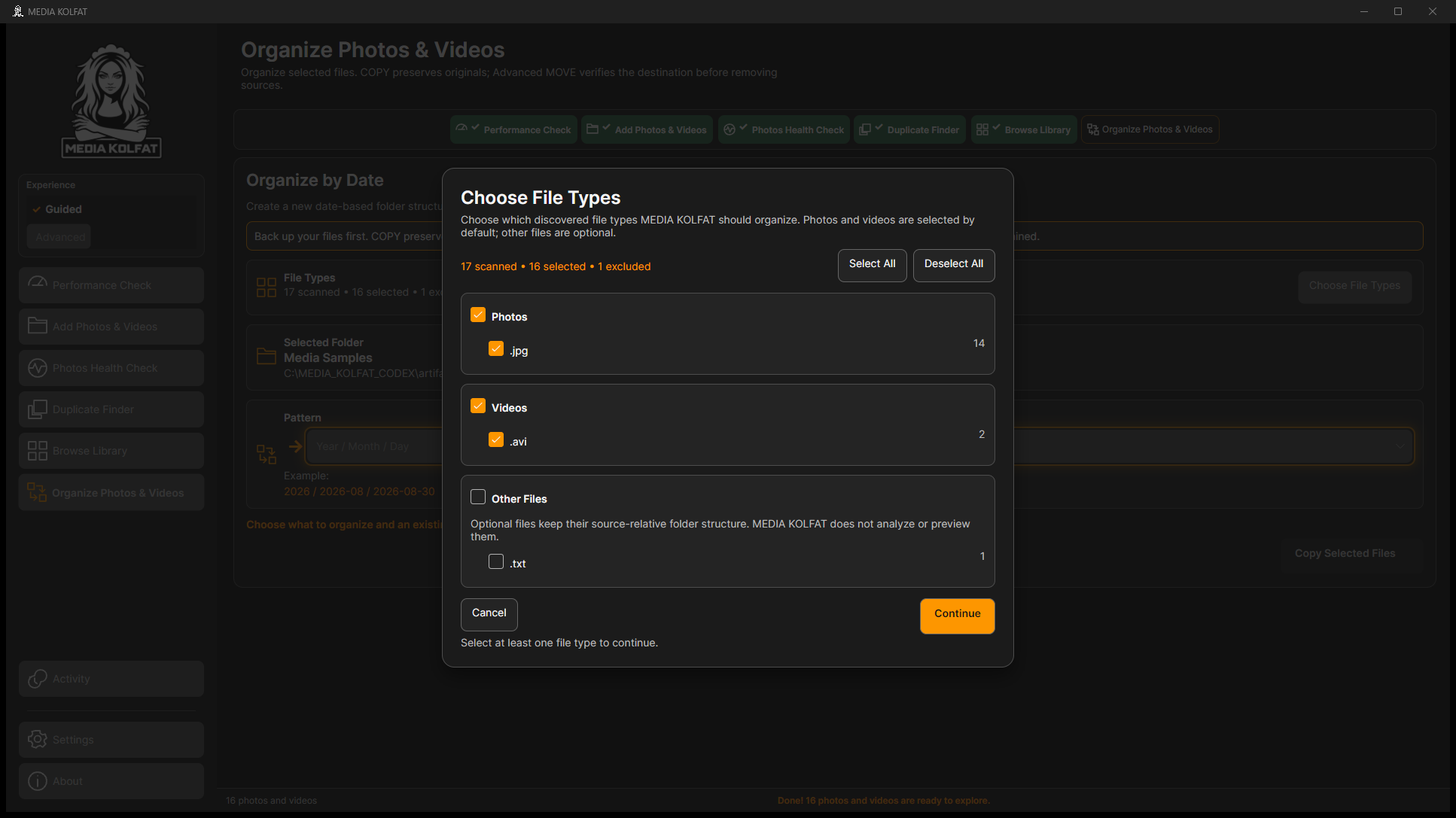
Step 1. With Guided selected, open Organize Photos & Videos. Review the Choose File Types dialog and its scanned, selected and excluded counts.
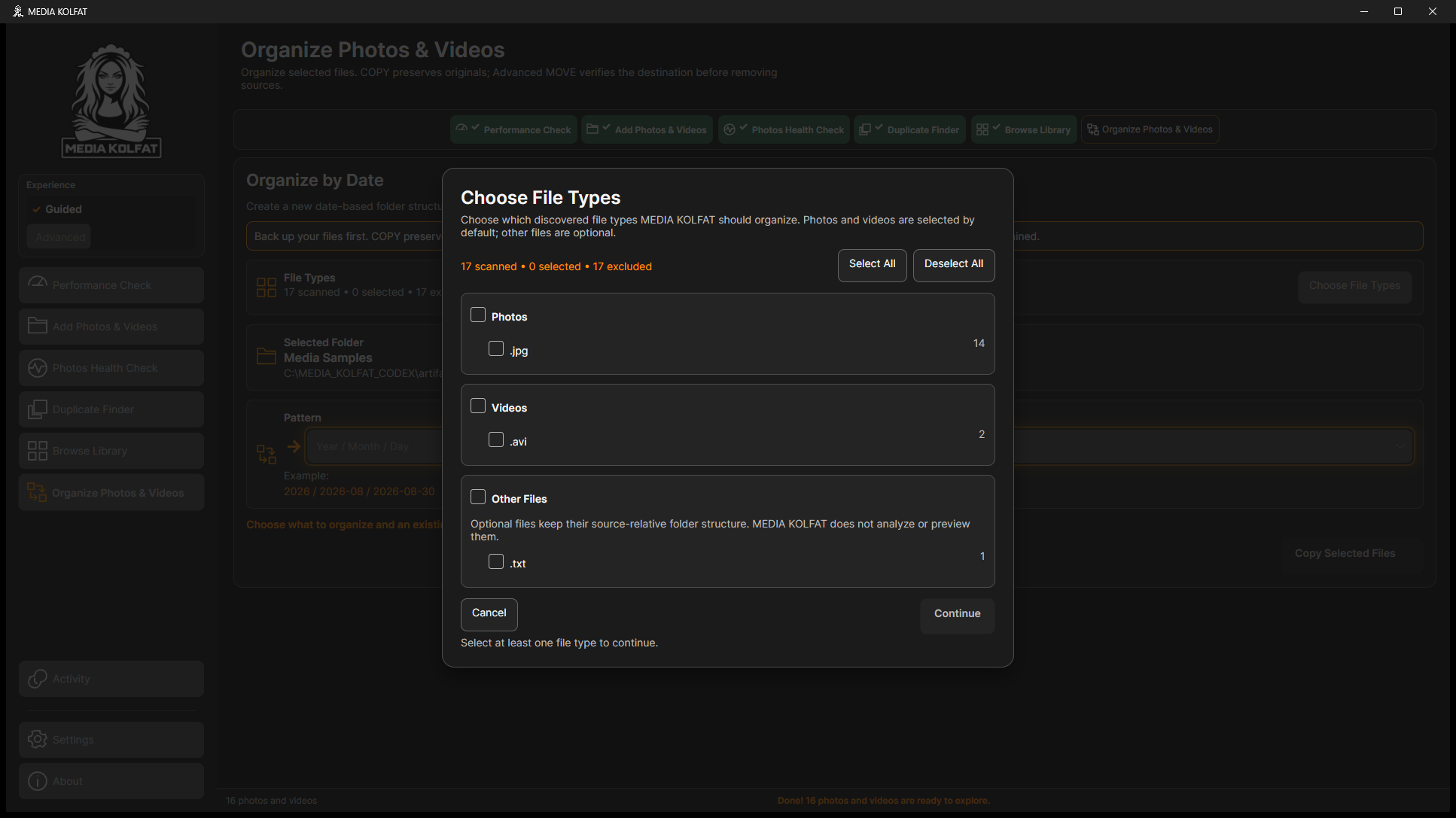
Step 2. Choose Deselect All if you want to rebuild the selection. With no type selected, Continue is unavailable. Select at least one supported type before proceeding.
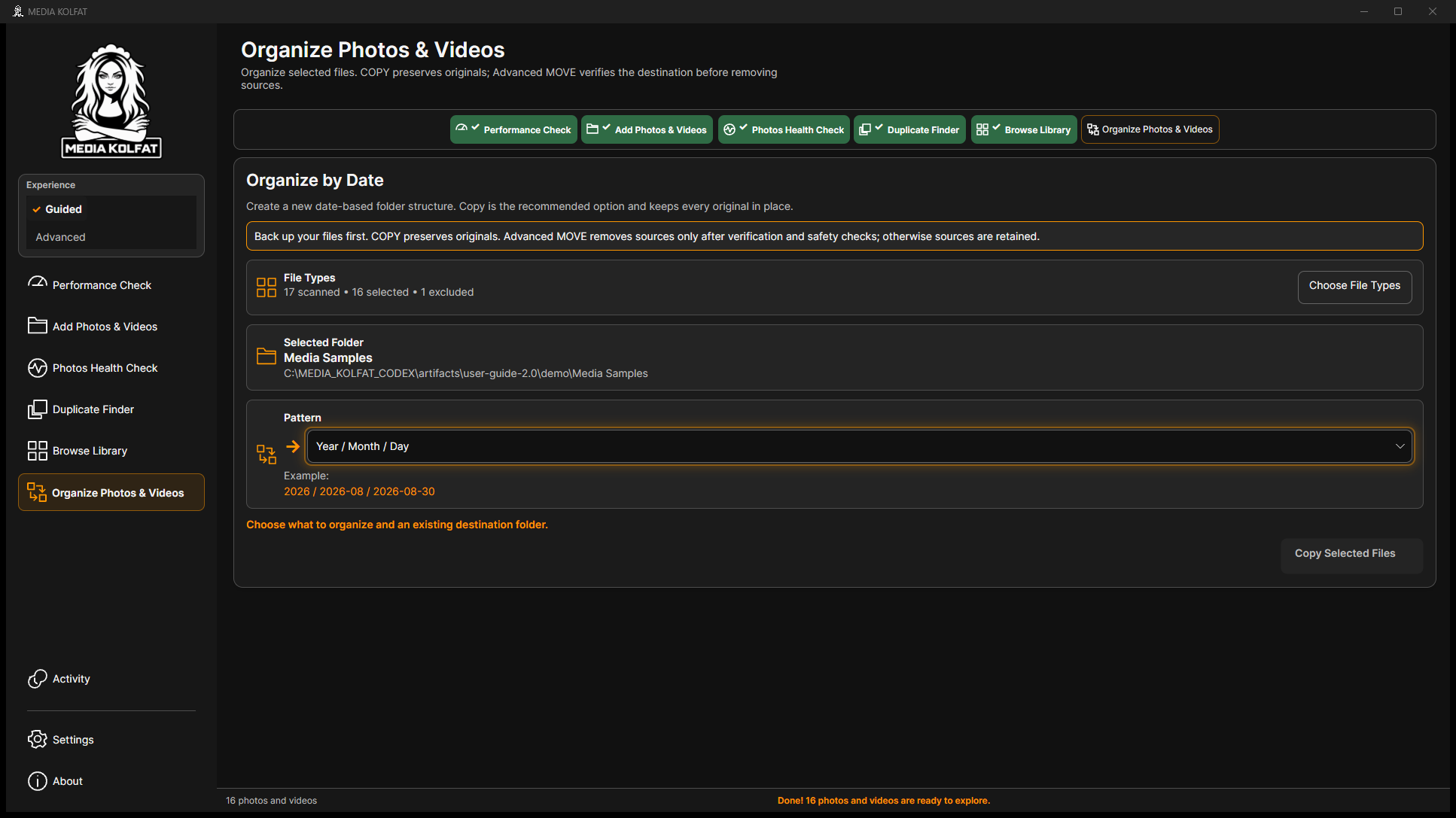
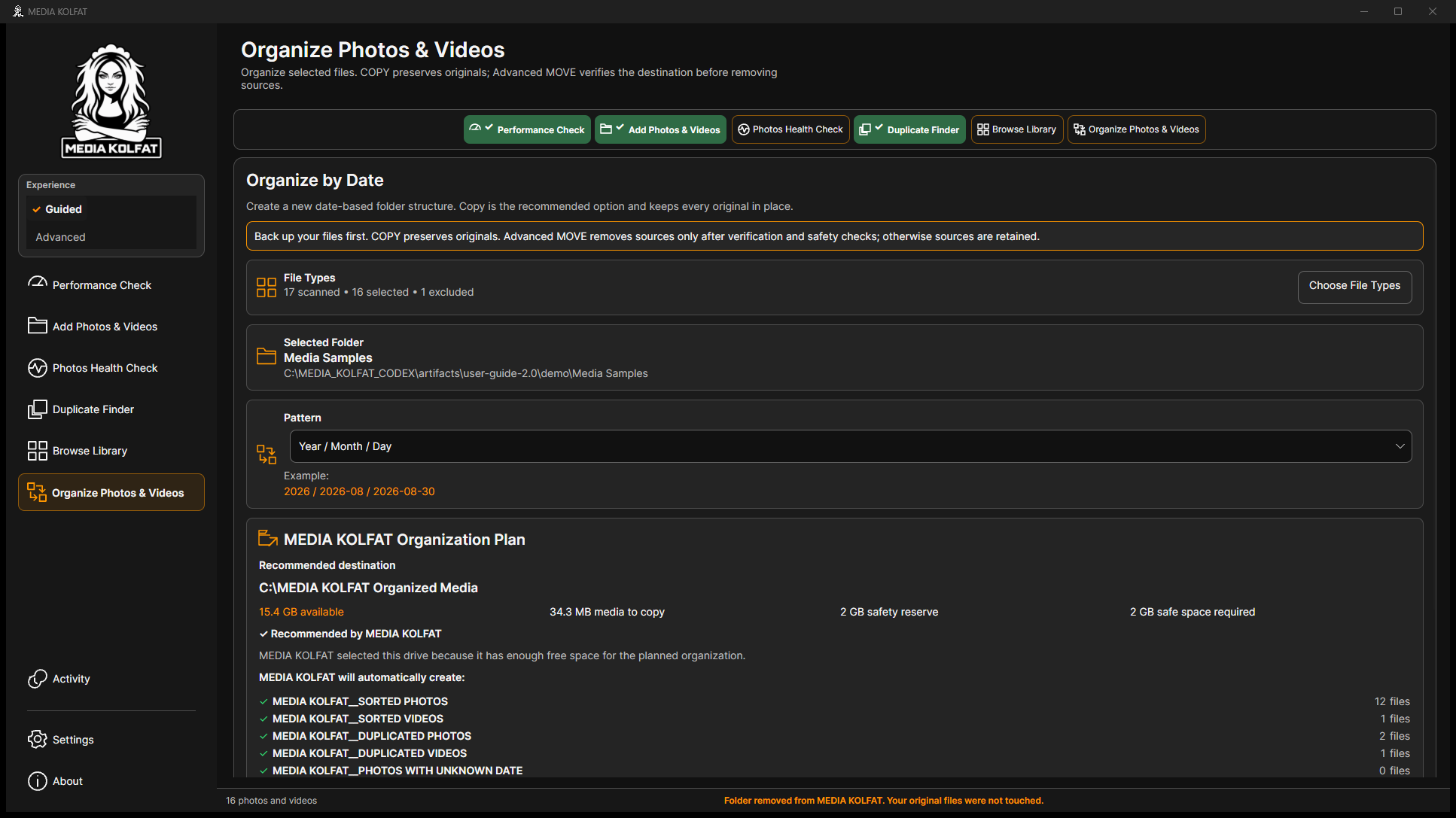
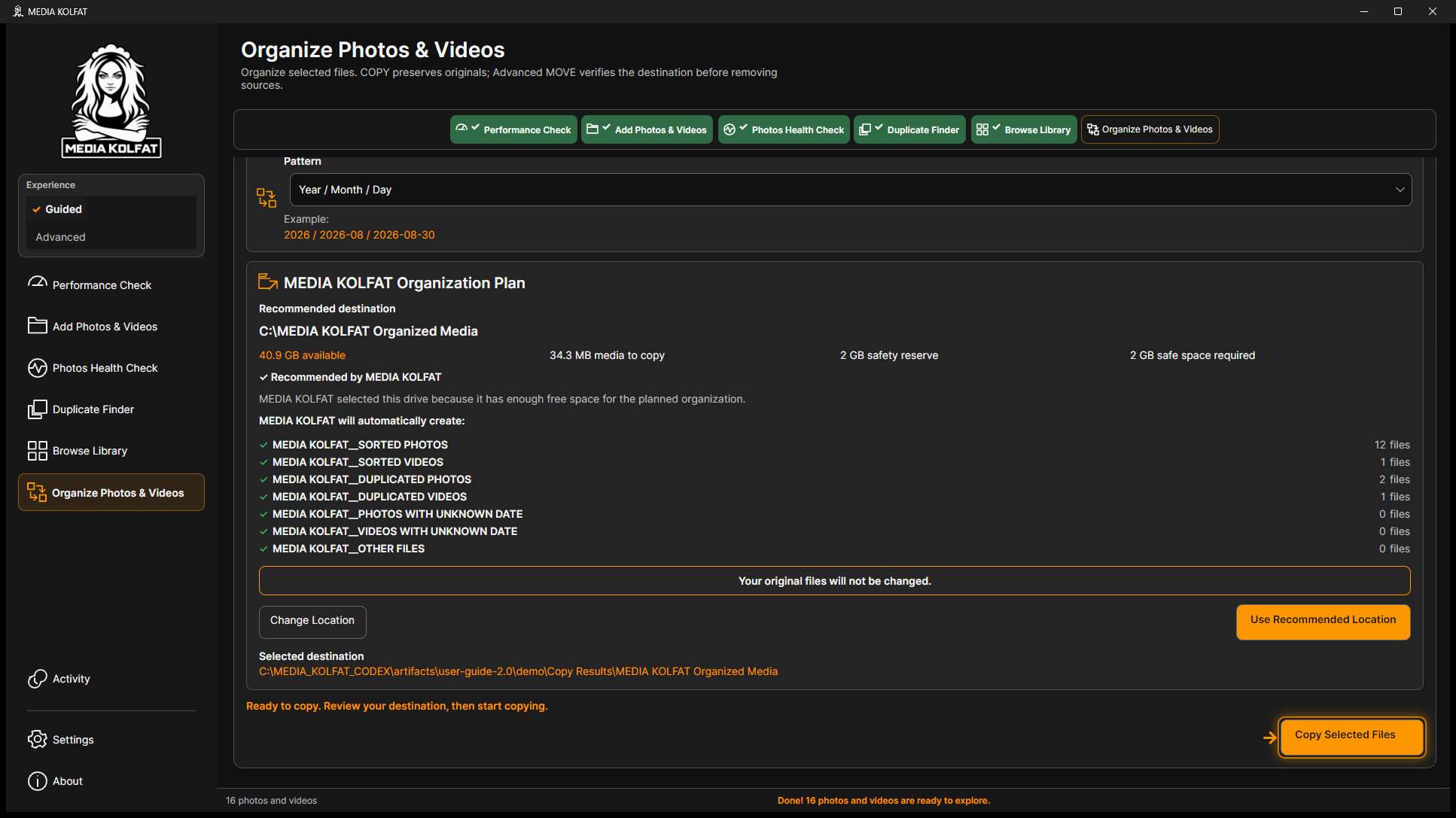
Step 6. Choose Year / Month / Day in Pattern and close the list to confirm it. Review the organization plan and category counts before selecting a destination. This plan uses the untouched original 16-media source.
The actual Guided organization plan before destination confirmation. Open original PNG
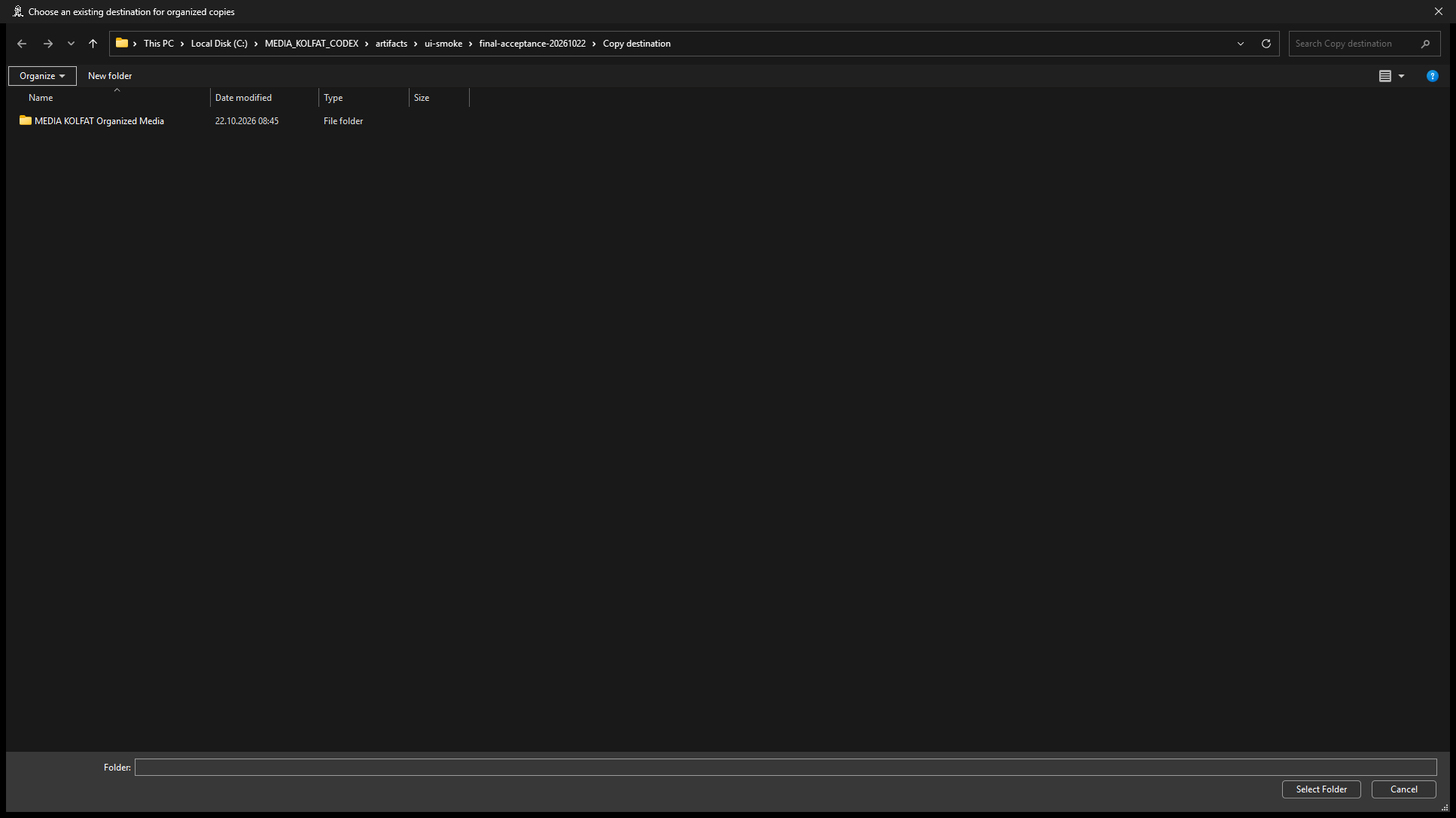
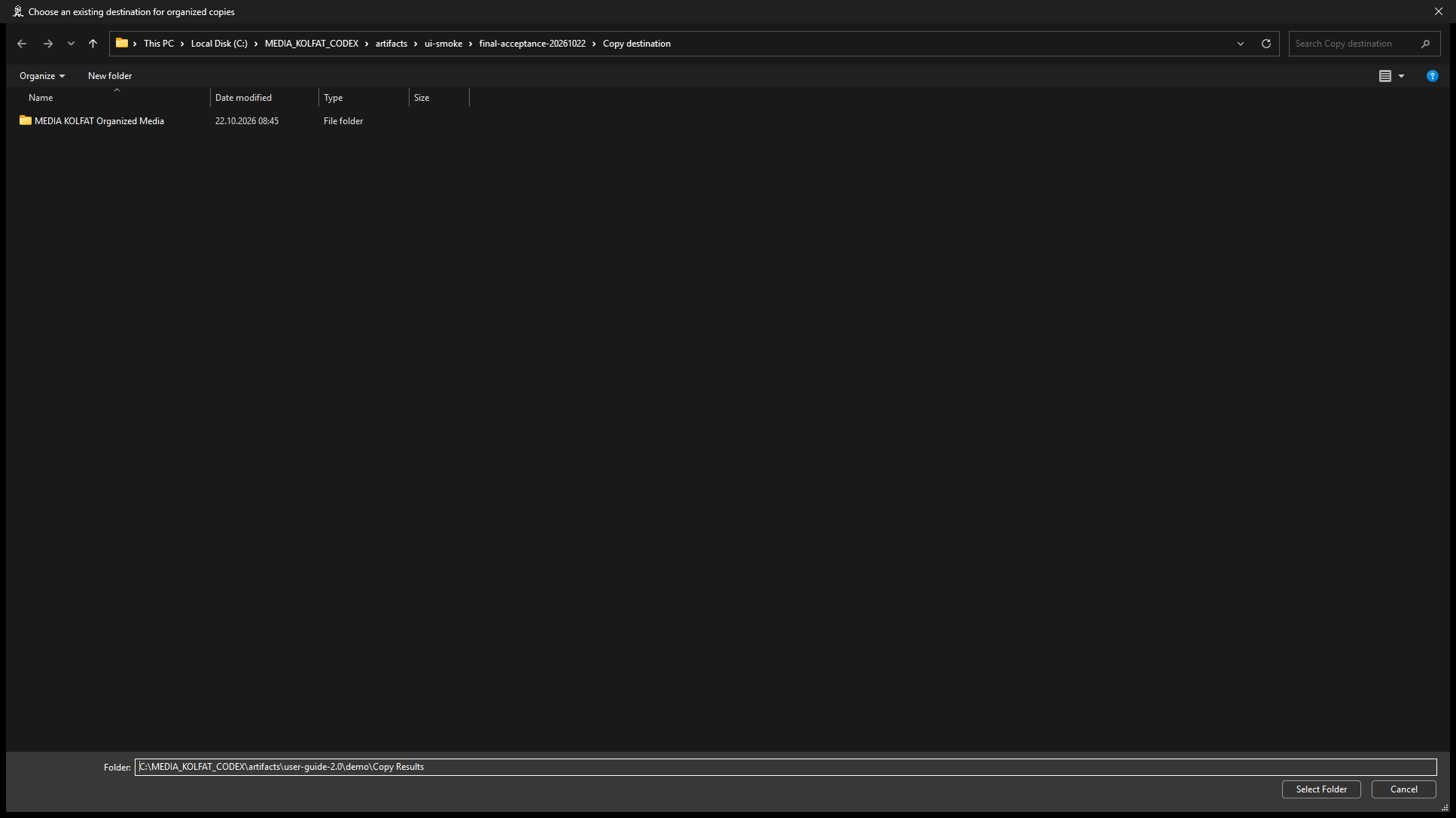
Step 7. Choose Change Location when you want a specific destination. The native Windows picker requires an existing folder; keep it separate from your source and backup.
Step 8. Enter or navigate to your intended destination and choose Select Folder. The demonstration uses Copy Results. MEDIA KOLFAT adds its MEDIA KOLFAT Organized Media root inside the selected folder.
Step 9. Read Selected destination in the app, then review the plan's categories and available space. The original example places exact copies into the duplicated-photo and duplicated-video categories after the completed duplicate scan.
The verified destination and real organization plan. Open original PNG
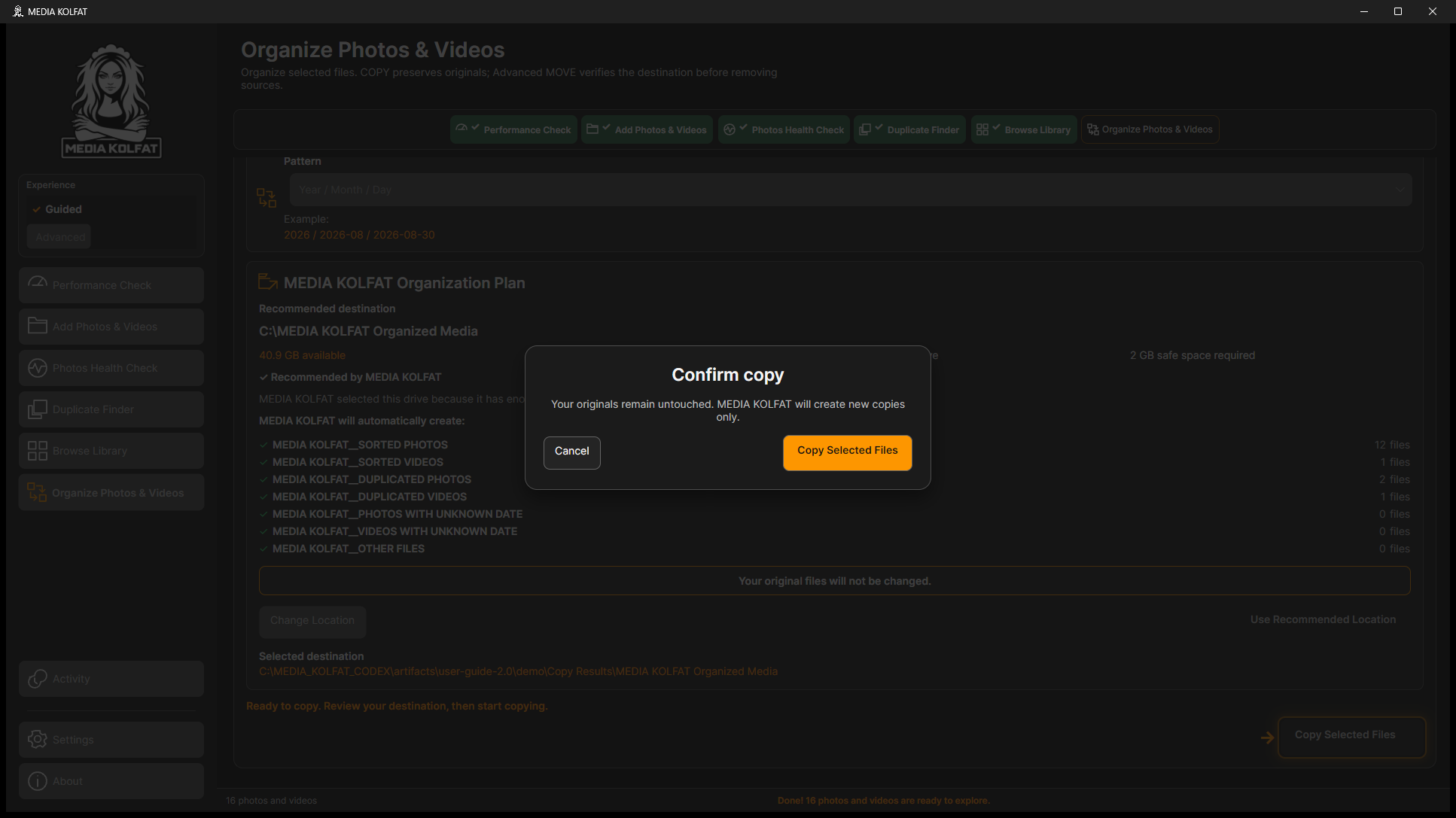
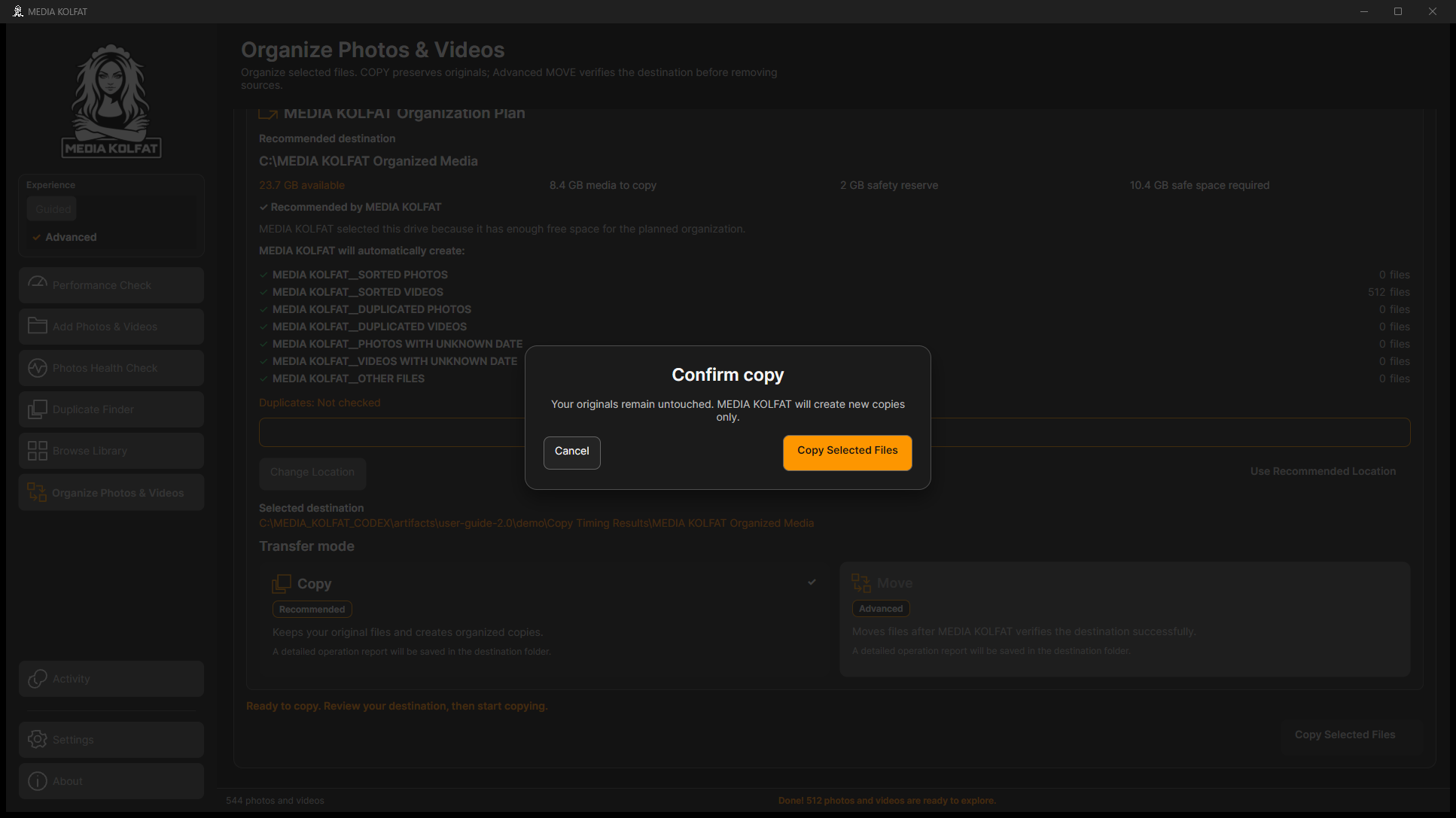
Step 10. Choose Copy Selected Files. Read Confirm copy: originals remain untouched and new copies are created. Choose Cancel if the source, selection or destination is wrong.
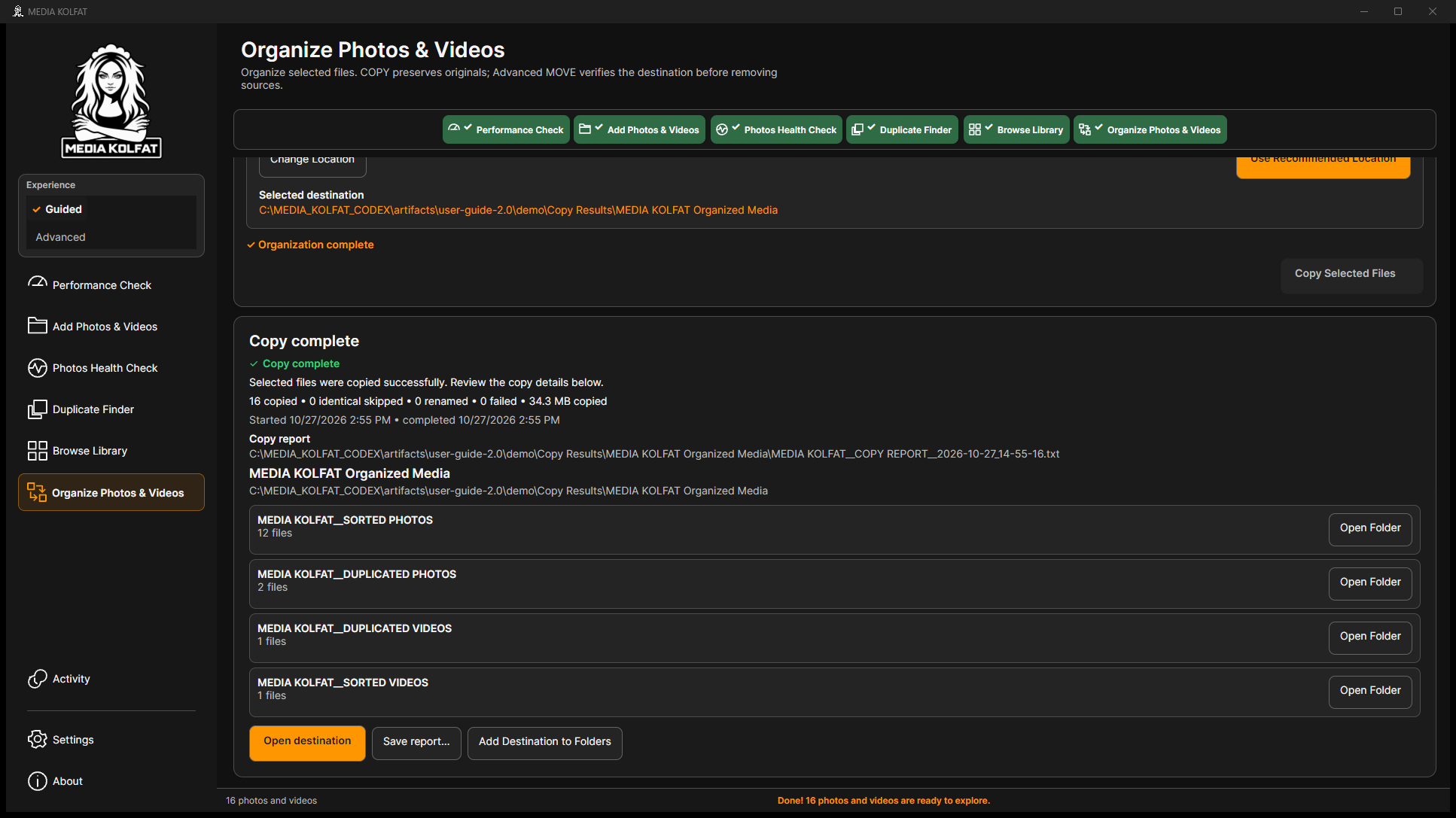
Step 11. Confirm Copy Selected Files and wait for completion. The demonstrated result is 16 copied, zero identical skipped, zero renamed and zero failed. Read the report path and category counts.
Folder-pattern choices include Year / Month / Day, YMD - Single Folder, Year / Month, camera-based variants, Year Only, Month Only, Day Only and Custom. Choose a structure you can recognize and keep its preview in view.
Open destination and category Open Folder buttons locate results. Save report saves a report copy. Add Destination to Folders is an explicit registration action; the destination is not added automatically.
All 16 destination hashes matched the expected source files in this example, and all 17 original files and their independent backups remained unchanged.
A verified organized copy exists in the chosen destination, with a plain-text report and all originals retained.
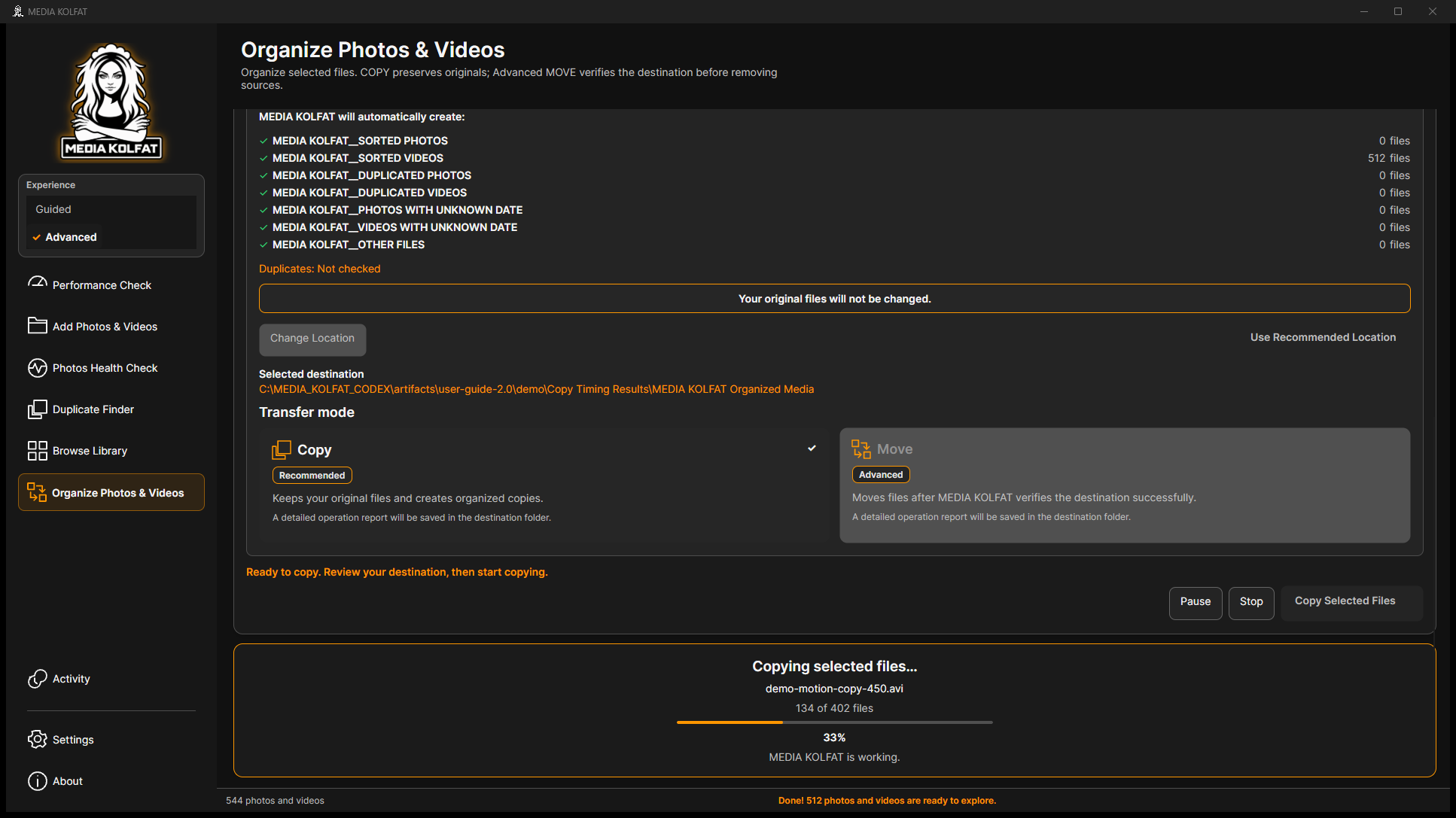
Longer operations provide time to read the progress panel. The larger demonstration uses 512 generated video copies with a separate verified backup. These are disposable test files, not personal media.
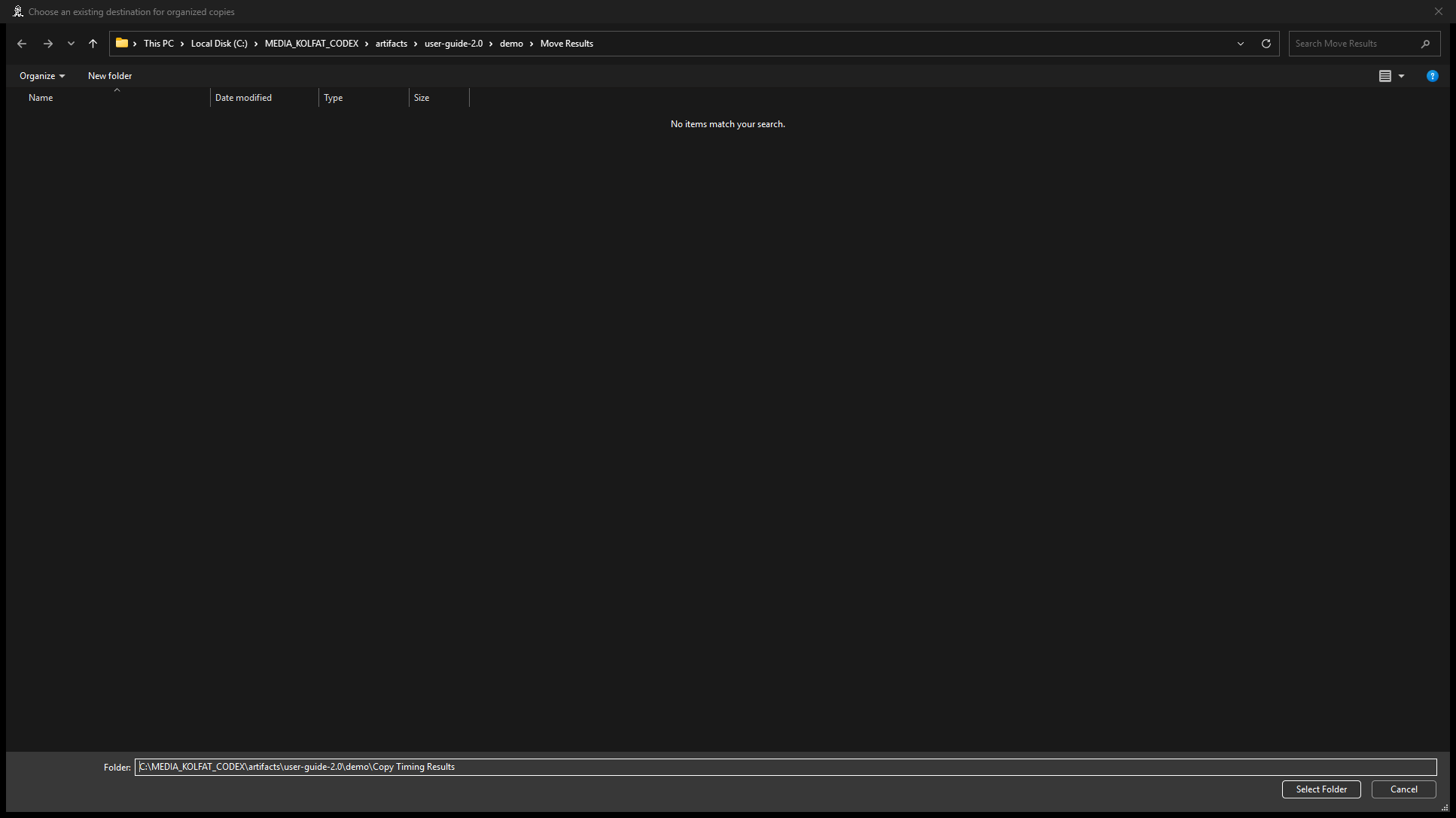
Step 1. Choose a separate destination for the larger COPY example and verify its full path. The demonstration uses Copy Timing Results.
The larger example uses its own disposable destination. Open original PNG
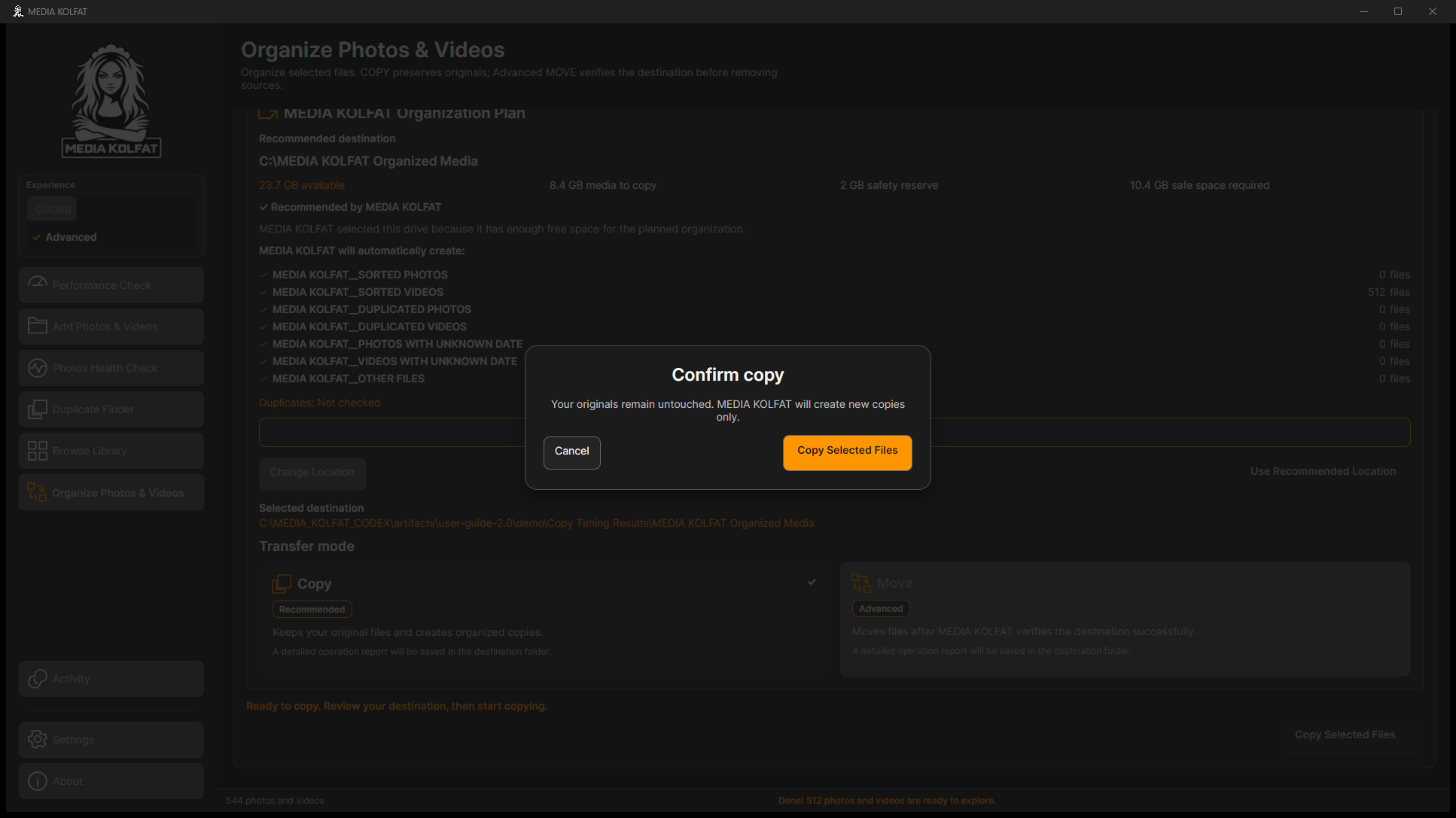
Step 2. Review and accept the real COPY confirmation after the source, selection, destination and free-space checks. A short preparation phase can precede copying.
COPY confirmation for the generated timing dataset. Open original PNG
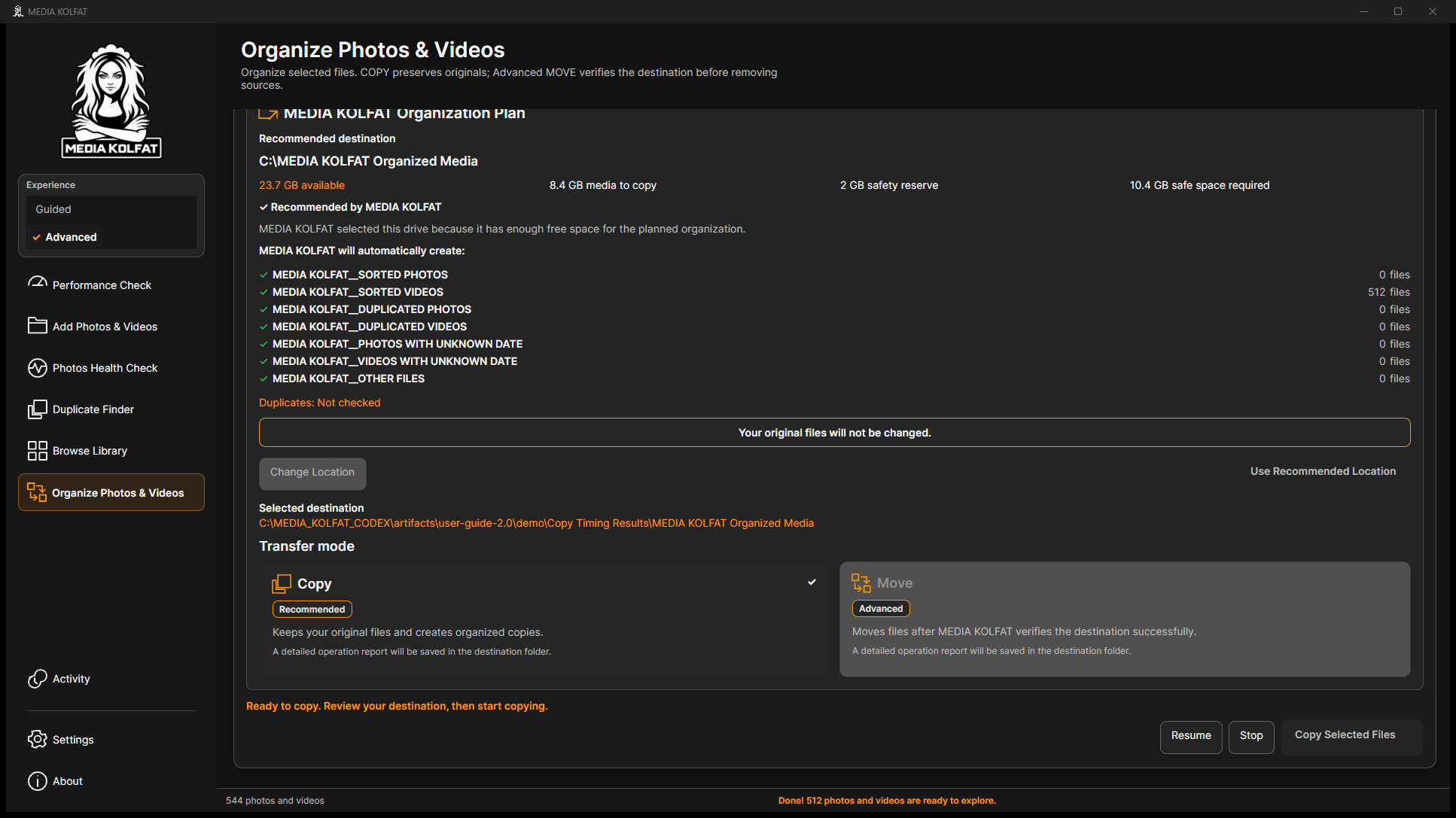
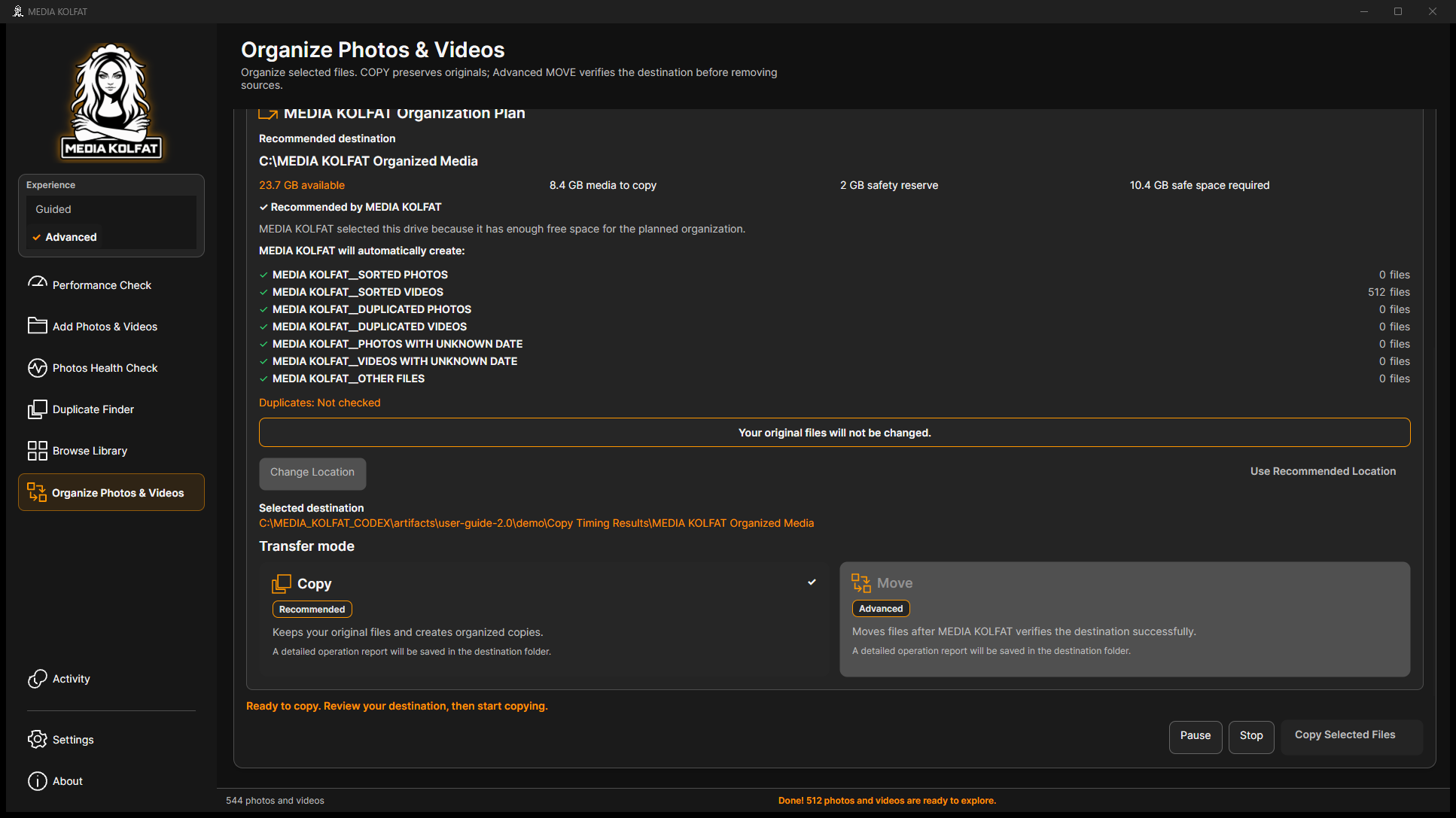
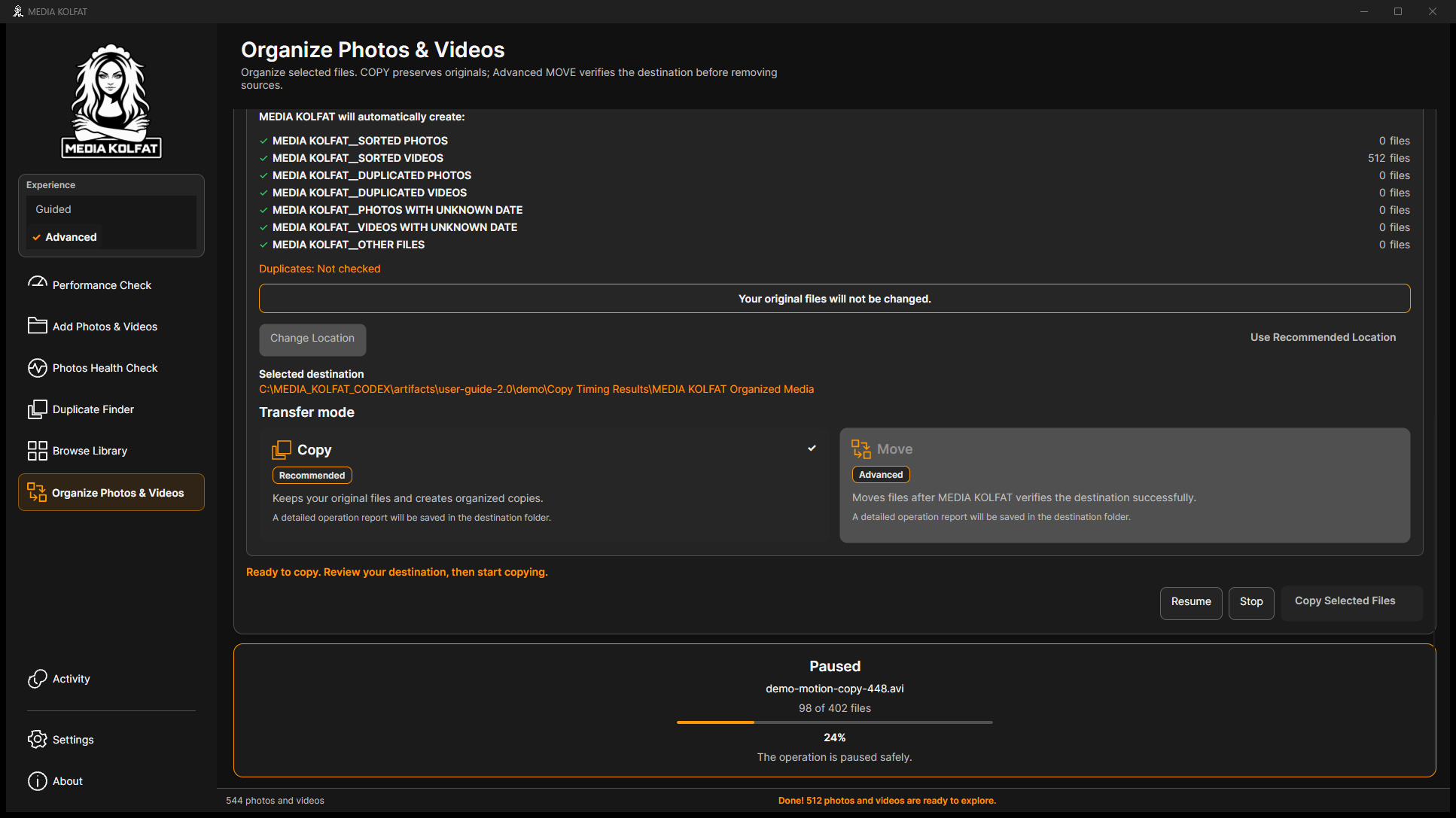
Step 3. Choose Pause during copying and wait until Resume appears. The operation pauses safely; it may finish its current file before the paused state is displayed.
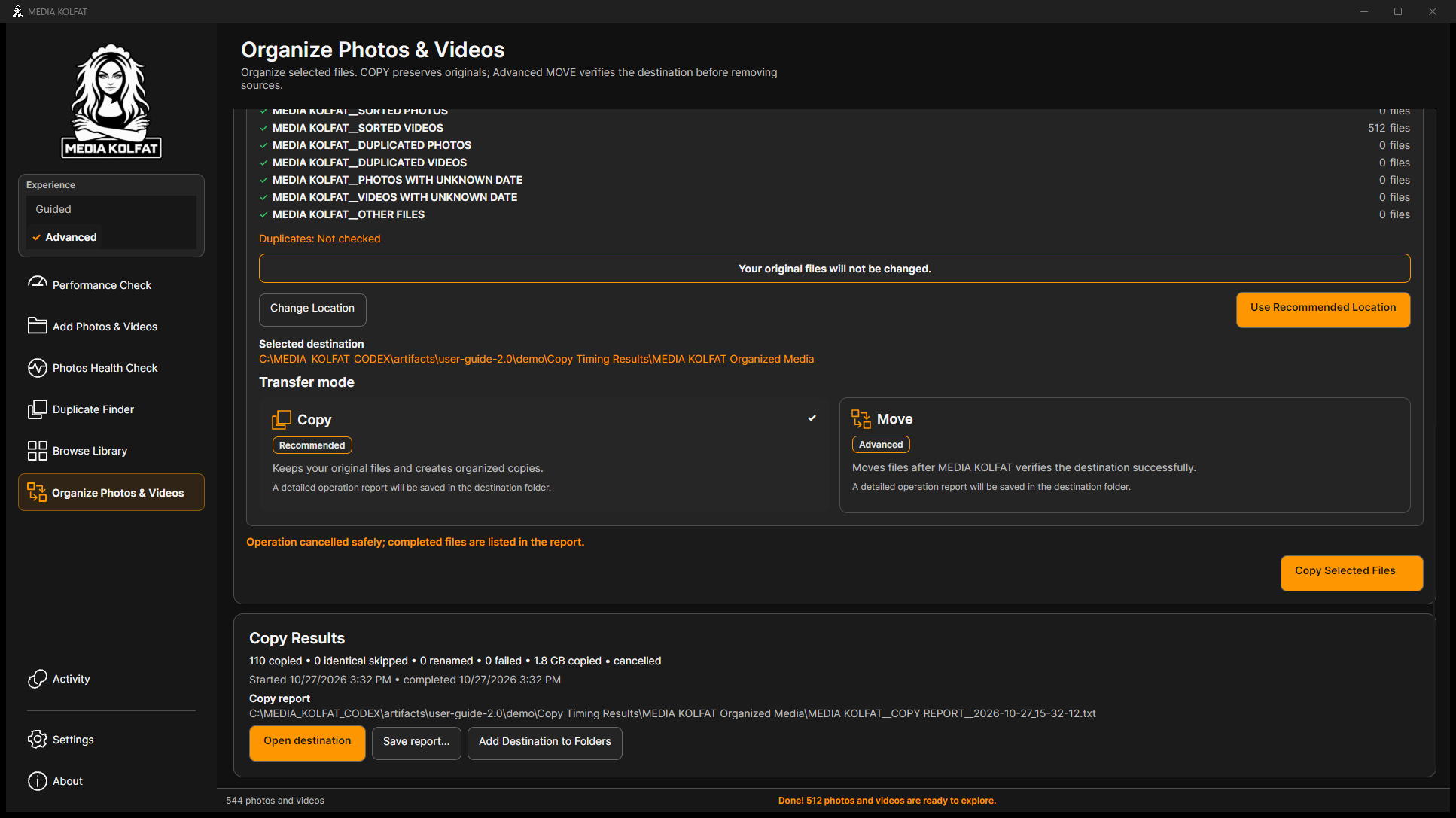
Step 5. Choose Stop when you need to end the operation. Read the cancelled summary and report. The first larger example retained 110 completed copies, with zero failures; cancellation did not remove those valid copies.
The real cancelled COPY summary: 110 completed copies retained. Open original PNG
Step 6. To finish after cancellation, start COPY again with the same source, pattern and destination. Review the new confirmation. This is a new operation; already completed identical files can be skipped.
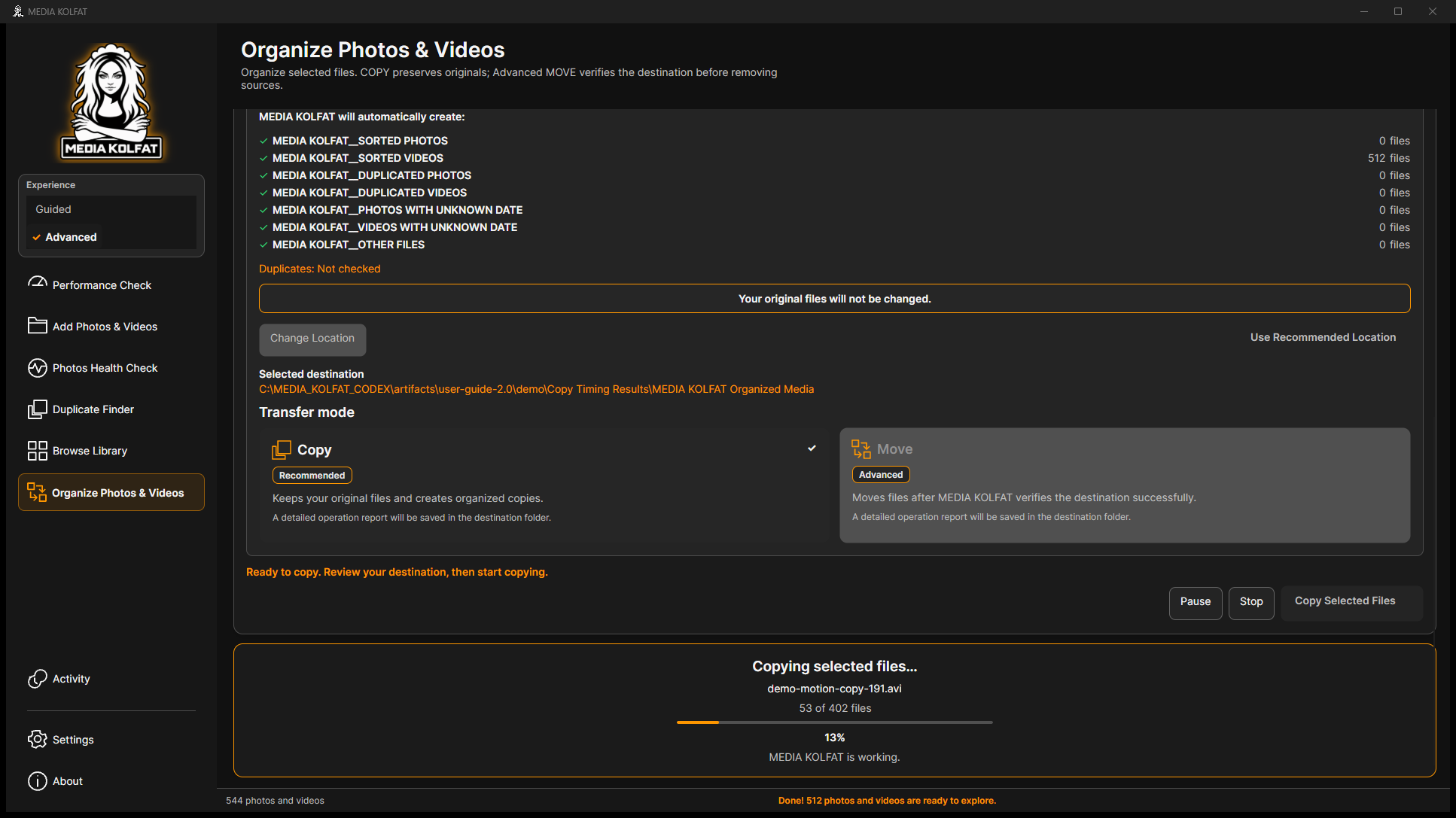
Step 7. Read the current filename, file count and percentage in the progress panel. On retry, the count covers the files still needing copying rather than the previously completed identical files.
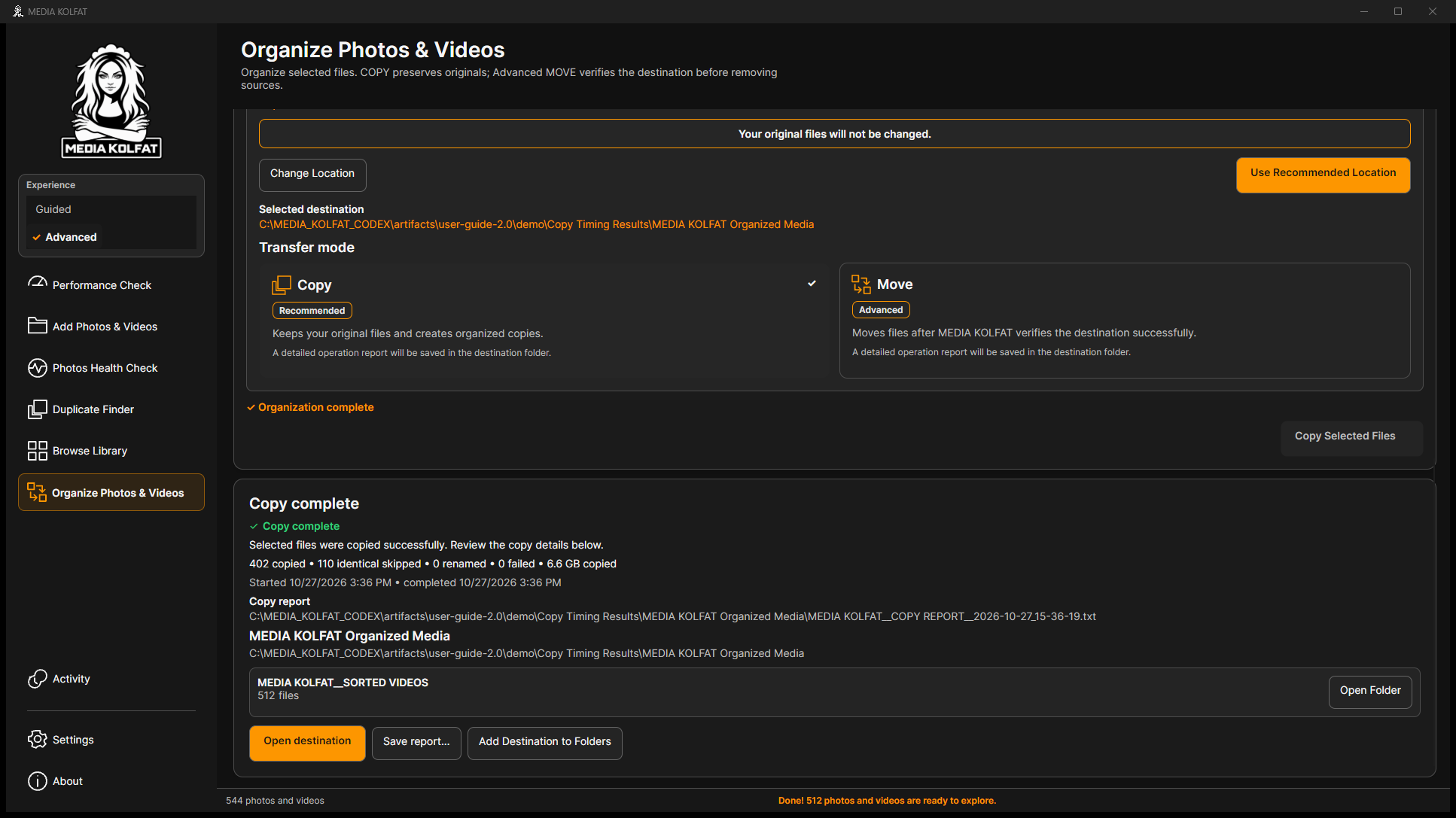
Step 10. Read the final summary. The retry copied 402 remaining files and skipped 110 identical files, with zero renamed and zero failed. All 512 destination media hashes were then verified.
Completed recovery: 402 copied and 110 identical skipped. Open original PNG
Stopping a duplicate scan and stopping a COPY are different operations. Use the controls on the page for the operation that is actually running.
The tested COPY page can retain earlier status wording above the active controls. Read the progress panel and final result for the current operation.
After a cancelled COPY, check the report and destination before retrying. Keep completed verified files; do not assume the entire destination must be deleted.
You can pause an active COPY, resume it, stop safely, and retry without duplicating completed identical outputs.
MOVE changes the source location of files. Practice only with disposable copies and keep an independent verified backup. The worked example uses a separately backed-up Move Samples clone; the original demonstration source is never used for MOVE.
Step 1. Select Advanced in the Experience area. The guided step strip is no longer the main navigation aid. Continue to the organizer only after selecting the intended demonstration source.
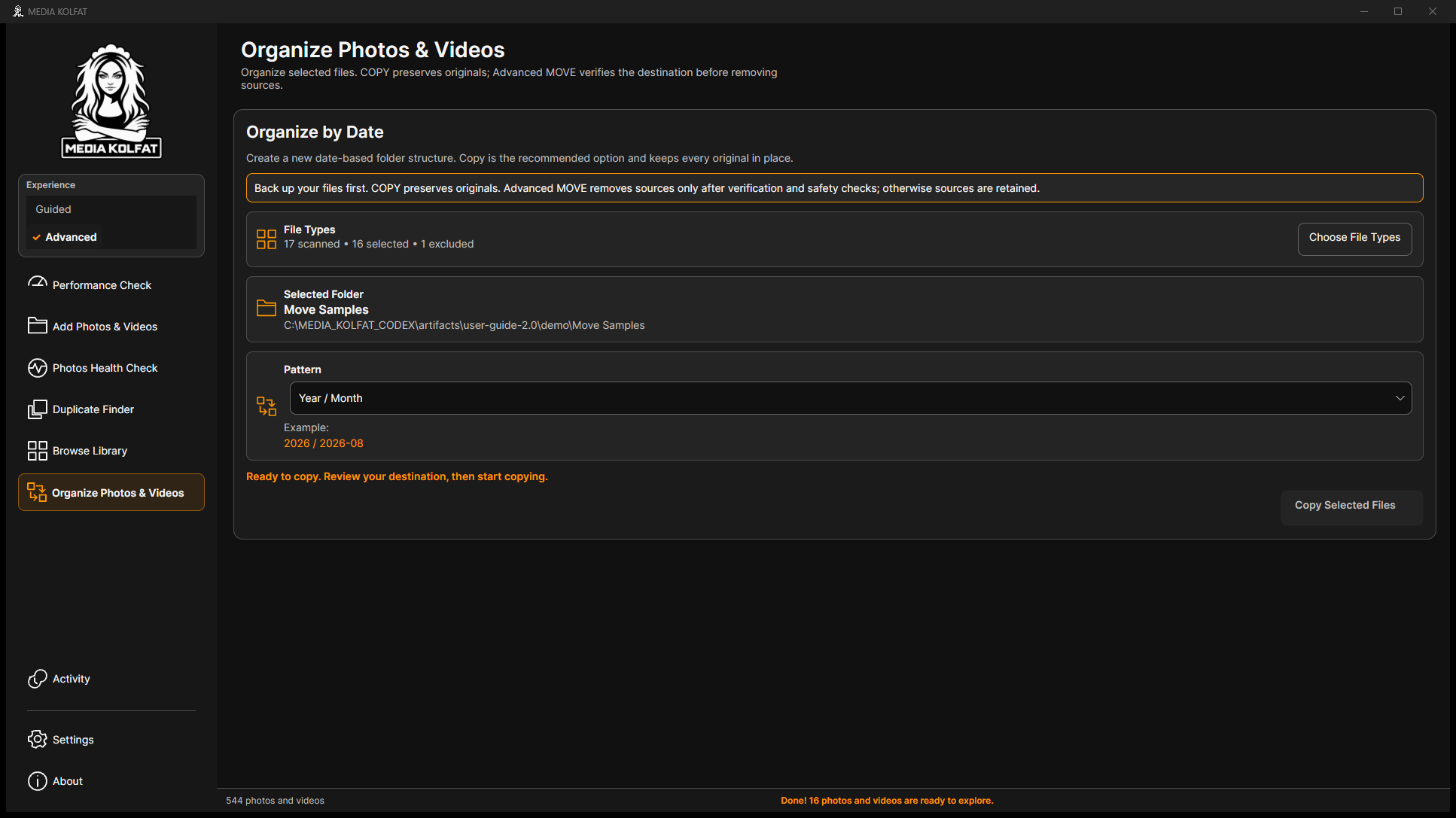
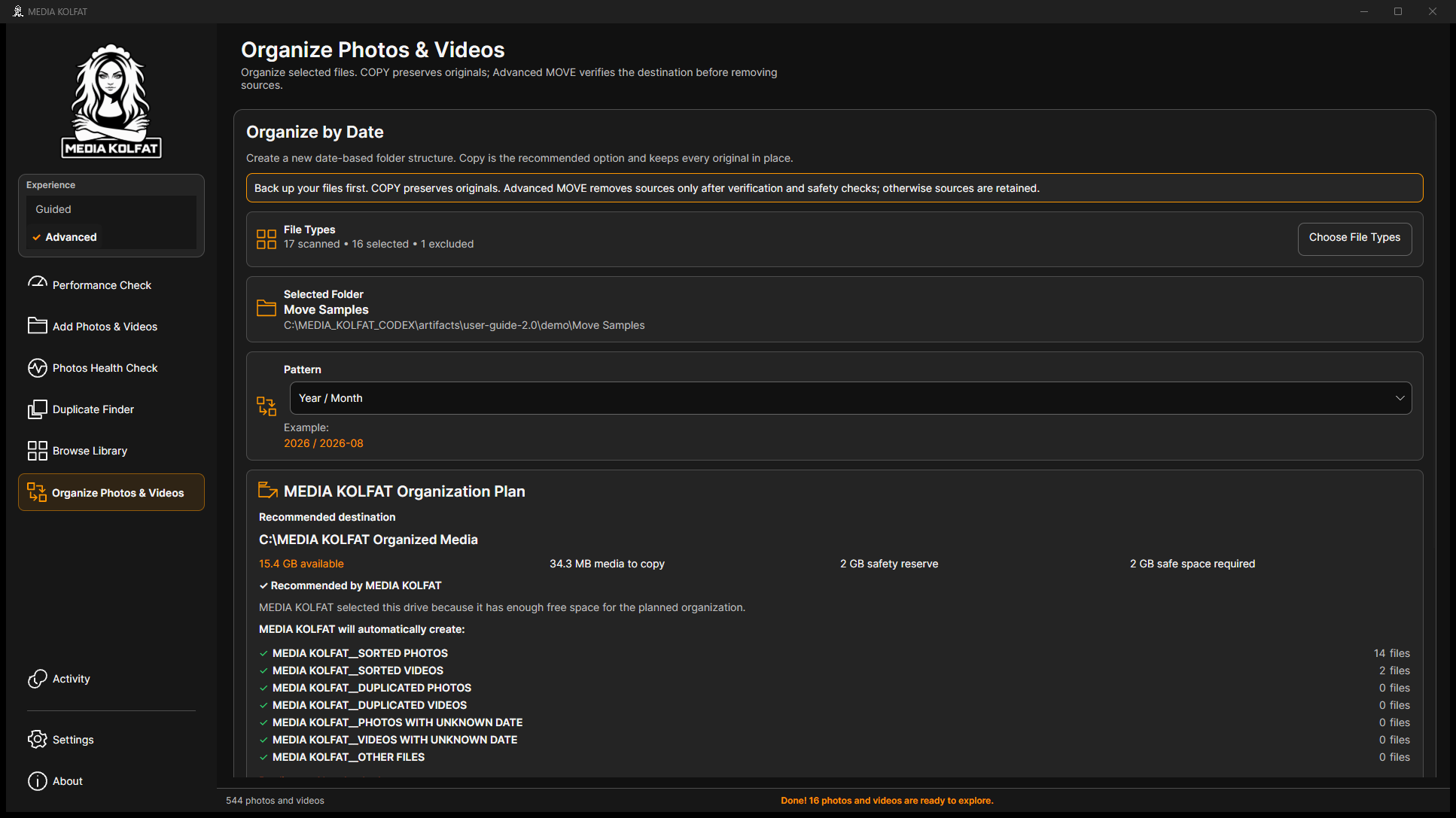
Step 2. Confirm the media types and inspect Selected Folder. The demonstrated operation explicitly shows Move Samples, its exact path, and 17 scanned with 16 selected and one excluded.
The correct backed-up disposable source is selected. Open original PNG
Step 3. Confirm Year / Month in Pattern and review the resulting plan. This MOVE example did not reuse a completed duplicate classification, so its plan says Duplicates: Not checked.
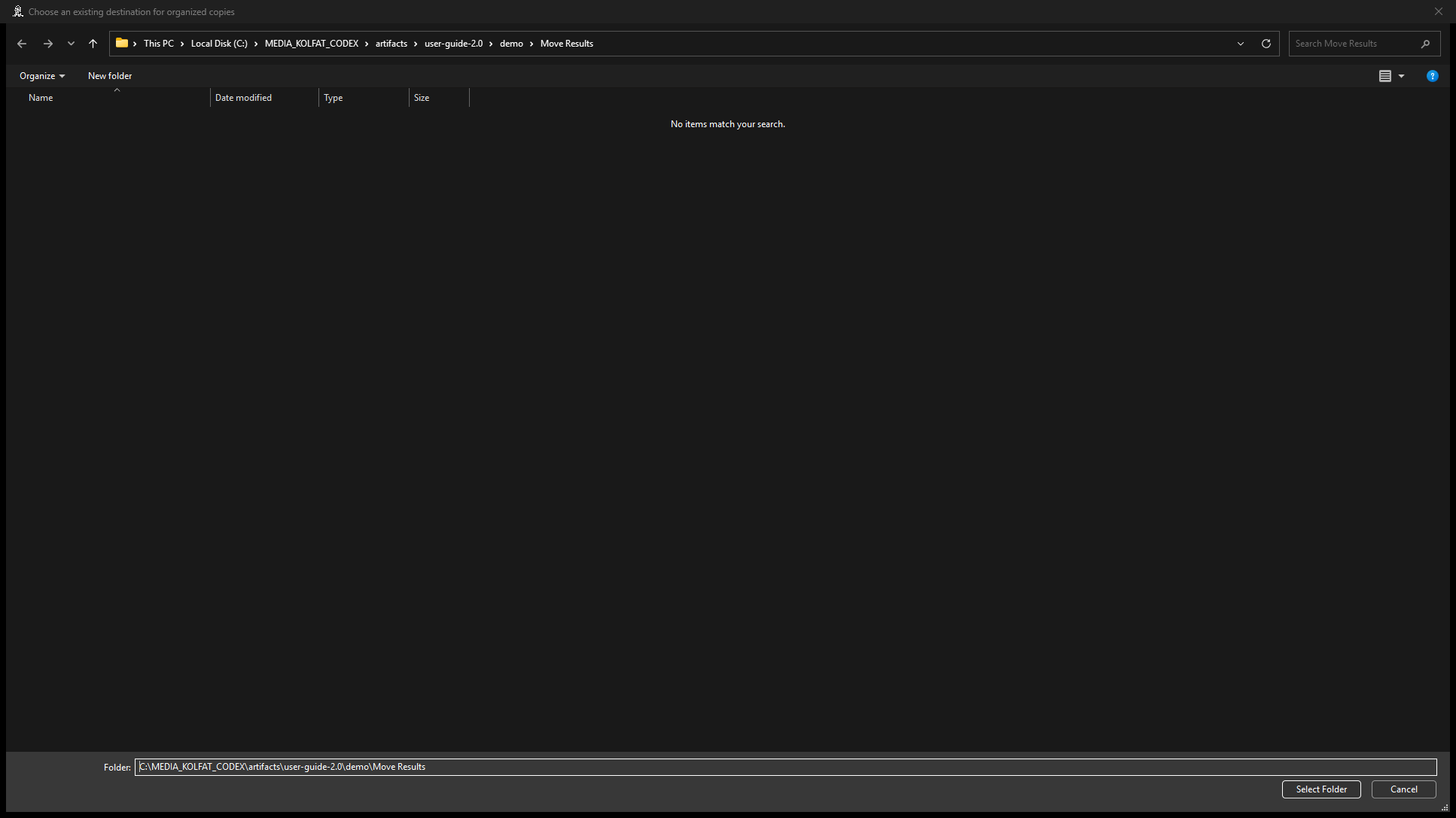
Step 4. Choose Change Location and select the separate Move Results directory. Verify the path before accepting it.
The approved disposable MOVE destination in the native picker. Open original PNG
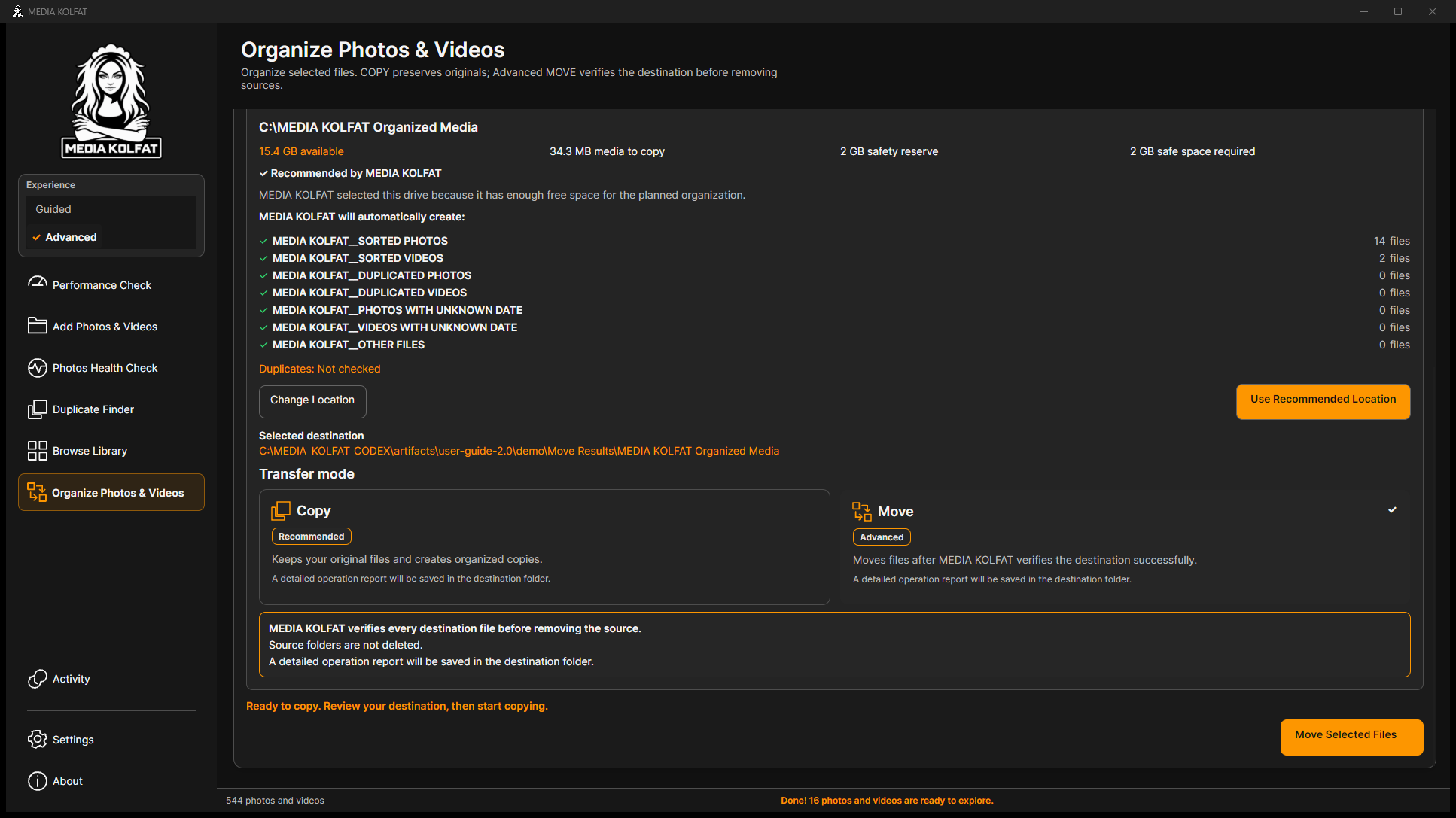
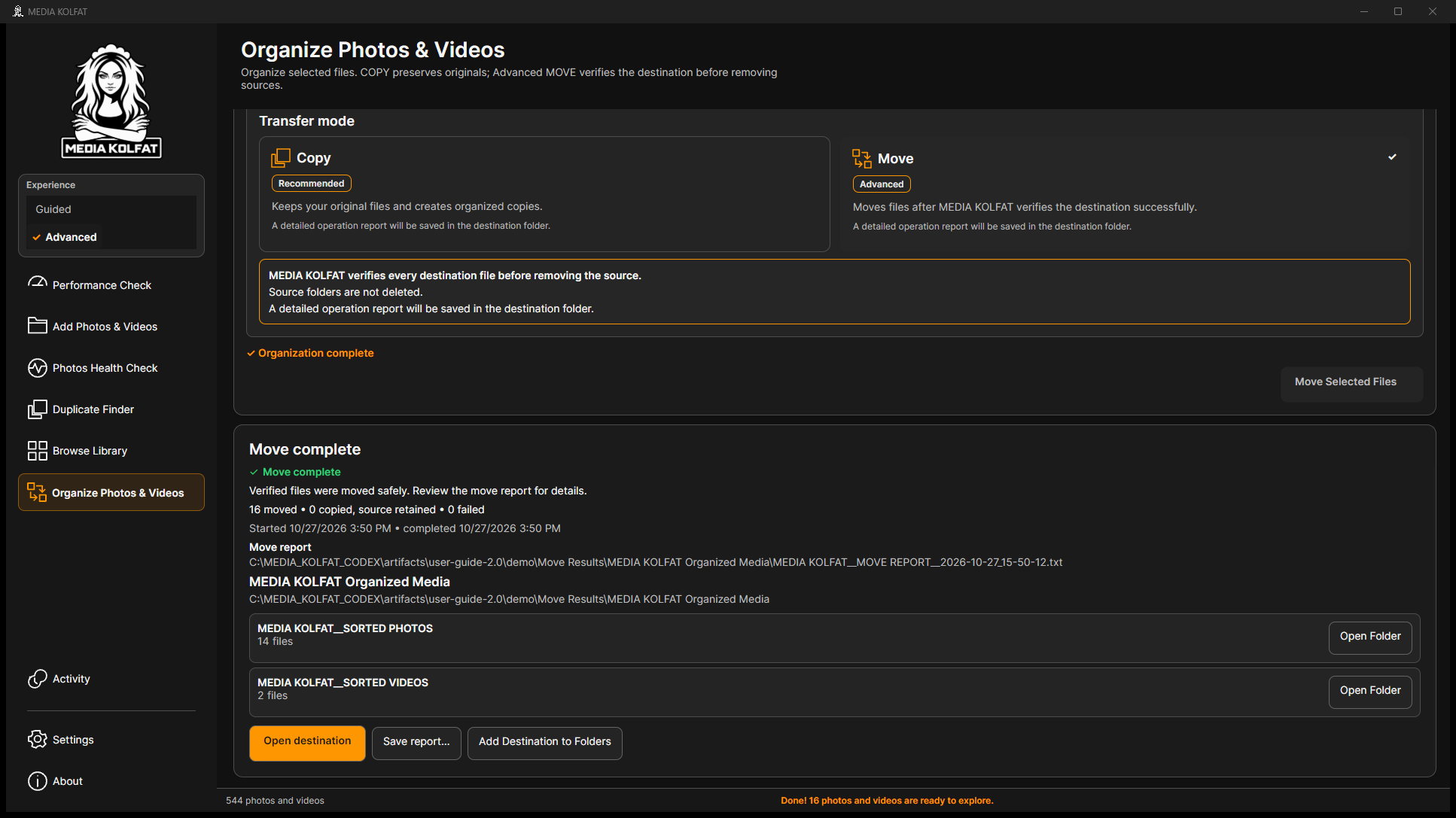
Step 5. Select Move under Transfer mode. Read the warning: destination files are verified before sources are removed, source folders are not deleted, and a detailed report is saved in the destination.
The actual Advanced MOVE warning and selected destination. Open original PNG
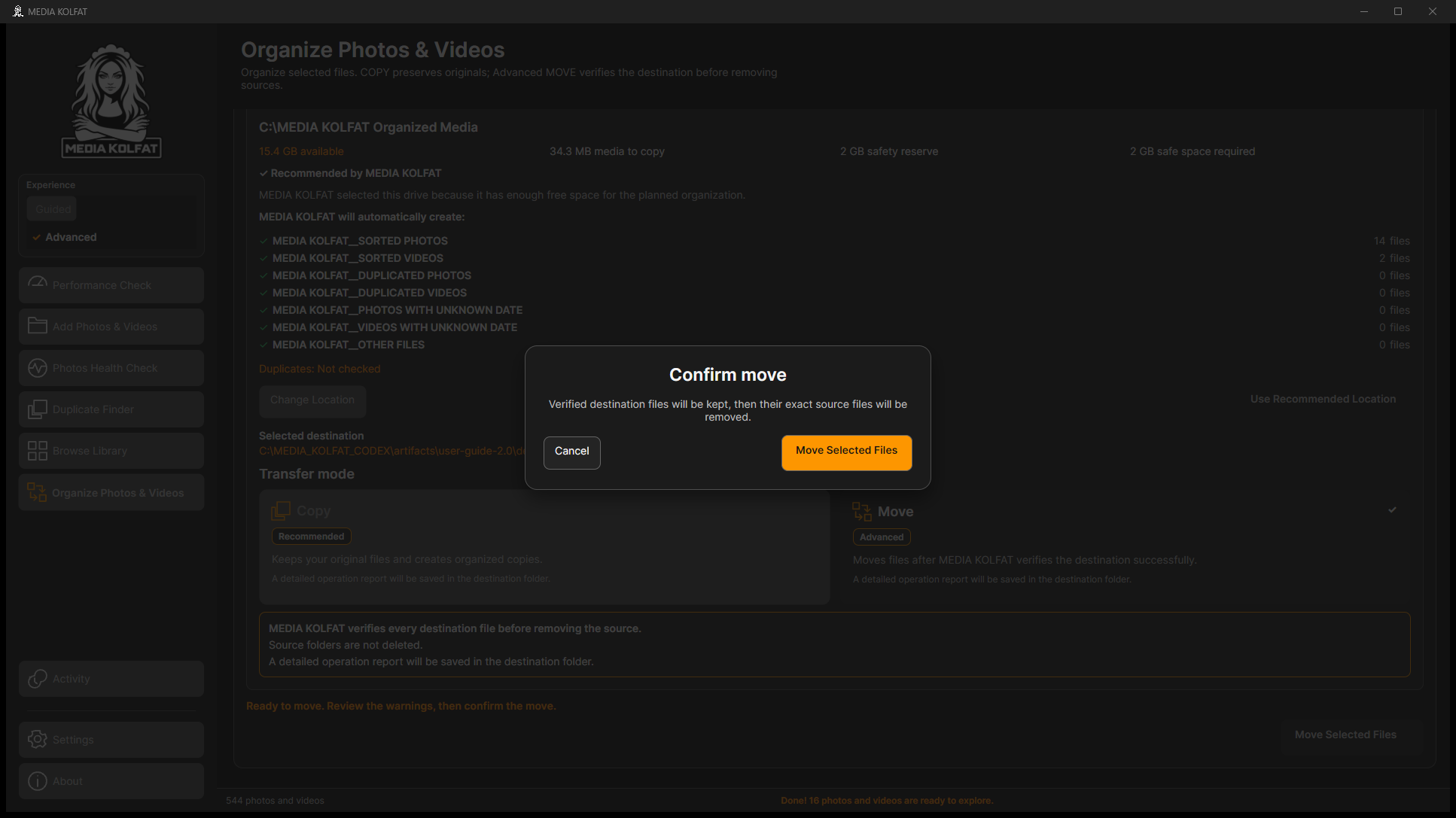
Step 6. Choose Move Selected Files and review Confirm move. It states that verified destination files will be kept and their exact source files removed. Cancel if anything is uncertain.
Step 7. Confirm the move only after checking source, destination and backup. Wait for Move complete and inspect the counts. The demonstration completed with 16 moved, zero copied with source retained, and zero failed.
The actual successful 16-file MOVE and report path. Open original PNG
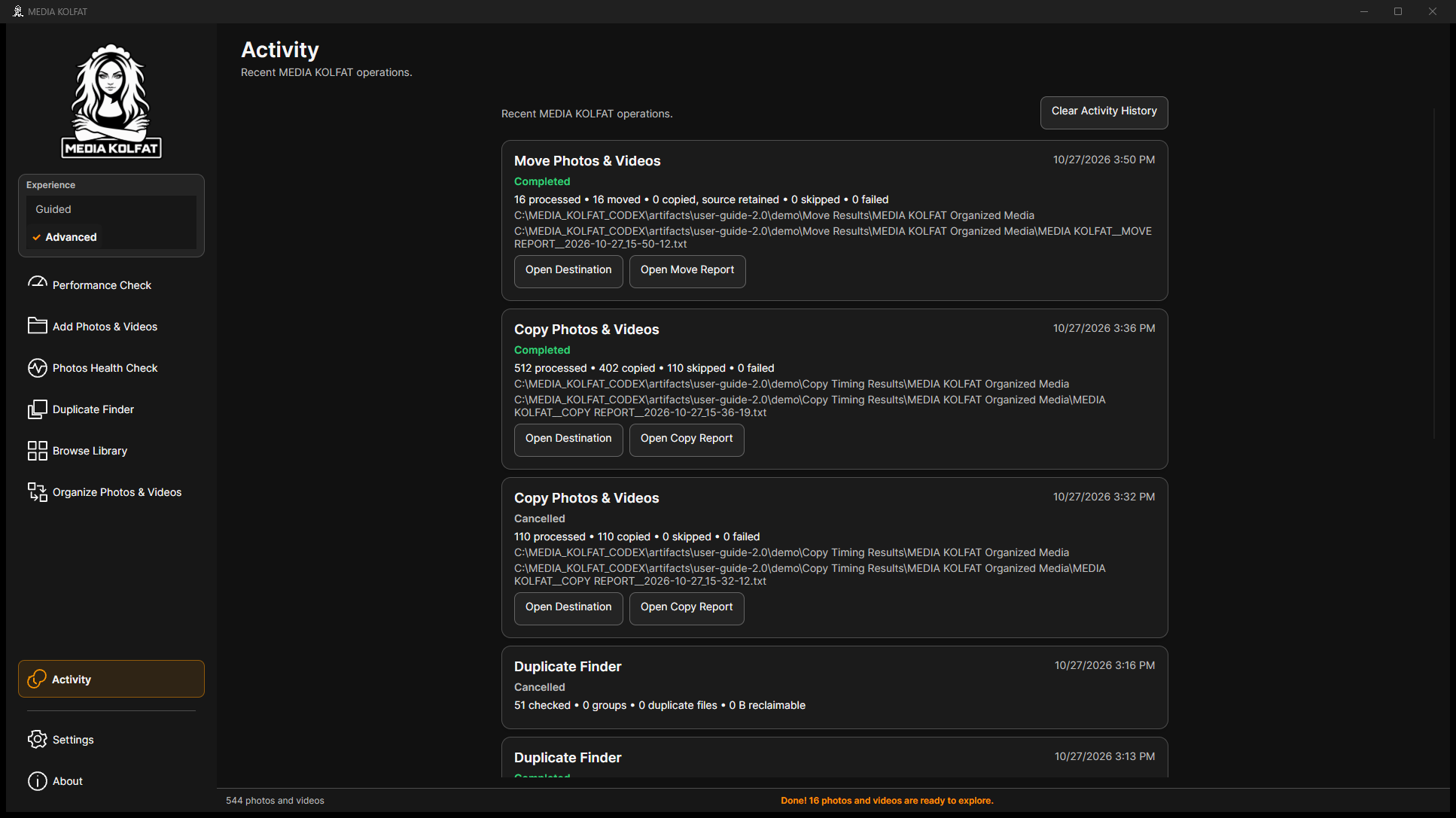
Step 8. Open Activity and find the completed Move Photos & Videos entry. Review its counts and Open Move Report link. The independent backup must remain available after a successful MOVE.
All 16 moved destination hashes matched the original expected files. All 17 independent backup files remained unchanged. The excluded notes.txt and all four original source directories remained in the disposable source.
COPIED_SOURCE_RETAINED means a destination copy exists but the source was kept. Review that outcome in the report rather than treating it as a fully removed source.
Check Selected Folder before every operation. Refreshing another source card does not switch the organizer source in the tested interface. Catalog-only removal and re-adding a disposable source was used to change the source in this demonstration.
The disposable MOVE is complete and verified, while the independent backup and original demonstration library remain intact.
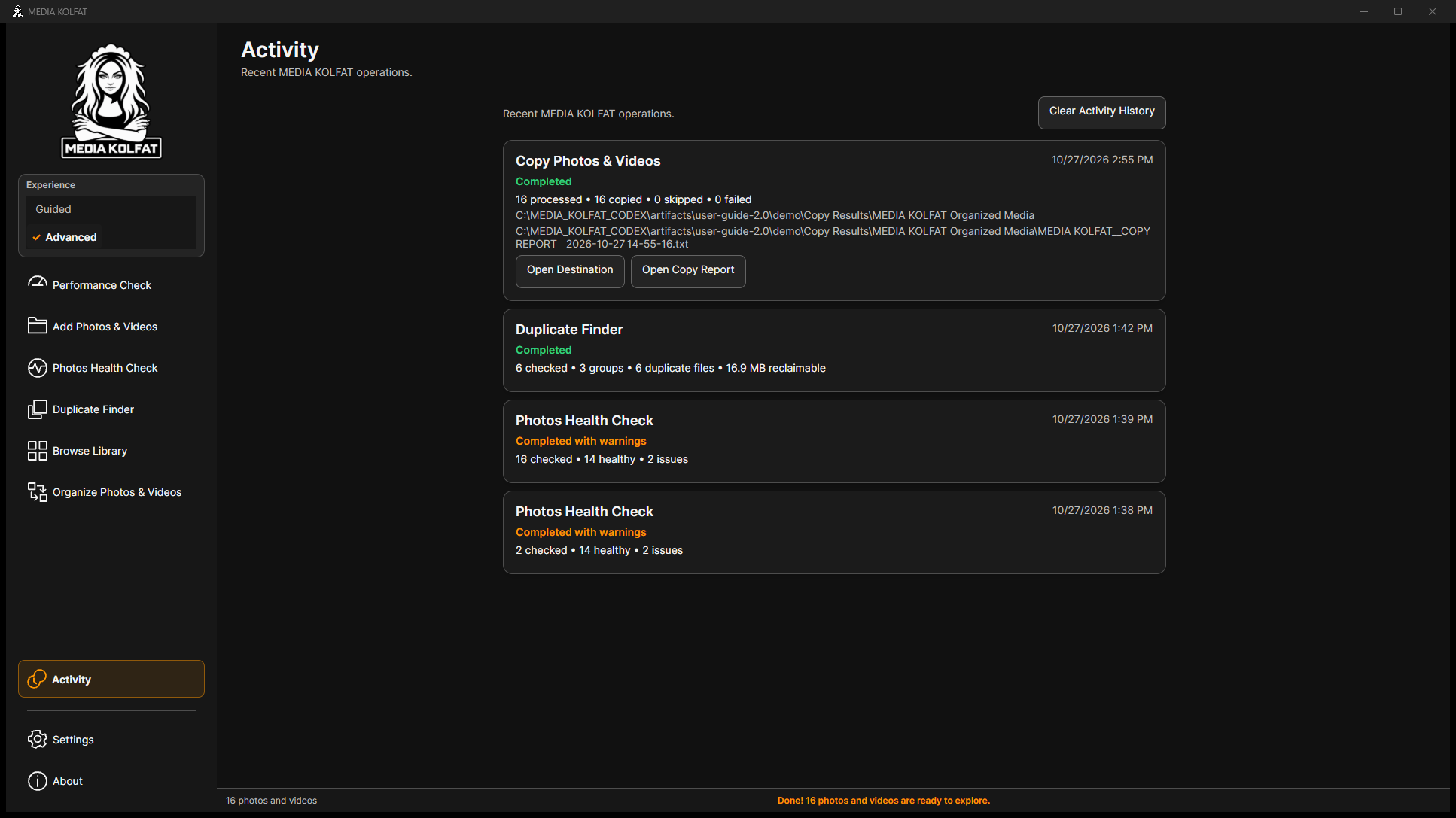
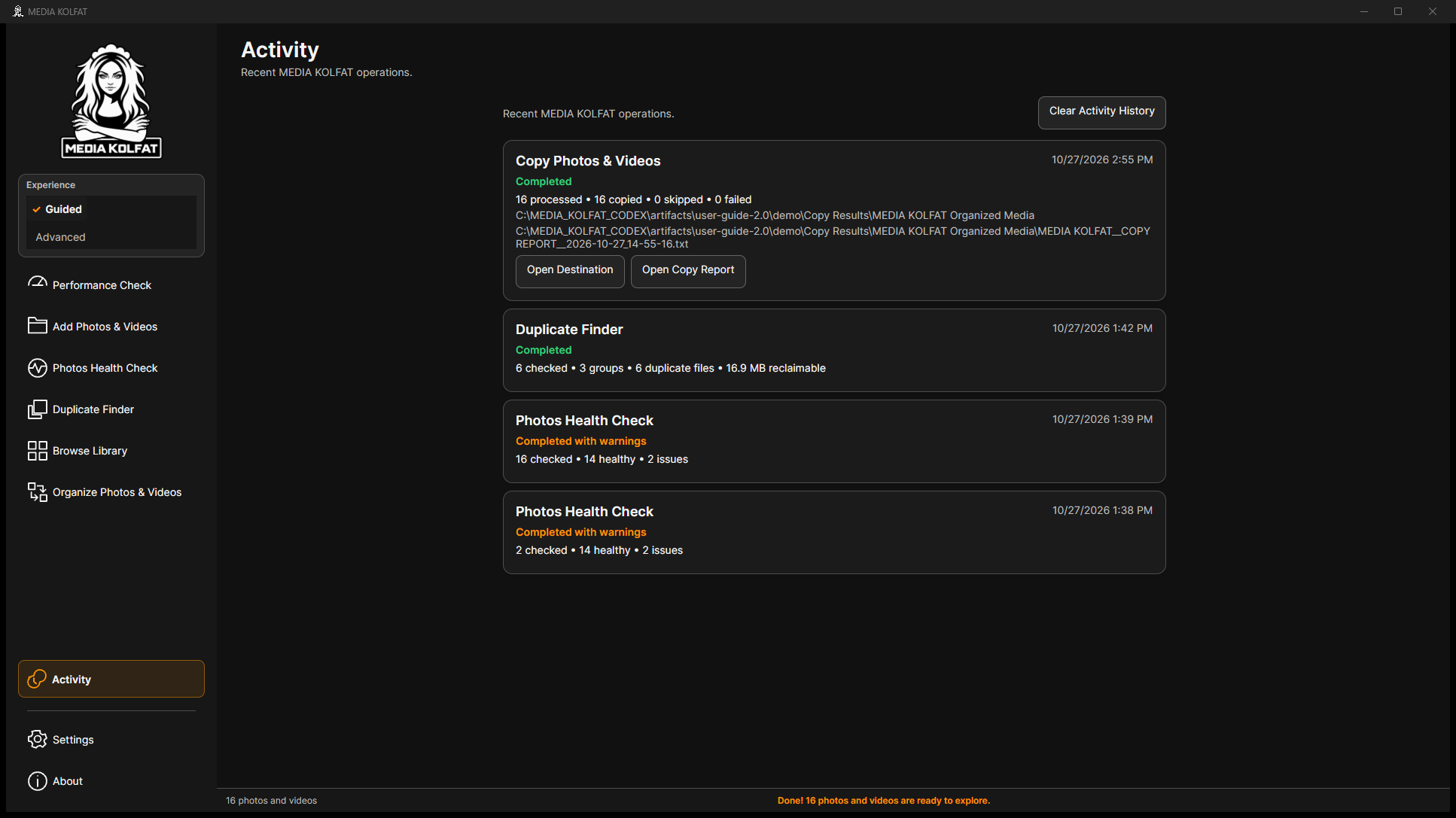
Activity records recent local operations. Read the status and counts together: Completed, Completed with warnings and Cancelled describe different outcomes. Automatic COPY and MOVE TXT reports are stored in the selected destination root.
Step 1. Open Activity after an operation. Locate the Copy Photos & Videos entry and compare processed, copied, skipped and failed counts with the destination summary.
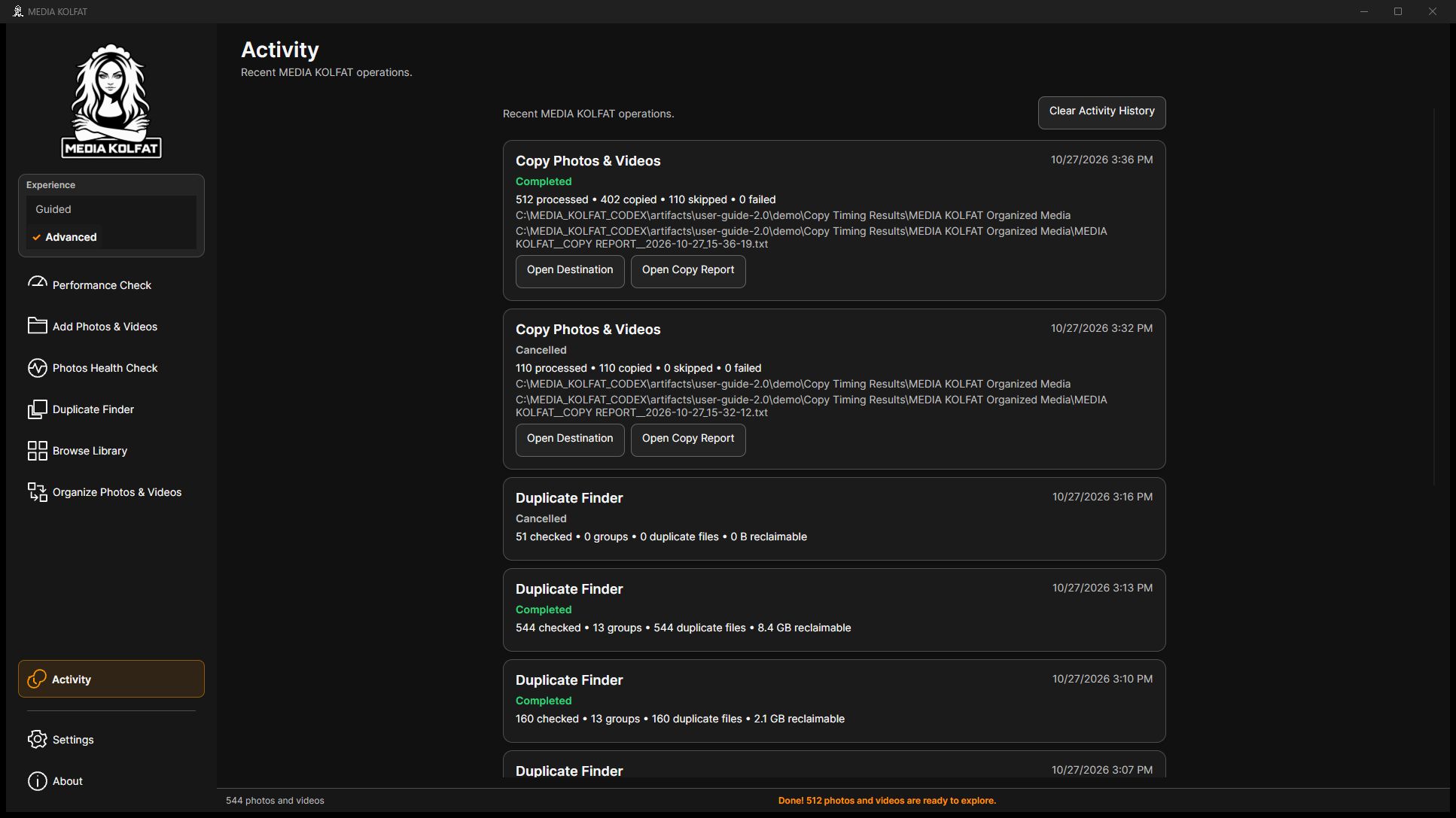
Step 2. Compare a completed operation with a cancelled one. The demonstrated cancelled COPY processed 110 files; the later completed retry processed 512 with 110 skipped. A cancelled duplicate scan does not provide a complete duplicate result.
Step 3. Use Open Copy Report or Open Move Report on the relevant entry to locate its TXT report. Use Open Destination to review the output folder. Check the report mode, source and destination entries, status lines and final totals.
The completed MOVE, completed COPY and cancelled COPY entries together. Open original PNG
The verified MOVE report records Mode: MOVE, Total planned files: 16, Moved: 16, COPIED_SOURCE_RETAINED: 0, Skipped: 0 and Failed: 0.
The original COPY report records that original source files were retained. The cancelled report identifies the completed files that remain in the destination.
Clear Activity History is available on this page. It was not used during the demonstration, so the operation history remains available for review.
You can connect an Activity entry with its output folder and report, and distinguish success from incomplete processing.
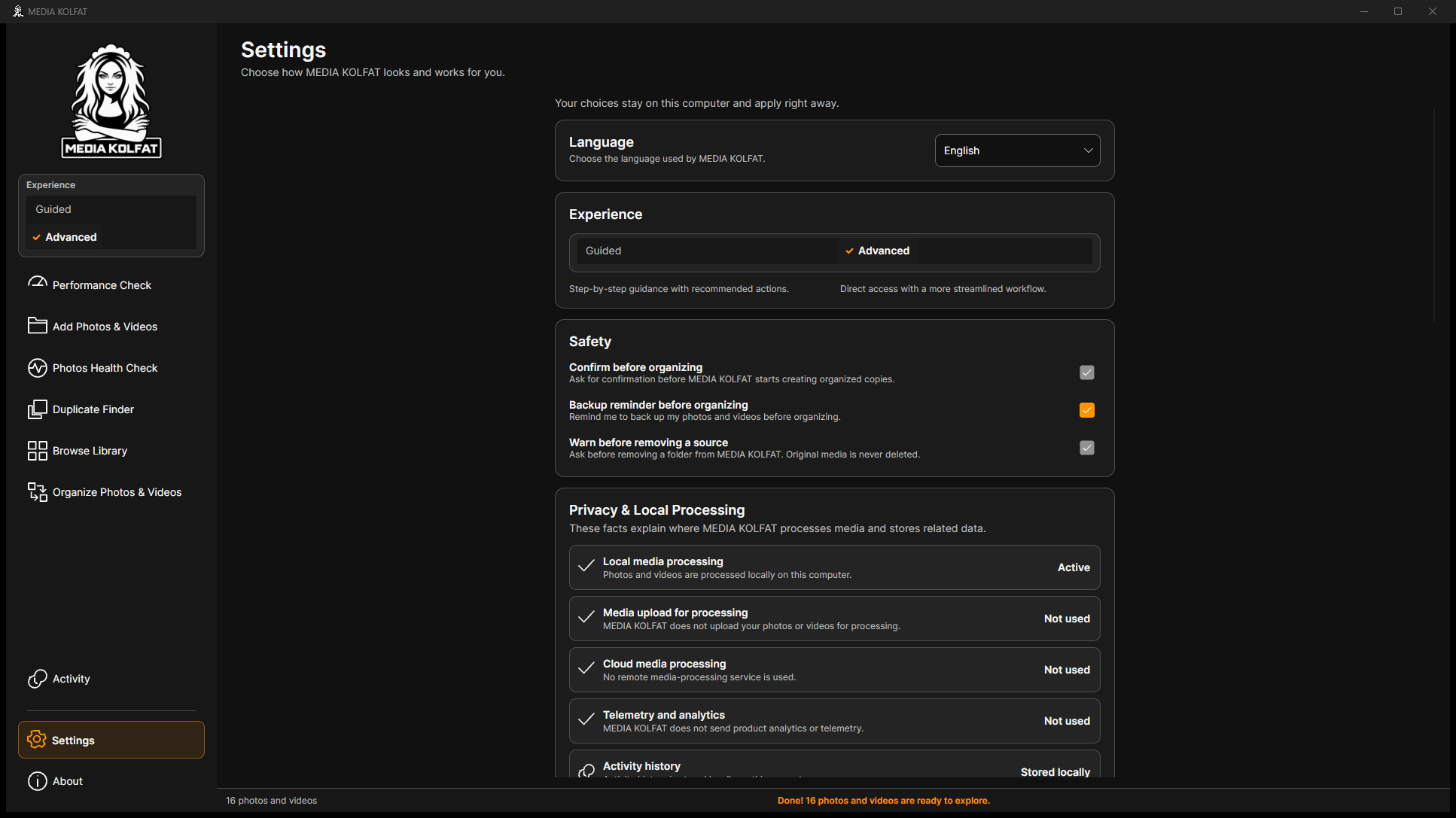
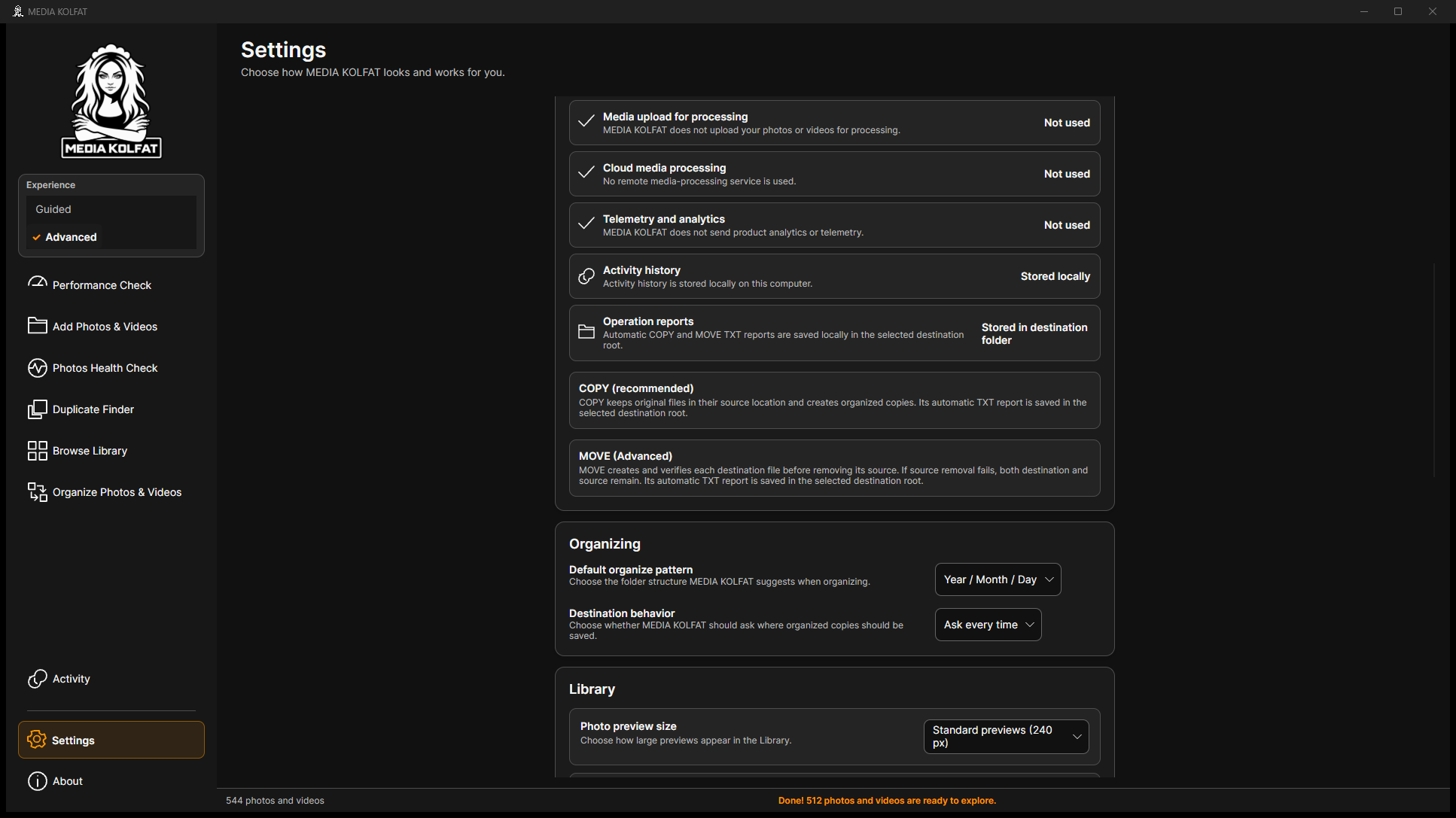
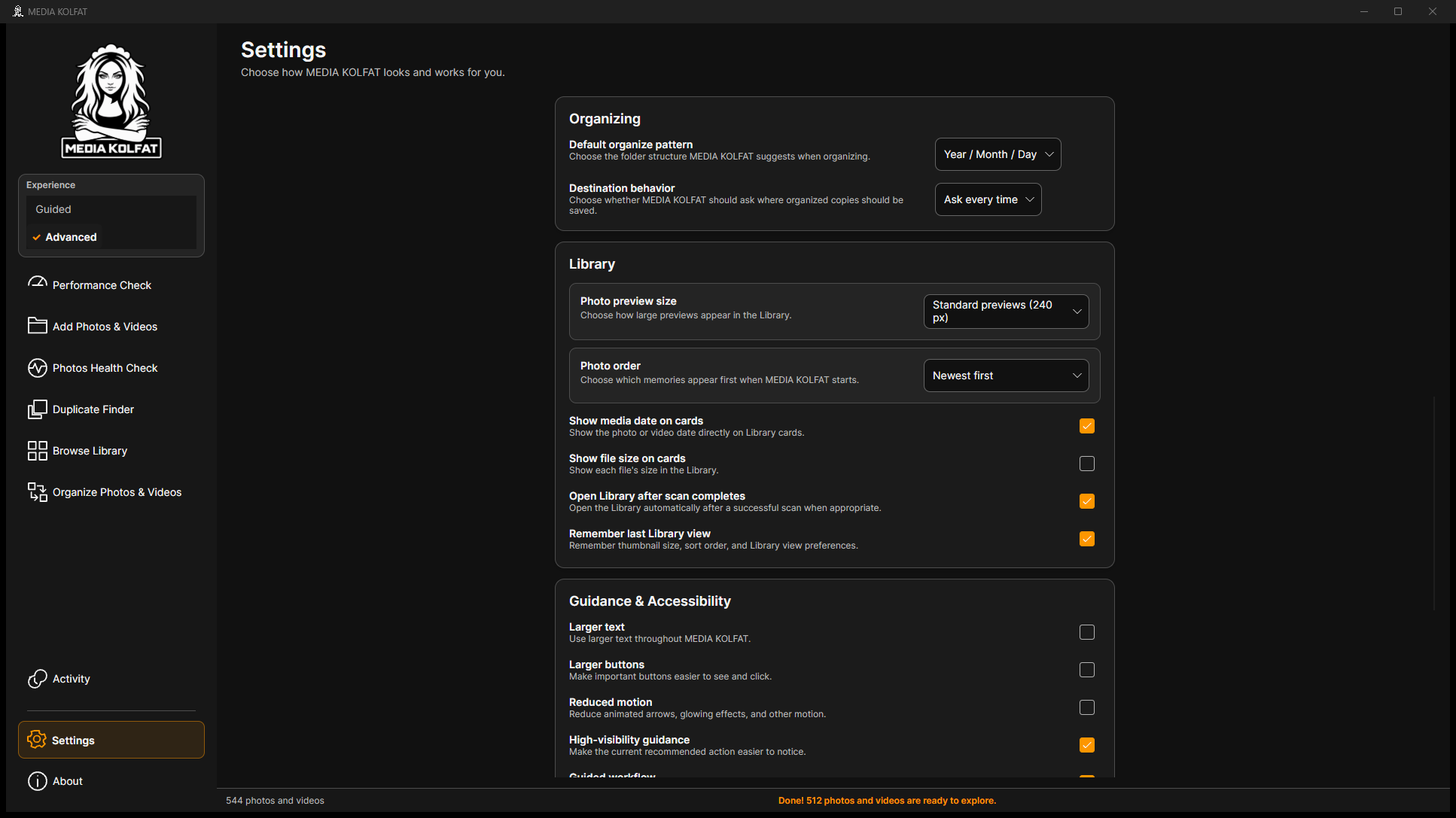
Settings apply locally. Review Language, Experience, Safety, Privacy & Local Processing, Organizing, Library, Guidance & Accessibility, Maintenance and Media dates. Read the consequence of a maintenance action before confirming it.
Step 1. Open Settings. Choose a language available in the app, review Guided and Advanced, and read the Safety controls. Confirmation before organizing and the source-removal warning are enforced in the displayed interface.
The real Language, Experience and Safety settings. Open original PNG
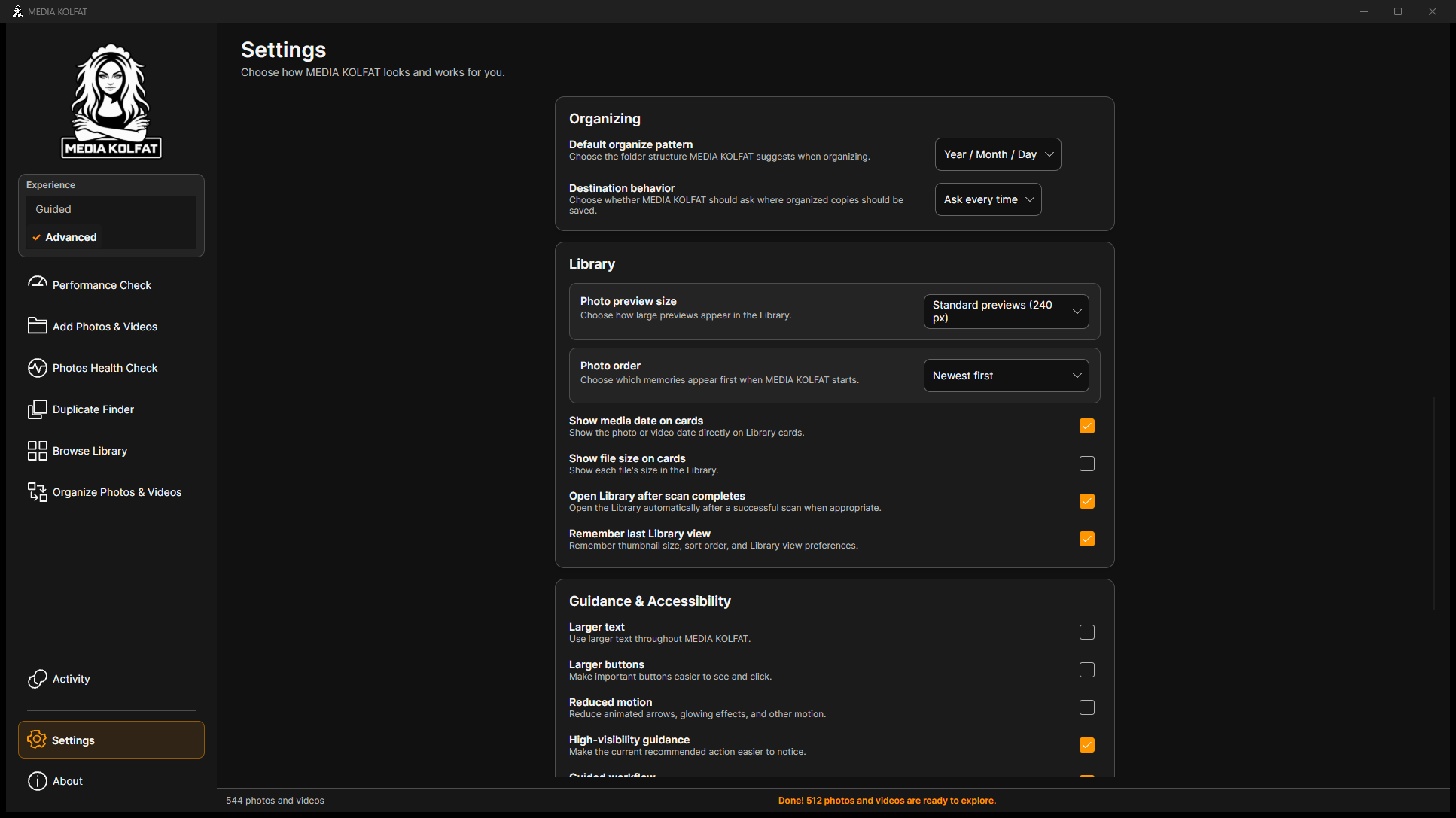
Step 2. Scroll to Organizing and review Default organize pattern and Destination behavior. The displayed behavior is Ask every time. Review the local-processing and report-storage information above it.
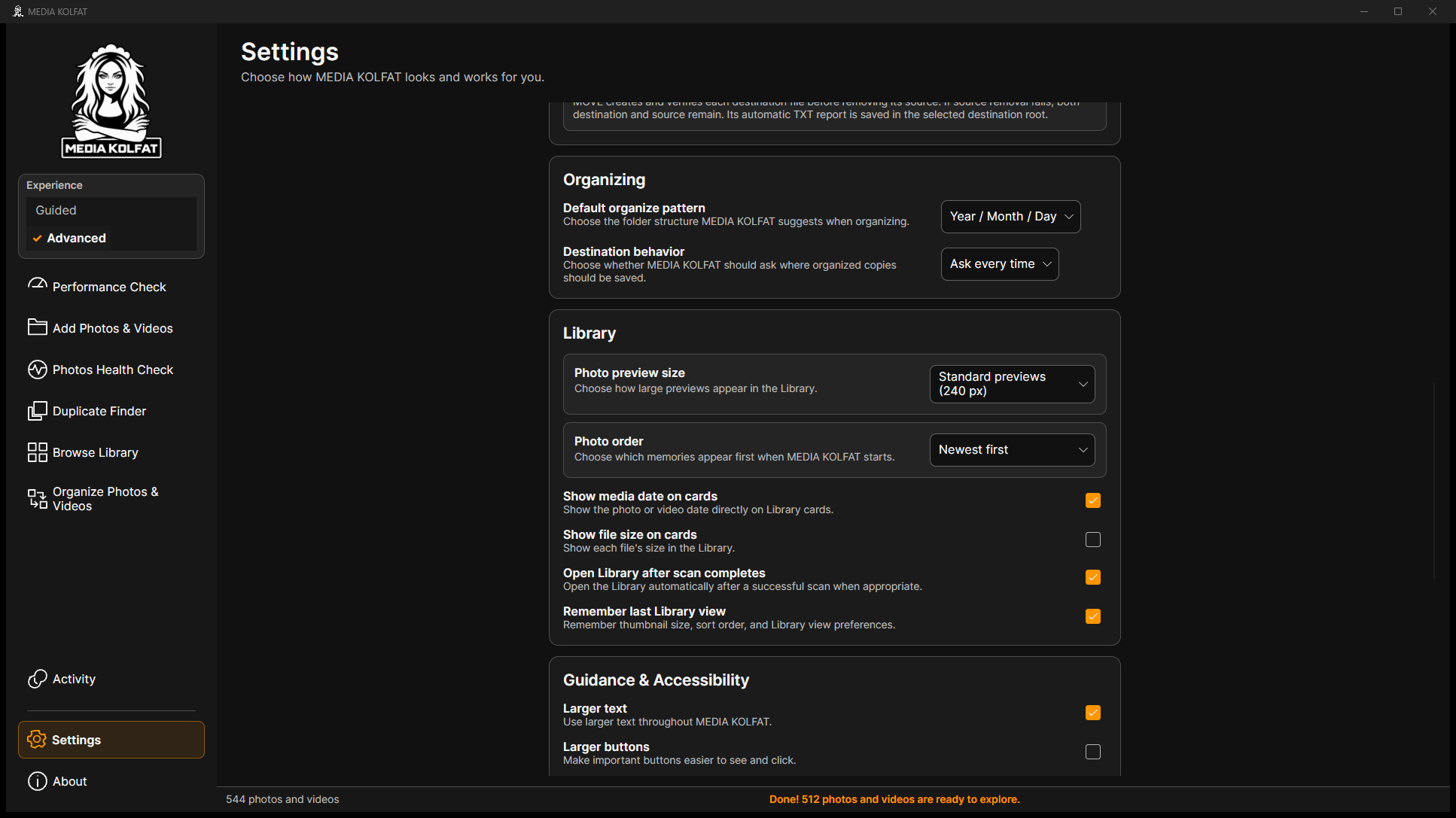
Step 3. Review Library preferences for preview size, photo order, date and file-size labels, automatic Library opening after scan, and remembering the last Library view.
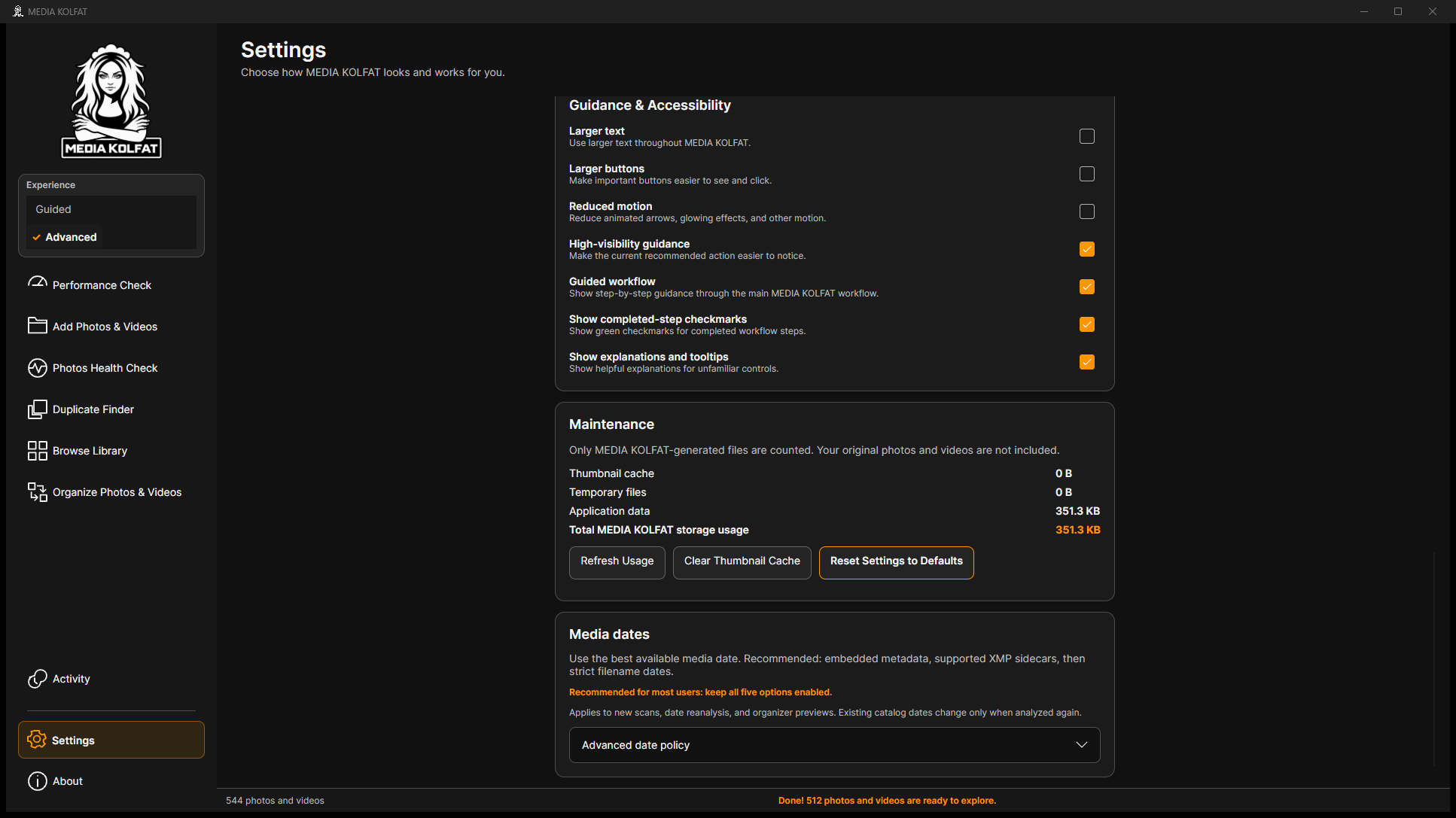
Step 5. Clear Larger text to restore standard text in this demonstration. Larger buttons, Reduced motion and guidance options can be chosen to suit the user.
Step 6. Scroll to Maintenance and review the storage totals. Only app-generated files are counted. Refresh Usage updates the totals; Clear Thumbnail Cache concerns generated previews and was not needed for this example.
Step 7. Expand Advanced date policy. Read the explanation for each enabled evidence source and the low-confidence warning for filesystem last-modified dates. Changes apply to new scans, reanalysis and organizer previews.
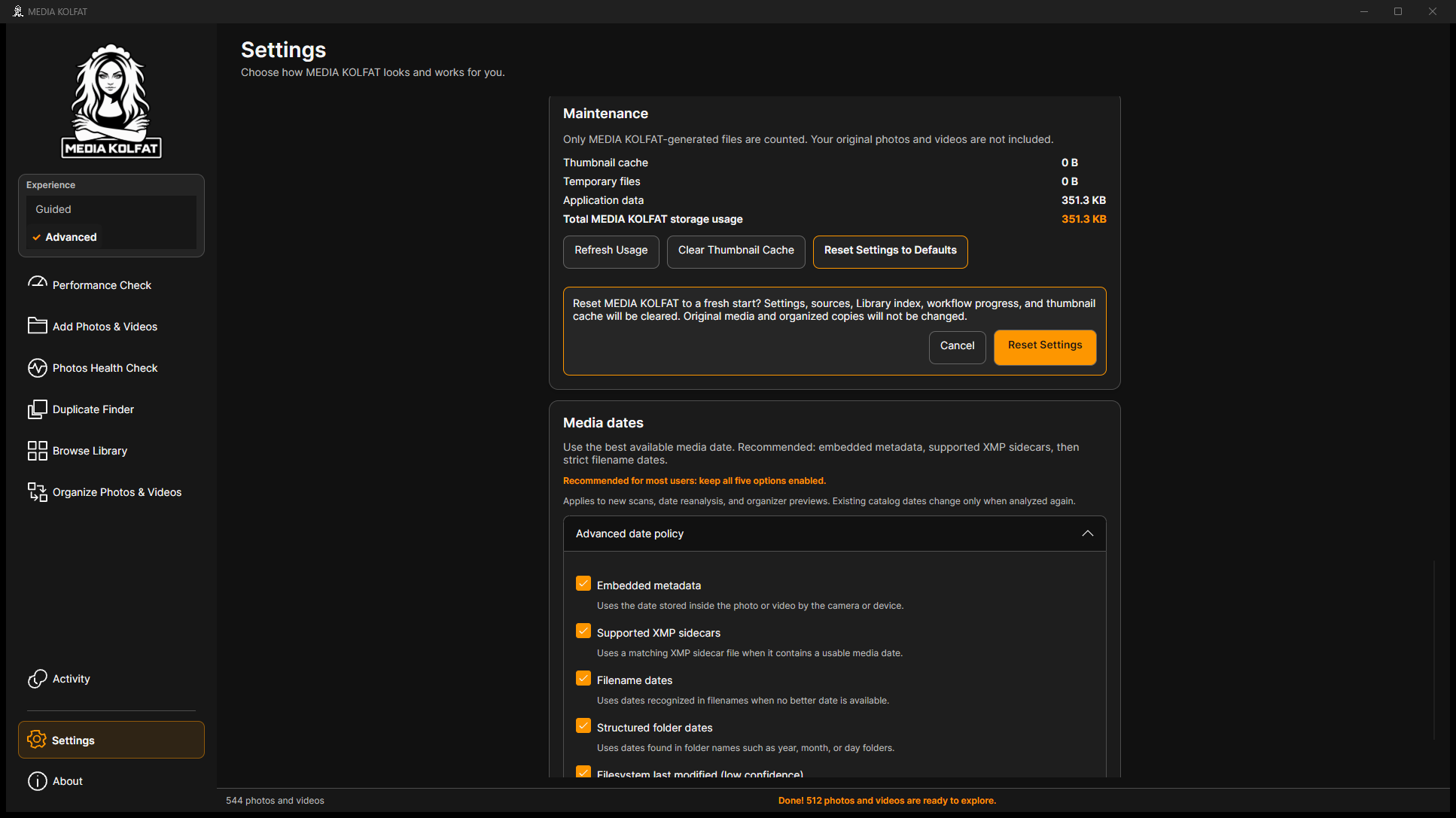
Step 8. Choose Reset Settings to Defaults only to review its confirmation. The warning says settings, sources, Library index, workflow progress and thumbnail cache will be cleared. Original media and organized copies will not be changed.
Step 9. Choose Cancel to preserve the existing demonstration catalog. No reset was performed on the real user profile or the isolated demonstration profile.
A fresh start is broader than changing a visual preference. Keep reports and any information you need before deciding to clear the local catalog.
Date evidence is not automatically rewritten for existing records merely by viewing Settings. Use the explicit analysis workflow when you intend to update catalog dates.
You can adjust local preferences and understand maintenance and reset consequences without accidentally clearing your catalog.
Read the current page message before repeating an action. Verify the selected source, filters, pattern and destination. The following images show genuine safely reproduced conditions in the disposable environment.
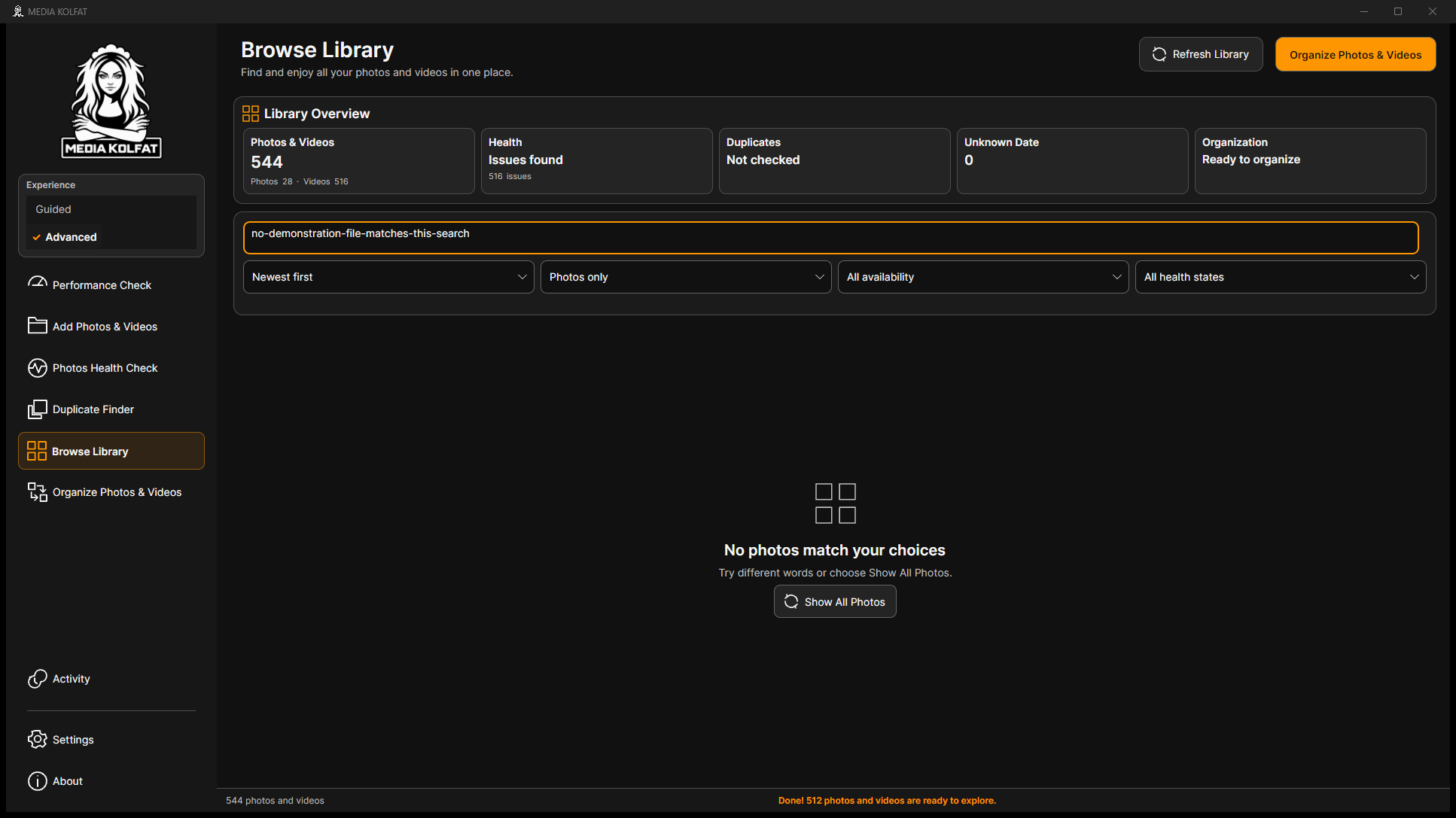
Step 1. If the Library says No photos match your choices, check Search media first. A filename fragment that matches no file can hide every result even when the catalog contains media.
Step 2. Replace the search with a known filename fragment, such as garden in this demonstration. Confirm the results return before changing unrelated settings.
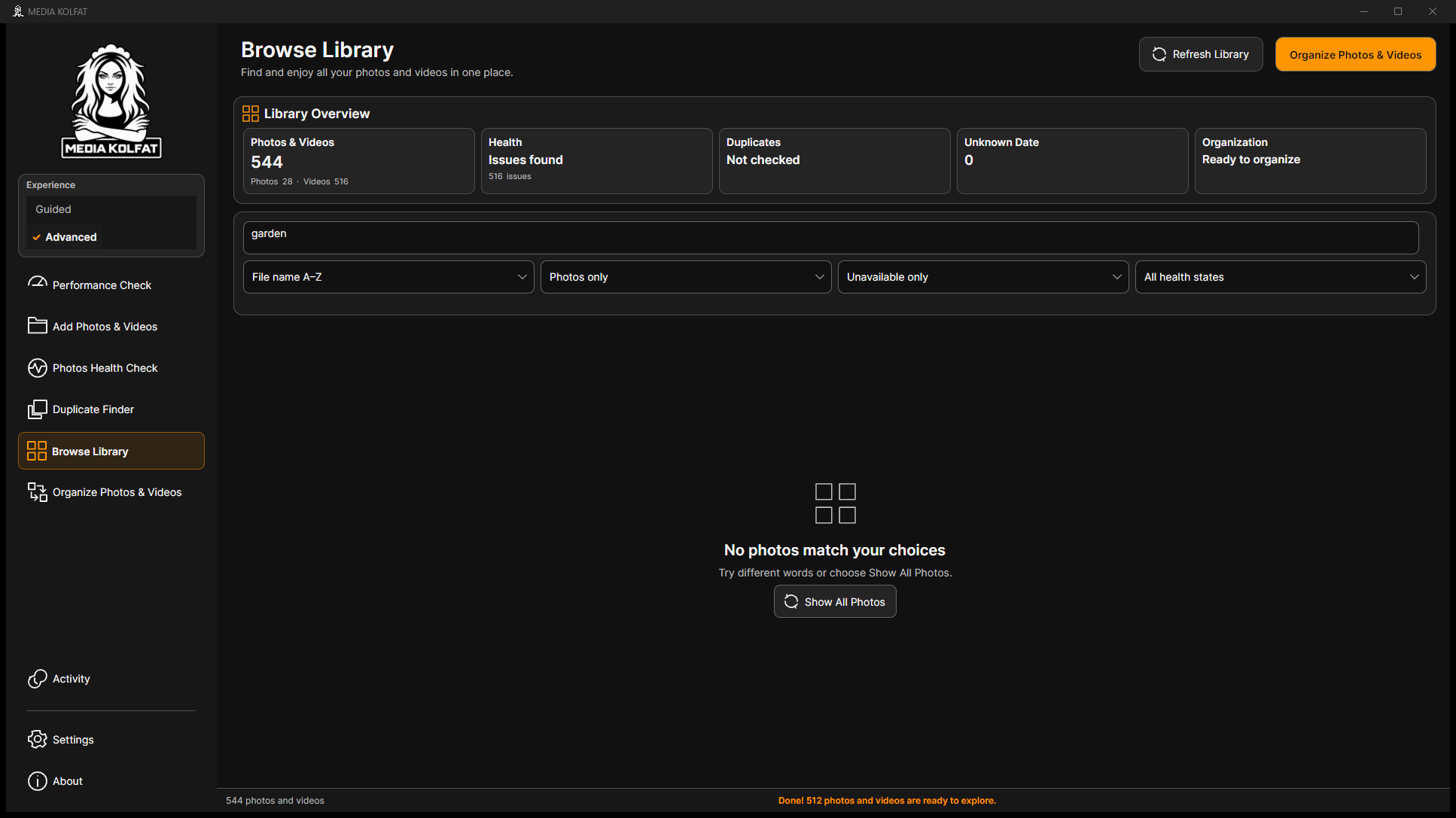
Step 3. Check the availability filter. Unavailable only returns no results when the matching originals are available. A restrictive filter is not proof that the files are missing.
Step 4. Choose Show All Photos on the empty-result screen to recover the broader gallery. Review the resulting search and filter settings.
The app's recovery action restores Library results. Open original PNG
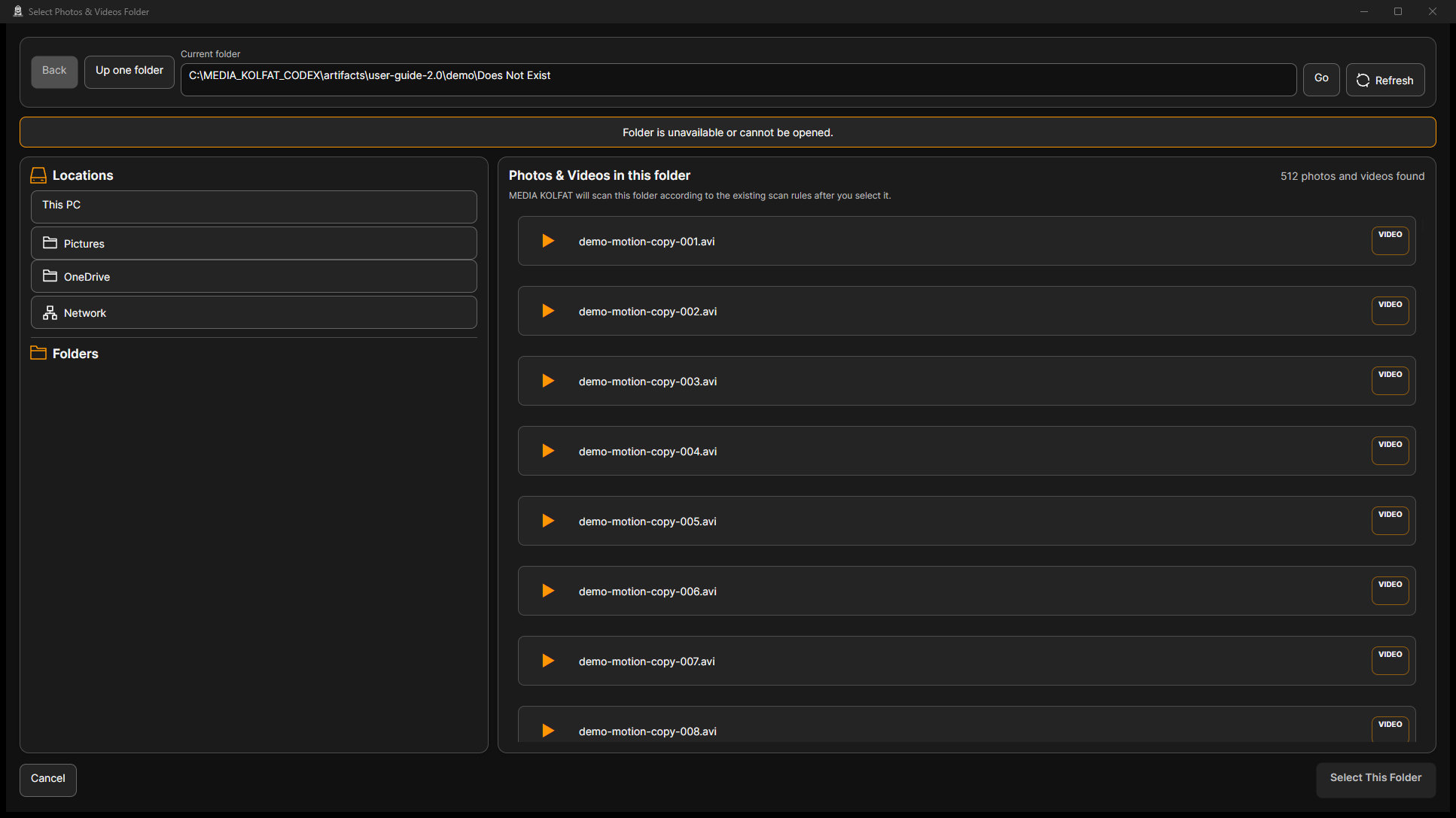
Step 5. If the folder picker says Folder is unavailable or cannot be opened, check Current folder for a spelling error, a disconnected drive or an inaccessible location. The demonstration uses a nonexistent path and Select This Folder is disabled.
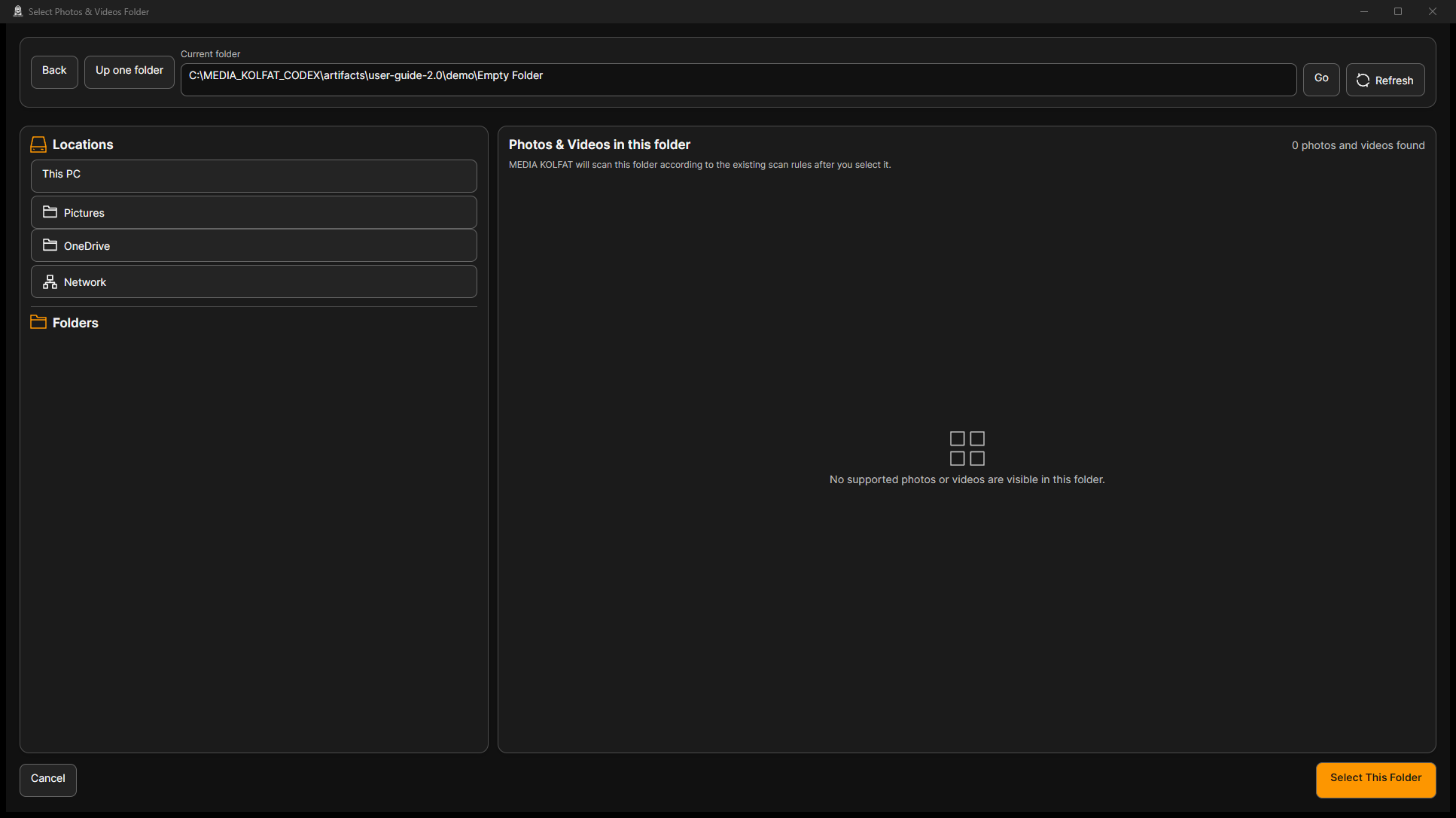
Step 6. Navigate to the correct existing folder and choose Go. An empty folder displays zero supported photos or videos. Choose a known media folder or cancel selection.
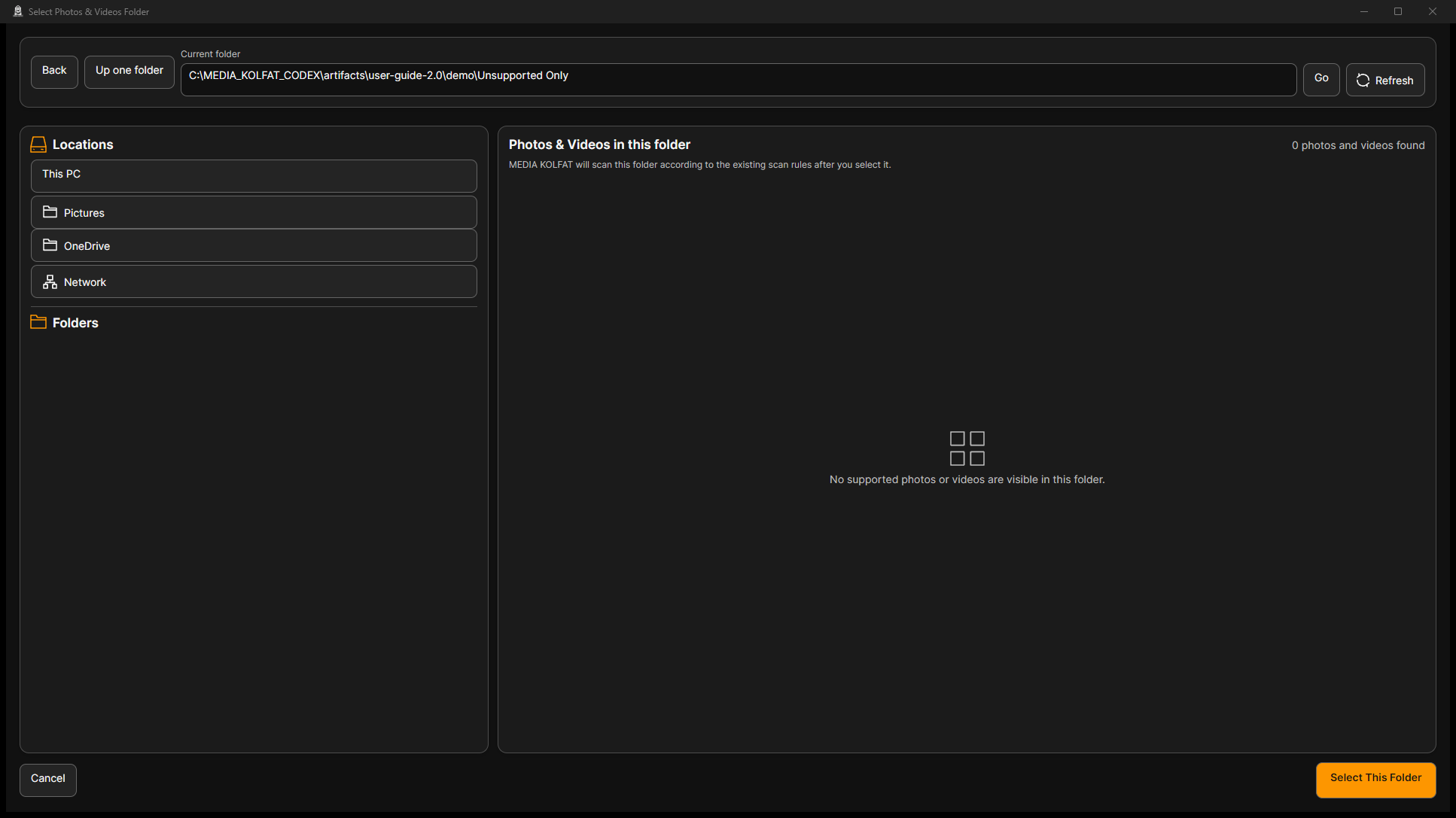
Step 7. A folder containing only unsupported files can also show zero media. The text-only demonstration is not treated as a photo or video collection. Optional Other Files are selected separately during organization.
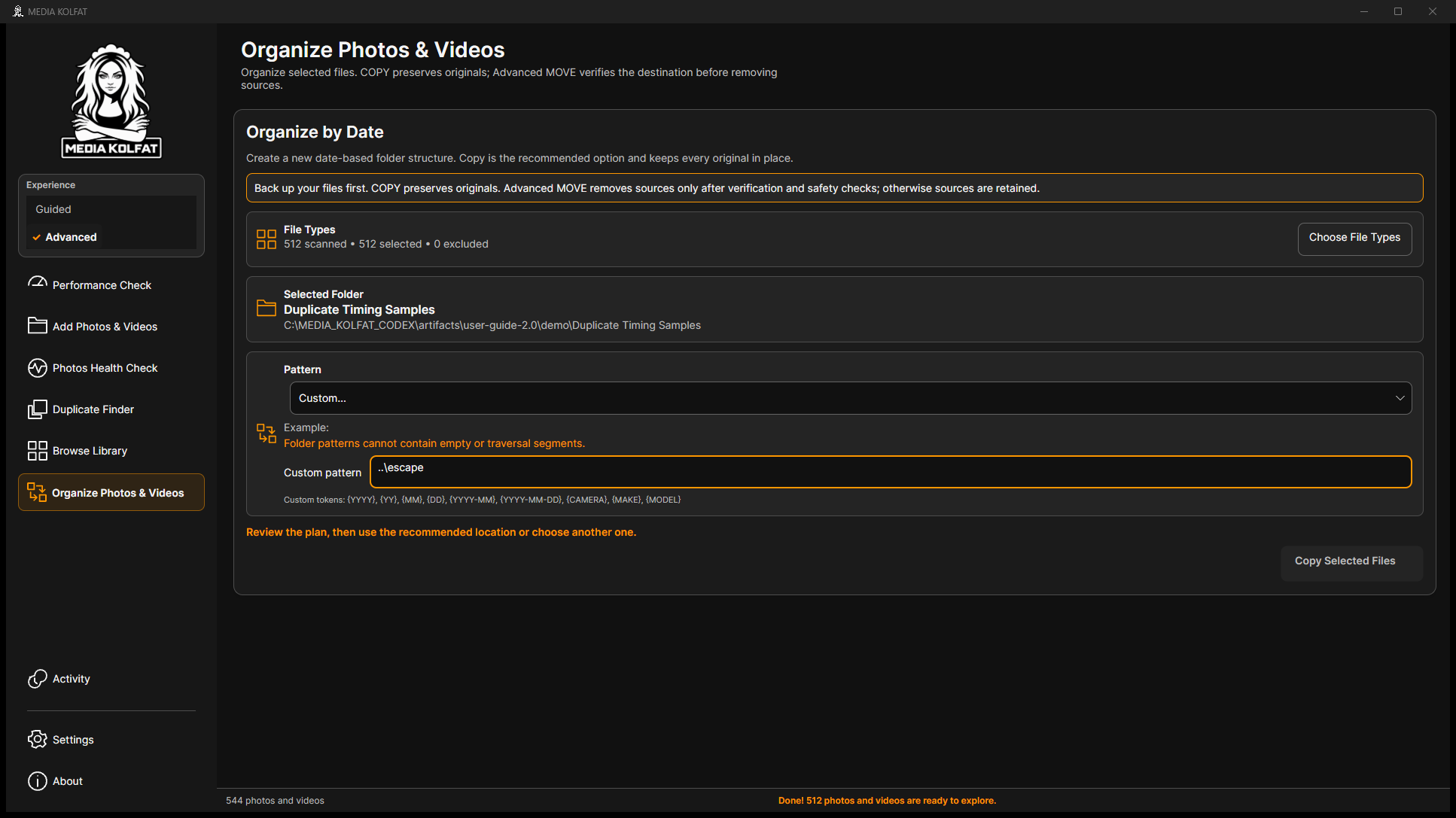
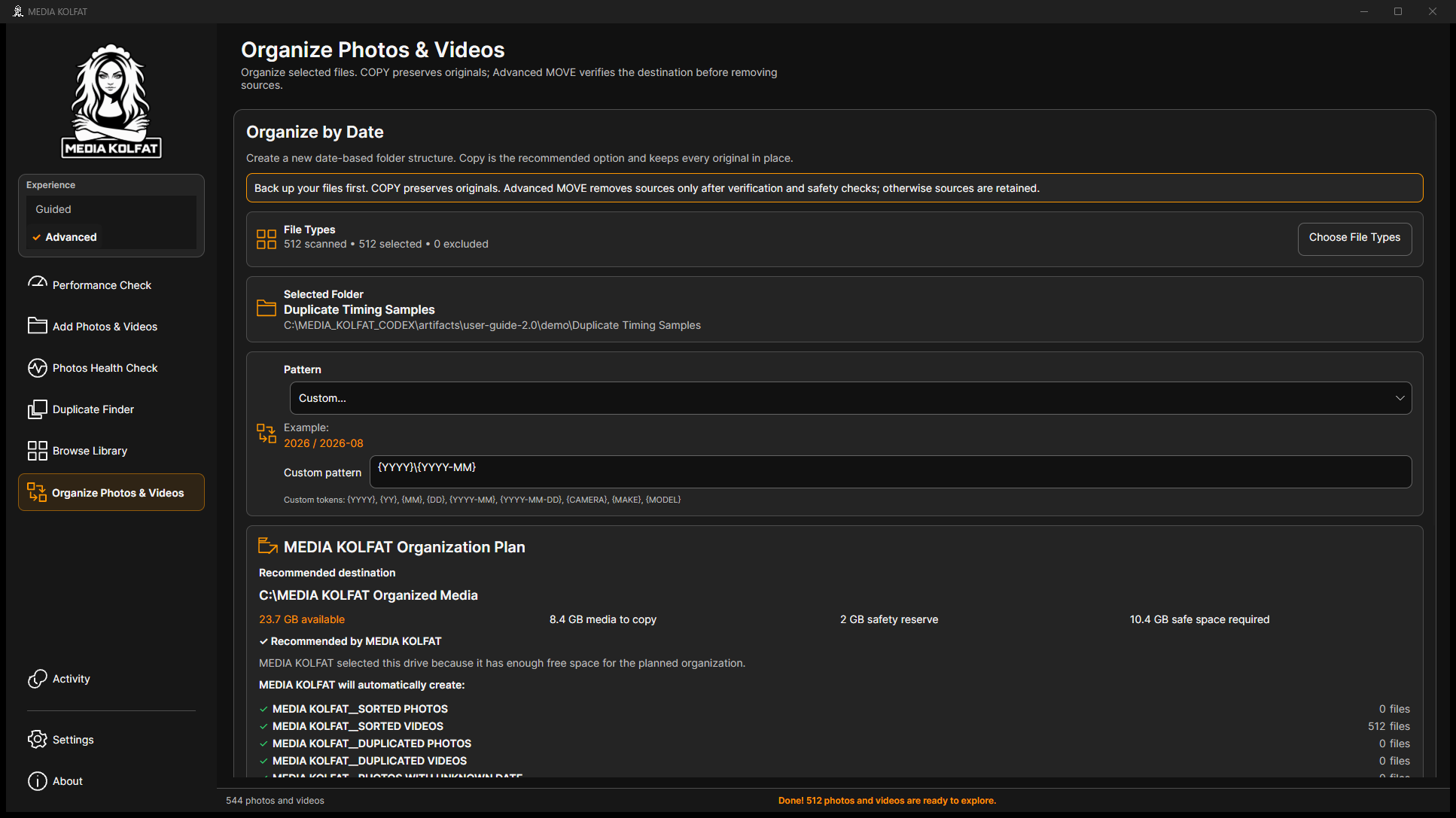
Step 8. For Custom patterns, use the listed tokens and relative folder segments. The demonstrated parent-traversal pattern is rejected with Folder patterns cannot contain empty or traversal segments; copying remains unavailable.
Step 9. Correct the custom value to a valid token pattern, such as {YYYY}\{YYYY-MM}. In the tested build, reopen and close the Pattern list to reconfirm it and restore the plan.
The corrected custom pattern produces a plan again. Open original PNG
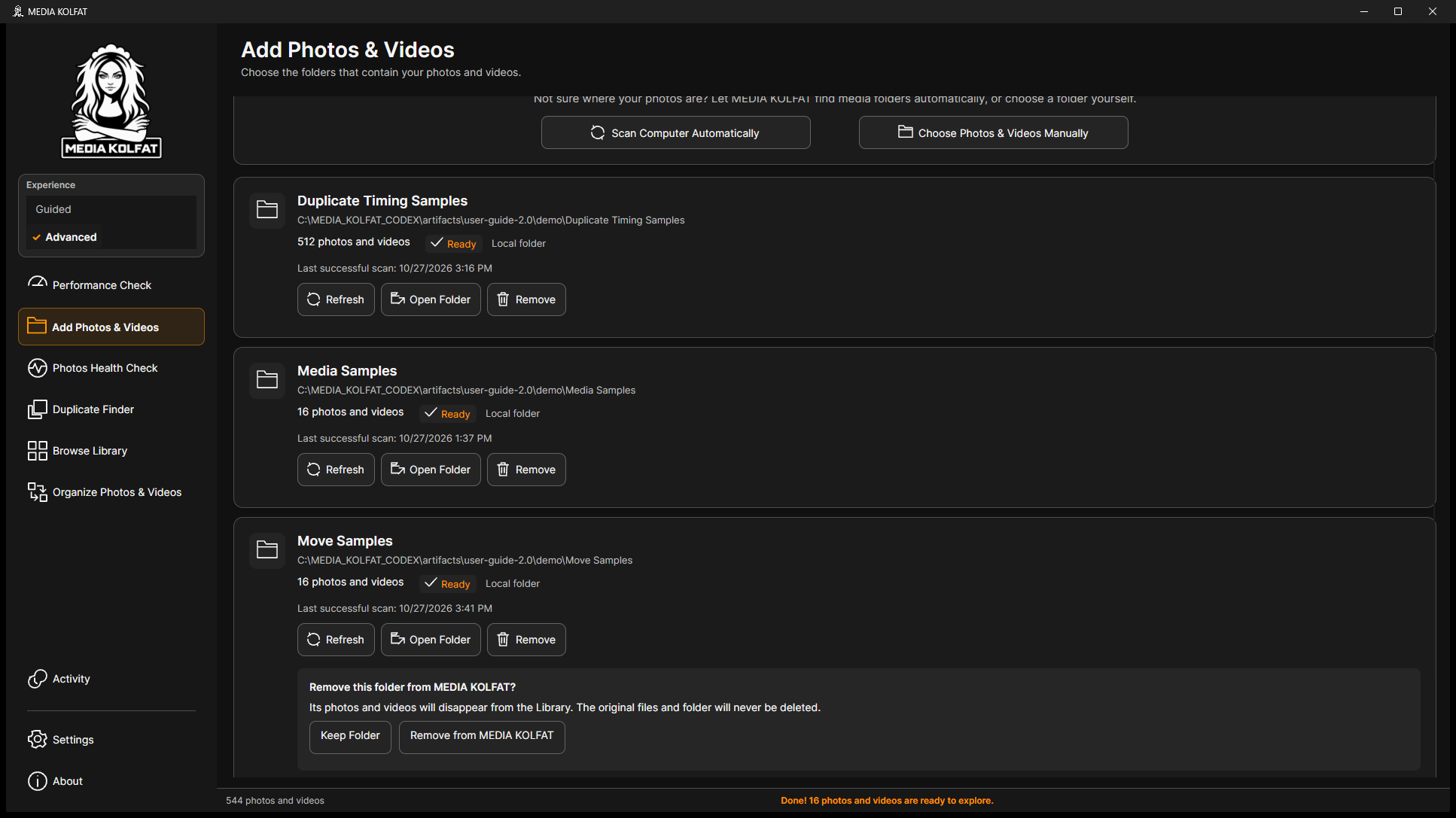
Step 10. Read the Remove Folder confirmation before accepting. It removes the folder's records from MEDIA KOLFAT and makes them disappear from the Library; it does not delete original files or the source folder.
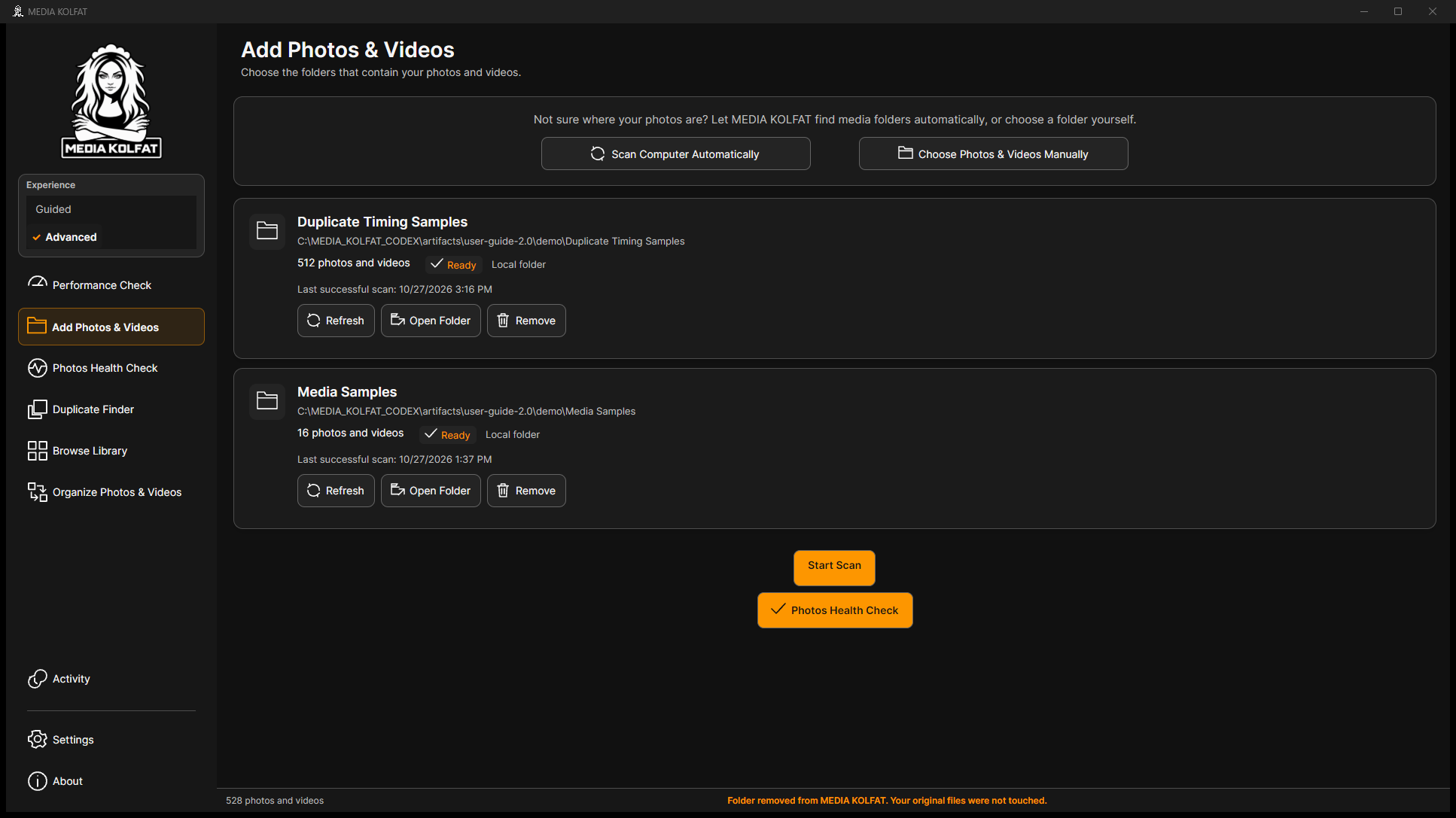
Step 11. For the disposable demonstration only, confirm Remove from MEDIA KOLFAT, then verify the original files remain. Re-adding the intended source through manual selection restores its registration; scan it again before organizing.
The real catalog-only removal completed with originals retained. Open original PNG
If no file type is selected, Continue stays unavailable. Return to Choose File Types and select the supported types you actually want.
After a folder-path error, the previous preview list can remain visible. Read the error and disabled Select This Folder control; do not treat those old previews as contents of the unavailable path.
For destination or free-space problems, review the exact selected path, keep the destination connected, choose another writable folder and leave the safety reserve shown by the plan. Do not repeatedly retry against an unexpected location.
If work is interrupted, review Activity, the TXT report and completed outputs before retrying. A report with warnings or cancellation requires attention even if some copies exist.
Source removal was demonstrated only in the isolated catalog. All 17 disposable source files were verified unchanged after the catalog-only removal and were then re-added for the MOVE example.
You can distinguish empty results from missing originals, correct safe validation errors, and preserve evidence while recovering.